
Datasheet
Specifications
Design
Range of product
Range
Product brand
Physical
Reach free of svhc
Toxic heavy metal free
Mercury free
Rohs exemption information
Environmental disclosure
Reach regulation
China rohs regulation
Eu rohs directive
Others
Average percentage of recycled plastic content
Package 1 bare product quantity
Legacy weee scope
Warranty duration(in months) bmecat
Weee label
Weee applicability
Unit type of package 1
Number of units in package 1
Package 1 height
Package 1 width
Package 1 length
Package 1 weight
Unit type of package 2
Number of units in package 2
Package 2 height
Package 2 width
Package 2 length
Package 2 weight
Unit type of package 3
Number of units in package 3
Package 3 height
Package 3 width
Package 3 length
Package 3 weight
Green premium status for reporting
Total lifecycle carbon footprint
Carbon footprint of the manufacturing phase [a1 to a3]
Carbon footprint of the manufacturing phase [a1 to a3]
Carbon footprint of the distribution phase [a4]
Carbon footprint of the distribution phase [a4]
Carbon footprint of the installation phase [a5]
Carbon footprint of the installation phase [a5]
Carbon footprint of the use phase [b2, b3, b4, b6]
Carbon footprint of the use phase [b2, b3, b4, b6]
Sustainable packaging
Carbon footprint of the end-of-life phase [c1 to c4]
Carbon footprint of the end-of-life phase [c1 to c4]
Pvc free
Halogen-free status
Energy efficiency optimized
Take-back
Product contributes to saved and avoided emissions
Removable battery
Total lifecycle carbon footprint
Average percentage of recycled metal content
Packaging made with recycled cardboard
Packaging without single use plastic
China rohs label
Halogen-free status
Pvc free
End of life manual availability
Take-back
Weee label
Warranty (in months)
Documents & downloads
-
All
-
Product Brochures
-
CAD Files and Packs
-
Technical Data Catalogues
-
Environmental Disclosure
-
End of Life Manual
-
Installation Instruction
-
Operating Manuals
-
Quick Start Guide
-
Specification Guide
-
Application Notes
-
Declaration of Conformity
-
Declaration of Conformity (Sustainability)
-
Software - Release
-
Software - Data Library
998-20872742_SpaceLogic C-Bus Commercial Brochure
VERSION
1.0
DATE
16 Jul 2024
REVISION
1.0
C-Bus - Home Control to enhance your lifestyle, 122851
VERSION
1.0
DATE
29 Sep 2023
REVISION
1.0
C-Bus Energy Management & Control System, The ultimate control solution
VERSION
1.0
DATE
29 Sep 2023
REVISION
1.0

Saturn, Pure Glass - Beautifully crafted, 6314
VERSION
1.0
DATE
24 Dec 2018
REVISION
1.0

One touch - blinding levels of control, 14804
VERSION
1.0
DATE
19 Jun 2018
REVISION
1.0

C-Bus Cool levels of control, Ceiling Sweep Fan Control Relay, 22457
VERSION
1.0
DATE
21 Dec 2016
REVISION
1.0


C-Bus C-Gate 3 Linux Release Notes V3.7.0
VERSION
3.0
DATE
05 Mar 2026
REVISION
3.0
C-Bus C-Gate 3 Windows Installer, Release Notes V3.7.0
VERSION
2.0
DATE
05 Mar 2026
REVISION
2.0
C-Bus Home Gate Release Notes V4.15.1
VERSION
1.0
DATE
18 Jan 2024
REVISION
1.0
C-Bus Home Gate Release Notes V4.15.0
VERSION
1.0
DATE
30 Oct 2023
REVISION
1.0
C-Bus C-Gate 2 Linux Package Release Notes V2.11.11
VERSION
1.0
DATE
30 Oct 2023
REVISION
1.0
C-Bus C-Gate 2 Windows Installer Release Notes V2.11.11
VERSION
1.0
DATE
30 Oct 2023
REVISION
1.0

5500CN2 EU RoHS Directive
VERSION
1.0
DATE
01 Jan 1900
REVISION
1.0
5500CN2 EU RoHS Directive
VERSION
1.0
DATE
01 Jan 1900
REVISION
1.0
5500CN2 EU RoHS Directive
VERSION
1.0
DATE
01 Jan 1900
REVISION
1.0
5500CN2 EU RoHS Directive
VERSION
1.0
DATE
01 Jan 1900
REVISION
1.0
5500CN2 REACh Regulation
VERSION
1.0
DATE
01 Jan 1900
REVISION
1.0
5500CN2 REACh Regulation
VERSION
1.0
DATE
01 Jan 1900
REVISION
1.0

SpaceLogic C-Bus Commission and Release Notes V2.14.0
VERSION
1.0
DATE
21 Apr 2026
REVISION
1.0
C-Bus Software Bundle 0426
VERSION
1.0
DATE
17 Apr 2026
REVISION
1.0
C-Bus C-Gate 3 Linux Package and Release Notes V3.7.1
VERSION
1.0
DATE
13 Apr 2026
REVISION
1.0
Schedule Plus Release Notes V5.12.0
VERSION
1.0
DATE
13 Apr 2026
REVISION
1.0
C-Bus C-Gate 3 Windows Installer and Release Notes V3.7.1
VERSION
1.0
DATE
10 Apr 2026
REVISION
1.0
C-Bus Toolkit Software and Release Notes V1.19.4
VERSION
1.0
DATE
10 Apr 2026
REVISION
1.0
C-Bus Toolkit Software and Release Notes V1.18.1
VERSION
1.0
DATE
08 Apr 2026
REVISION
1.0
SpaceLogic, C-Bus Software Bundle 0226
VERSION
1.0
DATE
12 Mar 2026
REVISION
1.0
Schedule Plus Software and Release Notes V5.11.0
VERSION
1.0
DATE
07 Mar 2026
REVISION
1.0
C-Bus C-Gate 3 Linux Package and Release Notes V3.7.0
VERSION
1.0
DATE
07 Mar 2026
REVISION
1.0
C-Bus C-Gate 3 Windows Installer and Release Notes V3.7.0
VERSION
1.0
DATE
07 Mar 2026
REVISION
1.0
C-Bus Toolkit Software and Release Notes V1.19.3
VERSION
1.0
DATE
06 Mar 2026
REVISION
1.0
SpaceLogic C-Bus Commission and Release Notes V2.13.0
VERSION
1.0
DATE
06 Mar 2026
REVISION
1.0
C-Bus Software Bundle 1025
VERSION
1.0
DATE
29 Oct 2025
REVISION
1.0
SpaceLogic C-Bus Commission Release Notes V2.12.0
VERSION
1.0
DATE
29 Oct 2025
REVISION
1.0
C-Bus Toolkit Software and Release Notes V1.19.2
VERSION
1.0
DATE
23 Oct 2025
REVISION
1.0
C-Bus C-Gate 3 Windows Installer and Release Notes V3.6.0
VERSION
1.0
DATE
26 Sep 2025
REVISION
1.0
C-Bus C-Gate 3 Linux Package and Release Notes V3.6.0
VERSION
1.0
DATE
26 Sep 2025
REVISION
1.0
Schedule Plus Software and Release Notes V5.10.0
VERSION
1.0
DATE
25 Sep 2025
REVISION
1.0
SpaceLogic, C-Bus Software Bundle 0625
VERSION
1.0
DATE
05 Jun 2025
REVISION
1.0
C-Bus C-Gate 3 Linux Package and Release Notes V3.5.0
VERSION
1.0
DATE
05 Jun 2025
REVISION
1.0
C-Bus C-Gate 3 Windows Installer and Release Notes V3.5.0
VERSION
1.0
DATE
04 Jun 2025
REVISION
1.0
Schedule Plus Software and Release Notes V5.9.0
VERSION
1.0
DATE
02 Jun 2025
REVISION
1.0
C-Bus Toolkit Software and Release Notes V1.19.0
VERSION
1.0
DATE
02 Jun 2025
REVISION
1.0
SpaceLogic C-Bus Commission and Release Notes V2.10.0
VERSION
1.0
DATE
01 Jun 2025
REVISION
1.0
C-Bus Software Bundle 0425
VERSION
1.0
DATE
09 May 2025
REVISION
1.0
SpaceLogic, C-Bus Software Bundle 0225
VERSION
1.0
DATE
24 Feb 2025
REVISION
1.0
C-Bus C-Gate 3 Linux Package and Release Notes V3.4.1
VERSION
1.0
DATE
21 Feb 2025
REVISION
1.0
SpaceLogic C-Bus Commission and Release Notes V2.9.0
VERSION
1.0
DATE
21 Feb 2025
REVISION
1.0
Schedule Plus Software and Release Notes V5.8.0
VERSION
1.0
DATE
20 Feb 2025
REVISION
1.0
C-Bus C-Gate 3 Windows Installer and Release Notes V3.4.1
VERSION
1.0
DATE
19 Feb 2025
REVISION
1.0
SpaceLogic C-Bus Commissioning Software Bundle 1224
VERSION
1.0
DATE
18 Feb 2025
REVISION
1.0
SpaceLogic C-Bus Commission and Release Notes V2.8.0
VERSION
1.0
DATE
10 Dec 2024
REVISION
1.0
C-Bus C-Gate 3 Linux Package and Release Notes V3.4.0
VERSION
1.0
DATE
06 Dec 2024
REVISION
1.0
SpaceLogic C-Bus Software Package 0924
VERSION
1.0
DATE
11 Sep 2024
REVISION
1.0
Schedule Plus Software and Release Notes V5.6.0
VERSION
1.0
DATE
02 Sep 2024
REVISION
1.0
C-Bus C-Gate 3 Linux Package and Release Notes V3.3.4
VERSION
1.0
DATE
02 Sep 2024
REVISION
1.0
C-Bus C-Gate 3 Windows Installer and Release Notes V3.3.4
VERSION
1.0
DATE
02 Sep 2024
REVISION
1.0
C-Bus Toolkit Software and Release Notes_V1.17.8
VERSION
1.0
DATE
02 Sep 2024
REVISION
1.0
SpaceLogic C-Bus Commission and Release Notes V2.6.0
VERSION
1.0
DATE
01 Sep 2024
REVISION
1.0
Schedule Plus Software and Release Notes V5.5.0
VERSION
1.0
DATE
27 Aug 2024
REVISION
1.0
Multi-Room Audio Rapid Programming Application
VERSION
1.0
DATE
19 Aug 2024
REVISION
1.0
SpaceLogic C-Bus Commission and Release Notes V2.5.0
VERSION
1.0
DATE
15 Jul 2024
REVISION
1.0
C-Bus Toolkit Software and Release Notes_V1.17.7
VERSION
1.0
DATE
15 Jul 2024
REVISION
1.0
C-Bus C-Gate 3 Linux Package and Release Notes V3.3.3
VERSION
1.0
DATE
15 Jul 2024
REVISION
1.0
C-Bus C-Gate 3 Windows Installer and Release Notes V3.3.3
VERSION
1.0
DATE
15 Jul 2024
REVISION
1.0
Schedule Plus Software and Release Notes V5.4.0
VERSION
1.0
DATE
04 Jun 2024
REVISION
1.0
C-Bus Toolkit Software and Release Notes_V1.17.6
VERSION
1.0
DATE
04 Jun 2024
REVISION
1.0
C-Bus C-Gate 3 Linux Package and Release Notes V3.3.2
VERSION
1.0
DATE
04 Jun 2024
REVISION
1.0
C-Bus C-Gate 3 Windows Installer and Release Notes V3.3.2
VERSION
1.0
DATE
04 Jun 2024
REVISION
1.0
SpaceLogic C-Bus Commission and Release Notes V2.4.0
VERSION
1.0
DATE
04 Jun 2024
REVISION
1.0
C-Bus Toolkit Software and Release Notes_V1.17.4
VERSION
1.0
DATE
05 May 2024
REVISION
1.0
SpaceLogic C-Bus Commission and Release Notes V2.3.0
VERSION
1.0
DATE
02 May 2024
REVISION
1.0
C-Bus Toolkit Software and Release Notes_V1.17.5
VERSION
1.0
DATE
02 May 2024
REVISION
1.0
C-Bus C-Gate 3 Linux Package and Release Notes V3.3.1
VERSION
1.0
DATE
02 May 2024
REVISION
1.0
C-Bus C-Gate 3 Linux Package and Release Notes V3.3.0
VERSION
1.0
DATE
15 Apr 2024
REVISION
1.0
C-Bus C-Gate 3 Windows Installer and Release Notes V3.3.0
VERSION
1.0
DATE
03 Apr 2024
REVISION
1.0
SpaceLogic C-Bus Commission and Release Notes V2.2.0
VERSION
1.0
DATE
02 Apr 2024
REVISION
1.0
C-Bus C-Gate 3 Linux Package and Release Notes V3.2.3
VERSION
1.0
DATE
06 Mar 2024
REVISION
1.0
HomeGate and Release Notes
VERSION
1.0
DATE
06 Feb 2024
REVISION
1.0
C-Bus C-Gate 3 Windows Installer and Release Notes V3.2.3
VERSION
1.0
DATE
19 Jan 2024
REVISION
1.0
HomeGate V4.15.1 and release notes
VERSION
1.0
DATE
18 Jan 2024
REVISION
1.0
C-Bus Toolkit Software and Release Notes_V1.17.2
VERSION
1.0
DATE
18 Jan 2024
REVISION
1.0
SpaceLogic, C-Bus Commission and Release Notes V2.1.2
VERSION
1.0
DATE
18 Jan 2024
REVISION
1.0
C-Bus C-Gate 3 Linux Package and Release Notes V3.2.2
VERSION
1.0
DATE
12 Dec 2023
REVISION
1.0
C-Bus C-Gate 3 Windows Installer and Release Notes V3.2.2
VERSION
1.0
DATE
11 Dec 2023
REVISION
1.0
C-Bus Toolkit Software and Release Notes_V1.17.1
VERSION
1.0
DATE
11 Dec 2023
REVISION
1.0
SpaceLogic, C-Bus Commission and Release Notes V2.1.0
VERSION
1.0
DATE
11 Dec 2023
REVISION
1.0
C-Bus C-Gate 2 Windows Installer and Release Notes V2.11.11
VERSION
1.0
DATE
10 Dec 2023
REVISION
1.0
C-Bus C-Gate 2 Linux Package and Release Notes V2.11.11
VERSION
1.0
DATE
30 Oct 2023
REVISION
1.0
C-Bus C-Gate 3 Linux Package and Release Notes V3.2.0
VERSION
1.0
DATE
30 Oct 2023
REVISION
1.0
C-Bus C-Gate 3 Windows Installer and Release Notes V3.2.0
VERSION
1.0
DATE
30 Oct 2023
REVISION
1.0
SpaceLogic, C-Bus Commission and Release Notes V2.0.0
VERSION
1.0
DATE
30 Oct 2023
REVISION
1.0
HomeGate 4.15.0 and release notes
VERSION
1.0
DATE
30 Oct 2023
REVISION
1.0
C-Bus Toolkit Software and Release Notes V1.17.0
VERSION
1.0
DATE
30 Oct 2023
REVISION
1.0
HomeGate and Release Notes
VERSION
1.0
DATE
29 Sep 2023
REVISION
1.0
C-Bus Toolkit Software and Release Notes - V1.15.10
VERSION
1.0
DATE
29 Sep 2023
REVISION
1.0
C-Bus OPC Server and Release Notes
VERSION
1.0
DATE
29 Sep 2023
REVISION
1.0
C-Gate and Release Notes - V2.11.6
VERSION
1.0
DATE
29 Sep 2023
REVISION
1.0
C-Gate and Release Notes V2.11.8
VERSION
1.0
DATE
29 Sep 2023
REVISION
1.0
C-Bus Toolkit Software and Release Notes
VERSION
1.0
DATE
29 Sep 2023
REVISION
1.0
C-Bus Toolkit Software and Release Notes
VERSION
1.0
DATE
29 Sep 2023
REVISION
1.0
C-Bus Toolkit Software and Release Notes - V1.15.8
VERSION
1.1
DATE
29 Sep 2023
REVISION
1.1
C-Bus Toolkit Software and Release Notes
VERSION
1.0
DATE
29 Sep 2023
REVISION
1.0
Schedule Plus and Release Notes
VERSION
1.0
DATE
29 Sep 2023
REVISION
1.0
Schedule Plus and Release Notes
VERSION
1.0
DATE
29 Sep 2023
REVISION
1.0
C-Bus Toolkit Software and Release Notes_V1.16.4
VERSION
1.0
DATE
08 Sep 2023
REVISION
1.0
Schedule Plus 5.0.2.136 Release Notes
VERSION
1.0
DATE
21 Jul 2023
REVISION
1.0
Schedule Plus 5.0.2.139 Release Notes
VERSION
1.0
DATE
21 Jul 2023
REVISION
1.0
Schedule Plus 5.0.2.143 Release Notes
VERSION
1.0
DATE
21 Jul 2023
REVISION
1.0
Wiser Windows Media Center Plug-in 32-Bit
VERSION
1.0
DATE
21 Jul 2023
REVISION
1.0
Wiser Windows Media Center Plug-in 64-Bit
VERSION
1.0
DATE
21 Jul 2023
REVISION
1.0
Wiser Windows Media Center Plug-in 64-Bit
VERSION
1.0
DATE
21 Jul 2023
REVISION
1.0
Telephone Interface Commissioning Application V3.2.0
VERSION
1.0
DATE
21 Jul 2023
REVISION
1.0
Telephone Interface Commissioning Application V3.1.1
VERSION
1.0
DATE
21 Jul 2023
REVISION
1.0
Telephone Interface Commissioning Application V3.1.0
VERSION
1.0
DATE
21 Jul 2023
REVISION
1.0
Telephone Interface Commissioning Application V3.0.0
VERSION
1.0
DATE
21 Jul 2023
REVISION
1.0
Telephone Interface Commissioning Application V2.4.0
VERSION
1.0
DATE
21 Jul 2023
REVISION
1.0
Telephone Interface Commissioning Application V2.2.0
VERSION
1.0
DATE
21 Jul 2023
REVISION
1.0
Telephone Interface Commissioning Application V2.1.0
VERSION
1.0
DATE
21 Jul 2023
REVISION
1.0
Telephone Interface Commissioning Application V2.0.3
VERSION
1.0
DATE
21 Jul 2023
REVISION
1.0
Telephone Interface Commissioning Application V1.17.0_Malay
VERSION
1.0
DATE
21 Jul 2023
REVISION
1.0
Telephone Interface Commissioning Application V1.17.0_CanMan
VERSION
1.0
DATE
21 Jul 2023
REVISION
1.0
SunJavaSDK-V1.5.0.14
VERSION
1.0
DATE
21 Jul 2023
REVISION
1.0
Server X-V1.0.1A
VERSION
1.0
DATE
21 Jul 2023
REVISION
1.0
Schedule Plus 4_9_2 Release Notes
VERSION
1.0
DATE
21 Jul 2023
REVISION
1.0
Schedule Plus 4_11_0_0 Release Notes
VERSION
1.0
DATE
21 Jul 2023
REVISION
1.0
Schedule Plus 4_11_1_0 Release Notes
VERSION
1.0
DATE
21 Jul 2023
REVISION
1.0
Schedule Plus 4_9_0 Release Notes
VERSION
1.0
DATE
21 Jul 2023
REVISION
1.0
Schedule Plus 4_12_0_0 Release Notes
VERSION
1.0
DATE
21 Jul 2023
REVISION
1.0
Schedule Plus 4_12_1_0 Release Notes
VERSION
1.0
DATE
21 Jul 2023
REVISION
1.0
Schedule Plus 4_8_3 Release Notes
VERSION
1.0
DATE
21 Jul 2023
REVISION
1.0
Schedule Plus 4_8_2 Release Notes
VERSION
1.0
DATE
21 Jul 2023
REVISION
1.0
Schedule Plus 4_8_0 Release Notes
VERSION
1.0
DATE
21 Jul 2023
REVISION
1.0
Schedule Plus 4_7_2 Release Notes
VERSION
1.0
DATE
21 Jul 2023
REVISION
1.0
Schedule Plus 4_7_1 Release Notes
VERSION
1.0
DATE
21 Jul 2023
REVISION
1.0
Schedule Plus 4_7_0 Release Notes
VERSION
1.0
DATE
21 Jul 2023
REVISION
1.0
Schedule Plus 4_6_1 Release Notes
VERSION
1.0
DATE
21 Jul 2023
REVISION
1.0
Schedule Plus 4_6_0 Release Notes
VERSION
1.0
DATE
21 Jul 2023
REVISION
1.0
Schedule Plus 4_5_0 Release Notes
VERSION
1.0
DATE
21 Jul 2023
REVISION
1.0
Schedule Plus 4_4_0 Release Notes
VERSION
1.0
DATE
21 Jul 2023
REVISION
1.0
Schedule Plus 4_3_0 Release Notes
VERSION
1.0
DATE
21 Jul 2023
REVISION
1.0
Schedule Plus 4_10_0_0 Release Notes
VERSION
1.0
DATE
21 Jul 2023
REVISION
1.0
Schedule Plus 4_1_0 Release Notes
VERSION
1.0
DATE
21 Jul 2023
REVISION
1.0
Schedule Plus 4_0_0 Release Notes
VERSION
1.0
DATE
21 Jul 2023
REVISION
1.0
Schedule Plus 3_9_0 Release Notes
VERSION
1.0
DATE
21 Jul 2023
REVISION
1.0
Schedule Plus 3_7_0 Release Notes
VERSION
1.0
DATE
21 Jul 2023
REVISION
1.0
Schedule Plus 3_6_0 Release Notes
VERSION
1.0
DATE
21 Jul 2023
REVISION
1.0
Schedule Plus 3_4_1 Release Notes
VERSION
1.0
DATE
21 Jul 2023
REVISION
1.0
Schedule Plus 3_3_0 Release Notes
VERSION
1.0
DATE
21 Jul 2023
REVISION
1.0
Schedule Plus 3_2_0 Release Notes
VERSION
1.0
DATE
21 Jul 2023
REVISION
1.0
Schedule Plus 2_6_0 Release Notes
VERSION
1.0
DATE
21 Jul 2023
REVISION
1.0
MSXML-3 Microsoft XML Parser Runtime
VERSION
1.0
DATE
21 Jul 2023
REVISION
1.0
Media Player Control Plugin-V4.0.0
VERSION
1.0
DATE
21 Jul 2023
REVISION
1.0
Multi-Room Audio Rapid Programming Application
VERSION
1.0
DATE
21 Jul 2023
REVISION
1.0
Multi-Room Audio Rapid Programming Application
VERSION
1.0
DATE
21 Jul 2023
REVISION
1.0
Multi-Room Audio Rapid Programming Application
VERSION
1.0
DATE
21 Jul 2023
REVISION
1.0
Multi-Room Audio Rapid Programming Application
VERSION
1.0
DATE
21 Jul 2023
REVISION
1.0
Multi-Room Audio Rapid Programming Application
VERSION
1.0
DATE
21 Jul 2023
REVISION
1.0
HomeGate 4.11.0.0 Release Notes
VERSION
1.0
DATE
21 Jul 2023
REVISION
1.0
HomeGate 4.11.1.0 Release Notes
VERSION
1.0
DATE
21 Jul 2023
REVISION
1.0
Multi-Room Audio Rapid Programming Application
VERSION
1.0
DATE
21 Jul 2023
REVISION
1.0
HomeGate 4.12.0.0 Release Notes
VERSION
1.0
DATE
21 Jul 2023
REVISION
1.0
HomeGate 4.9.2 Release Notes
VERSION
1.0
DATE
21 Jul 2023
REVISION
1.0
HomeGate 4.9.0 Release Notes
VERSION
1.0
DATE
21 Jul 2023
REVISION
1.0
HomeGate 4.8.3 Release Notes
VERSION
1.0
DATE
21 Jul 2023
REVISION
1.0
HomeGate 4.8.2 Release Notes
VERSION
1.0
DATE
21 Jul 2023
REVISION
1.0
HomeGate 4.8.0 Release Notes
VERSION
1.0
DATE
21 Jul 2023
REVISION
1.0
HomeGate 4.7.2 Release Notes
VERSION
1.0
DATE
21 Jul 2023
REVISION
1.0
HomeGate 4.7.1 Release Note
VERSION
1.0
DATE
21 Jul 2023
REVISION
1.0
HomeGate 4.7.0 Release Note
VERSION
1.0
DATE
21 Jul 2023
REVISION
1.0
HomeGate 4.6.1 Release Note
VERSION
1.0
DATE
21 Jul 2023
REVISION
1.0
HomeGate 4.6.0 Release Note
VERSION
1.0
DATE
21 Jul 2023
REVISION
1.0
HomeGate 4.5.0 Release Notes
VERSION
1.0
DATE
21 Jul 2023
REVISION
1.0
HomeGate 4.4.0 Release Note
VERSION
1.0
DATE
21 Jul 2023
REVISION
1.0
HomeGate 4.3.0 Release Note
VERSION
1.0
DATE
21 Jul 2023
REVISION
1.0
HomeGate 4.10.0.0 Release Notes
VERSION
1.0
DATE
21 Jul 2023
REVISION
1.0
HomeGate 4.1.0 Release Note
VERSION
1.0
DATE
21 Jul 2023
REVISION
1.0
HomeGate 3.7.0 Release Note
VERSION
1.0
DATE
21 Jul 2023
REVISION
1.0
HomeGate 3.6.0 Release Note
VERSION
1.0
DATE
21 Jul 2023
REVISION
1.0
HomeGate 3.4.1 Release Note
VERSION
1.0
DATE
21 Jul 2023
REVISION
1.0
HomeGate 3.3.0 Release Note
VERSION
1.0
DATE
21 Jul 2023
REVISION
1.0
C-Bus Toolkit 2.10.0 Release Notes
VERSION
1.0
DATE
21 Jul 2023
REVISION
1.0
C-Bus Toolkit 2.10.2 Release Notes
VERSION
1.0
DATE
21 Jul 2023
REVISION
1.0
C-Bus Toolkit 2.10.5 Release Notes
VERSION
1.0
DATE
21 Jul 2023
REVISION
1.0
C-Bus Toolkit 2.10.6 Release Notes
VERSION
1.0
DATE
21 Jul 2023
REVISION
1.0
HomeGate 3.2.0 Release Note
VERSION
1.0
DATE
21 Jul 2023
REVISION
1.0
C-Bus Toolkit 2.11.0 Release Notes
VERSION
1.0
DATE
21 Jul 2023
REVISION
1.0
C-Bus Toolkit 2.11.1 Release Notes
VERSION
1.0
DATE
21 Jul 2023
REVISION
1.0
C-Bus Toolkit 2.11.3 Release Notes
VERSION
1.0
DATE
21 Jul 2023
REVISION
1.0
HomeGate 2.6.0 Release Note
VERSION
1.0
DATE
21 Jul 2023
REVISION
1.0
DLT Simulator - V1.0.0
VERSION
1.0
DATE
21 Jul 2023
REVISION
1.0
C-Bus Diagnostic Utility Software
VERSION
1.0
DATE
21 Jul 2023
REVISION
1.0
C-Bus Diagnostic Utility Software
VERSION
1.0
DATE
21 Jul 2023
REVISION
1.0
C-Bus Diagnostic Utility Software
VERSION
1.0
DATE
21 Jul 2023
REVISION
1.0
C-Lution update
VERSION
1.0
DATE
21 Jul 2023
REVISION
1.0
C-Bus Infrared Commissioning Software
VERSION
1.0
DATE
21 Jul 2023
REVISION
1.0
C-Bus Infrared Commissioning Software
VERSION
1.0
DATE
21 Jul 2023
REVISION
1.0
C-Bus Infrared Commissioning Software
VERSION
1.0
DATE
21 Jul 2023
REVISION
1.0
C-Bus Infrared Commissioning Software
VERSION
1.0
DATE
21 Jul 2023
REVISION
1.0
C-Bus Infrared Commissioning Software
VERSION
1.0
DATE
21 Jul 2023
REVISION
1.0
C-Bus Windows Driver V3.2
VERSION
1.0
DATE
21 Jul 2023
REVISION
1.0
C-Bus Windows Driver V3.3
VERSION
1.0
DATE
21 Jul 2023
REVISION
1.0
C-Bus Infrared Commissioning Software
VERSION
1.0
DATE
21 Jul 2023
REVISION
1.0
C-Bus Windows Driver V3.4
VERSION
1.0
DATE
21 Jul 2023
REVISION
1.0
C-Bus Windows Driver V3.5
VERSION
1.0
DATE
21 Jul 2023
REVISION
1.0
C-Bus Infrared Commissioning Software
VERSION
1.0
DATE
21 Jul 2023
REVISION
1.0
C-Bus Windows Driver V3.7
VERSION
1.0
DATE
21 Jul 2023
REVISION
1.0
C-Bus Windows Driver V3.8
VERSION
1.0
DATE
21 Jul 2023
REVISION
1.0
C-Bus Windows Driver V3.13
VERSION
1.0
DATE
21 Jul 2023
REVISION
1.0
C-Bus Windows Driver V3.14
VERSION
1.0
DATE
21 Jul 2023
REVISION
1.0
C-Bus Windows Driver V3.9
VERSION
1.0
DATE
21 Jul 2023
REVISION
1.0
C-Bus Infrared Commissioning Software
VERSION
1.0
DATE
21 Jul 2023
REVISION
1.0
C-Bus Windows Driver V3.15
VERSION
1.0
DATE
21 Jul 2023
REVISION
1.0
C-Bus Windows Driver V3.20
VERSION
1.0
DATE
21 Jul 2023
REVISION
1.0
C-Bus Infrared Commissioning Software
VERSION
1.0
DATE
21 Jul 2023
REVISION
1.0
C-Bus Windows Driver V3.21
VERSION
1.0
DATE
21 Jul 2023
REVISION
1.0
C-Bus Windows Driver V3.22
VERSION
1.0
DATE
21 Jul 2023
REVISION
1.0
C-Bus Infrared Commissioning Software
VERSION
1.0
DATE
21 Jul 2023
REVISION
1.0
C-Gate Server Software V1.5.3
VERSION
1.0
DATE
21 Jul 2023
REVISION
1.0
C-Gate Server Software V1.5.1
VERSION
1.0
DATE
21 Jul 2023
REVISION
1.0
C-Gate Server Software V1.5
VERSION
1.0
DATE
21 Jul 2023
REVISION
1.0
C-Bus Windows Driver V3.10
VERSION
1.0
DATE
21 Jul 2023
REVISION
1.0
C-Bus Windows Driver V3.11
VERSION
1.0
DATE
21 Jul 2023
REVISION
1.0
C-Bus Windows Driver V3.12
VERSION
1.0
DATE
21 Jul 2023
REVISION
1.0
C-Bus Toolkit Software and Release Notes - V1.9.3
VERSION
1.0
DATE
21 Jul 2023
REVISION
1.0
C-Bus Toolkit Software and Release Notes - V1.9.2
VERSION
1.0
DATE
21 Jul 2023
REVISION
1.0
C-Bus Toolkit Software and Release Notes - V1.9.1
VERSION
1.0
DATE
21 Jul 2023
REVISION
1.0
C-Bus Toolkit Software and Release Notes - V1.14.1
VERSION
1.0
DATE
21 Jul 2023
REVISION
1.0
C-Bus Toolkit Software and Release Notes - V1.9.0
VERSION
1.0
DATE
21 Jul 2023
REVISION
1.0
C-Bus Toolkit Software and Release Notes - V1.14.2
VERSION
1.0
DATE
21 Jul 2023
REVISION
1.0
C-Bus Toolkit Software and Release Notes - V1.14.3
VERSION
1.0
DATE
21 Jul 2023
REVISION
1.0
C-Bus Toolkit Software and Release Notes - V1.14.4
VERSION
1.0
DATE
21 Jul 2023
REVISION
1.0
C-Bus Toolkit Software and Release Notes - V1.14.5
VERSION
1.0
DATE
21 Jul 2023
REVISION
1.0
C-Bus Toolkit Software and Release Notes - V1.8.3
VERSION
1.0
DATE
21 Jul 2023
REVISION
1.0
C-Bus Toolkit Software and Release Notes - V1.14.6
VERSION
1.0
DATE
21 Jul 2023
REVISION
1.0
C-Bus Toolkit Software and Release Notes - V1.14.7
VERSION
1.0
DATE
21 Jul 2023
REVISION
1.0
C-Bus Toolkit Software and Release Notes - V1.8.2
VERSION
1.0
DATE
21 Jul 2023
REVISION
1.0
C-Bus Toolkit Software and Release Notes - V1.15.0
VERSION
1.0
DATE
21 Jul 2023
REVISION
1.0
C-Bus Toolkit Software and Release Notes - V1.15.1
VERSION
1.0
DATE
21 Jul 2023
REVISION
1.0
C-Bus Toolkit Software and Release Notes - V1.15.3
VERSION
1.0
DATE
21 Jul 2023
REVISION
1.0
C-Bus Toolkit Software and Release Notes - V1.8.1
VERSION
1.0
DATE
21 Jul 2023
REVISION
1.0
C-Bus Toolkit Software and Release Notes - V1.15.5
VERSION
1.0
DATE
21 Jul 2023
REVISION
1.0
C-Bus Toolkit Software and Release Notes V1.15.4
VERSION
1.0
DATE
21 Jul 2023
REVISION
1.0
C-Bus Toolkit Software and Release Notes - V1.15.2
VERSION
1.0
DATE
21 Jul 2023
REVISION
1.0
C-Bus Toolkit Software and Release Notes - V1.8.0
VERSION
1.0
DATE
21 Jul 2023
REVISION
1.0
C-Bus Toolkit Software and Release Notes - V1.7.4
VERSION
1.0
DATE
21 Jul 2023
REVISION
1.0
C-Bus Toolkit Software and Release Notes - V1.7.3
VERSION
1.0
DATE
21 Jul 2023
REVISION
1.0
C-Bus Toolkit Software and Release Notes - V1.7.2
VERSION
1.0
DATE
21 Jul 2023
REVISION
1.0
C-Bus Toolkit Software and Release Notes - V1.7.1
VERSION
1.0
DATE
21 Jul 2023
REVISION
1.0
C-Bus Toolkit Software and Release Notes - V1.6.1
VERSION
1.0
DATE
21 Jul 2023
REVISION
1.0
C-Bus Toolkit Software and Release Notes - V1.6.0
VERSION
1.0
DATE
21 Jul 2023
REVISION
1.0
C-Bus Toolkit Software and Release Notes - V1.5.3
VERSION
1.0
DATE
21 Jul 2023
REVISION
1.0
C-Bus Toolkit Software and Release Notes - V1.5.2
VERSION
1.0
DATE
21 Jul 2023
REVISION
1.0
C-Bus Toolkit Software and Release Notes - V1.5.1
VERSION
1.0
DATE
21 Jul 2023
REVISION
1.0
C-Bus Toolkit Software and Release Notes - V1.5.0
VERSION
1.0
DATE
21 Jul 2023
REVISION
1.0
C-Bus Toolkit Software and Release Notes - V1.4.1
VERSION
1.0
DATE
21 Jul 2023
REVISION
1.0
C-Bus Toolkit Software and Release Notes - V1.4.0
VERSION
1.0
DATE
21 Jul 2023
REVISION
1.0
C-Bus Toolkit Software and Release Notes - V1.3.2
VERSION
1.0
DATE
21 Jul 2023
REVISION
1.0
C-Bus Toolkit Software and Release Notes - V1.3.0
VERSION
1.0
DATE
21 Jul 2023
REVISION
1.0
C-Bus Toolkit Software and Release Notes - V1.2.2
VERSION
1.0
DATE
21 Jul 2023
REVISION
1.0
C-Bus Toolkit Software and Release Notes - V1.2.1
VERSION
1.0
DATE
21 Jul 2023
REVISION
1.0
C-Bus Toolkit Software and Release Notes - V1.2.0
VERSION
1.0
DATE
21 Jul 2023
REVISION
1.0
C-Bus Toolkit Software and Release Notes - V1.12.0
VERSION
1.0
DATE
21 Jul 2023
REVISION
1.0
C-Bus Toolkit Software and Release Notes - V1.1.9
VERSION
1.0
DATE
21 Jul 2023
REVISION
1.0
C-Bus Toolkit Software and Release Notes - V1.12.2
VERSION
1.0
DATE
21 Jul 2023
REVISION
1.0
C-Bus Toolkit Software and Release Notes - V1.12.3
VERSION
1.0
DATE
21 Jul 2023
REVISION
1.0
C-Bus Toolkit Software and Release Notes - V1.1.8
VERSION
1.0
DATE
21 Jul 2023
REVISION
1.0
C-Bus Toolkit Software and Release Notes - V1.12.4
VERSION
1.0
DATE
21 Jul 2023
REVISION
1.0
C-Bus Toolkit Software and Release Notes - V1.12.5
VERSION
1.0
DATE
21 Jul 2023
REVISION
1.0
C-Bus Toolkit Software and Release Notes - V1.12.7
VERSION
1.0
DATE
21 Jul 2023
REVISION
1.0
C-Bus Toolkit Software and Release Notes - V1.1.7
VERSION
1.0
DATE
21 Jul 2023
REVISION
1.0
C-Bus Toolkit Software and Release Notes - V1.12.8
VERSION
1.0
DATE
21 Jul 2023
REVISION
1.0
C-Bus Toolkit Software and Release Notes - V1.13.0
VERSION
1.0
DATE
21 Jul 2023
REVISION
1.0
C-Bus Toolkit Software and Release Notes - V1.13.2
VERSION
1.0
DATE
21 Jul 2023
REVISION
1.0
C-Bus Toolkit Software and Release Notes - V1.13.3
VERSION
1.0
DATE
21 Jul 2023
REVISION
1.0
C-Bus Linux Driver V3.2
VERSION
1.0
DATE
21 Jul 2023
REVISION
1.0
C-Bus Linux Driver V3.3
VERSION
1.0
DATE
21 Jul 2023
REVISION
1.0
C-Bus Linux Driver V3.4
VERSION
1.0
DATE
21 Jul 2023
REVISION
1.0
C-Bus Linux Driver V3.5
VERSION
1.0
DATE
21 Jul 2023
REVISION
1.0
C-Bus Linux Driver V3.7
VERSION
1.0
DATE
21 Jul 2023
REVISION
1.0
C-Bus Toolkit Software and Release Notes - V1.12.1
VERSION
1.0
DATE
21 Jul 2023
REVISION
1.0
C-Bus Linux Driver V3.10
VERSION
1.0
DATE
21 Jul 2023
REVISION
1.0
C-Bus Linux Driver V3.8
VERSION
1.0
DATE
21 Jul 2023
REVISION
1.0
C-Bus Linux Driver V3.9
VERSION
1.0
DATE
21 Jul 2023
REVISION
1.0
C-Bus Linux Driver V3.12
VERSION
1.0
DATE
21 Jul 2023
REVISION
1.0
C-Bus Linux Driver V3.13
VERSION
1.0
DATE
21 Jul 2023
REVISION
1.0
C-Bus Toolkit Software and Release Notes - V1.11.9
VERSION
1.0
DATE
21 Jul 2023
REVISION
1.0
C-Bus Linux Driver V3.14
VERSION
1.0
DATE
21 Jul 2023
REVISION
1.0
C-Bus Linux Driver V3.15
VERSION
1.0
DATE
21 Jul 2023
REVISION
1.0
C-Bus Linux Driver V3.20
VERSION
1.0
DATE
21 Jul 2023
REVISION
1.0
C-Bus Toolkit Software and Release Notes - V1.11.8
VERSION
1.0
DATE
21 Jul 2023
REVISION
1.0
C-Bus Linux Driver V3.22
VERSION
1.0
DATE
21 Jul 2023
REVISION
1.0
C-Bus Toolkit Software and Release Notes - V1.11.7
VERSION
1.0
DATE
21 Jul 2023
REVISION
1.0
C-Bus Toolkit Software and Release Notes - V1.11.6
VERSION
1.0
DATE
21 Jul 2023
REVISION
1.0
C-Bus Toolkit Software and Release Notes - V1.11.5
VERSION
1.0
DATE
21 Jul 2023
REVISION
1.0
C-Bus Toolkit Software and Release Notes - V1.11.4
VERSION
1.0
DATE
21 Jul 2023
REVISION
1.0
C-Bus Toolkit Software and Release Notes - V1.11.3
VERSION
1.0
DATE
21 Jul 2023
REVISION
1.0
C-Bus Toolkit Software and Release Notes - V1.11.2
VERSION
1.0
DATE
21 Jul 2023
REVISION
1.0
C-Bus Toolkit Software and Release Notes - V1.11.12
VERSION
1.0
DATE
21 Jul 2023
REVISION
1.0
C-Bus Toolkit Software and Release Notes - V1.11.11
VERSION
1.0
DATE
21 Jul 2023
REVISION
1.0
C-Bus Toolkit Software and Release Notes - V1.11.10
VERSION
1.0
DATE
21 Jul 2023
REVISION
1.0
C-Bus Toolkit Software and Release Notes - V1.11.1
VERSION
1.0
DATE
21 Jul 2023
REVISION
1.0
C-Bus Toolkit Software and Release Notes - V1.11.0
VERSION
1.0
DATE
21 Jul 2023
REVISION
1.0
C-Bus Toolkit Software and Release Notes - V1.10.9
VERSION
1.0
DATE
21 Jul 2023
REVISION
1.0
C-Bus Toolkit Software and Release Notes - V1.10.8
VERSION
1.0
DATE
21 Jul 2023
REVISION
1.0
C-Bus Toolkit Software and Release Notes - V1.10.7
VERSION
1.0
DATE
21 Jul 2023
REVISION
1.0
C-Bus Toolkit Software and Release Notes - V1.10.6
VERSION
1.0
DATE
21 Jul 2023
REVISION
1.0
C-Bus Toolkit Software and Release Notes - V1.10.5
VERSION
1.0
DATE
21 Jul 2023
REVISION
1.0
C-Bus Toolkit Software and Release Notes - V1.10.4
VERSION
1.0
DATE
21 Jul 2023
REVISION
1.0
C-Bus Toolkit Software and Release Notes - V1.10.3
VERSION
1.0
DATE
21 Jul 2023
REVISION
1.0
C-Bus Toolkit Software and Release Notes - V1.10.2
VERSION
1.0
DATE
21 Jul 2023
REVISION
1.0
C-Bus Toolkit Software and Release Notes - V1.10.1
VERSION
1.0
DATE
21 Jul 2023
REVISION
1.0
C-Bus Toolkit Software and Release Notes - V1.10.0
VERSION
1.0
DATE
21 Jul 2023
REVISION
1.0
C-Bus Calculator
VERSION
1.0
DATE
21 Jul 2023
REVISION
1.0
C-Bus Calculator
VERSION
1.0
DATE
21 Jul 2023
REVISION
1.0
C-Bus_Ripple V1.1.0
VERSION
1.0
DATE
21 Jul 2023
REVISION
1.0
C-Bus_IP_Utility-V1.3.0
VERSION
1.0
DATE
21 Jul 2023
REVISION
1.0
C-Bus_IP_Utility-V1.2.2
VERSION
1.0
DATE
21 Jul 2023
REVISION
1.0
C-Bus_IP_Utility-V1.2.0
VERSION
1.0
DATE
21 Jul 2023
REVISION
1.0
C-Bus_IP_Utility-V1.1.0
VERSION
1.0
DATE
21 Jul 2023
REVISION
1.0
C-Bus_IP_Utility-V1.0.0
VERSION
1.0
DATE
21 Jul 2023
REVISION
1.0
C-Bus Toolkit Software and Release Notes V1.16.3
VERSION
1.0
DATE
29 Jun 2023
REVISION
1.0
C-Bus Toolkit Software and Release Notes V1.15.9
VERSION
1.0
DATE
02 Aug 2022
REVISION
1.0
C-Bus Toolkit Software and Release Notes - V1.16.2
VERSION
1.1
DATE
07 Jun 2022
REVISION
1.1
C-Gate and Release Notes
VERSION
1.0
DATE
29 Nov 2021
REVISION
1.0
C-Bus Toolkit Software and Release Notes
VERSION
1.0
DATE
29 Nov 2021
REVISION
1.0
C-Bus Toolkit Software and Release Notes V1.16.0
VERSION
1.0
DATE
08 Nov 2021
REVISION
1.0
C-Bus IP Utility
VERSION
1.0
DATE
19 Jan 2021
REVISION
1.0
C-Bus Diagnostic Utility Software
VERSION
1.0
DATE
19 Jan 2021
REVISION
1.0
IR Reader
VERSION
1.0
DATE
19 Jan 2021
REVISION
1.0
C-Bus Infrared Commissioning Software
VERSION
1.0
DATE
19 Jan 2021
REVISION
1.0
Frequently Asked Questions
Where to download the C-Bus Toolkit 1.16.0?
Hide ShowThe C-Bus Toolkit 1.16.0 (C-Gate 2.11.8.) is released on 08/11/2021, it can be downloaded from Schneider Electric website.
https://www.se.com/au/en/download/document/C-Bus-Toolkit_V1160/
for our latest toolkit please visit the link below:
Where do I download C-Bus software from? looking for the place to find this software within the portal, not just a URL.
Hide ShowPlease see below how to get to our Software and firmware
https://ecoxpert.se.com/
3. Residential and Small Business
4. Home Automation
5. C-Bus Home Automation
6. SpaceLogic C-Bus Home Automation System


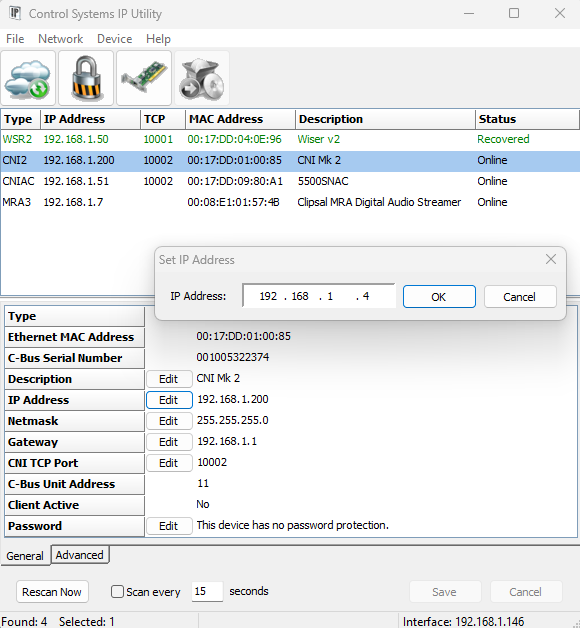
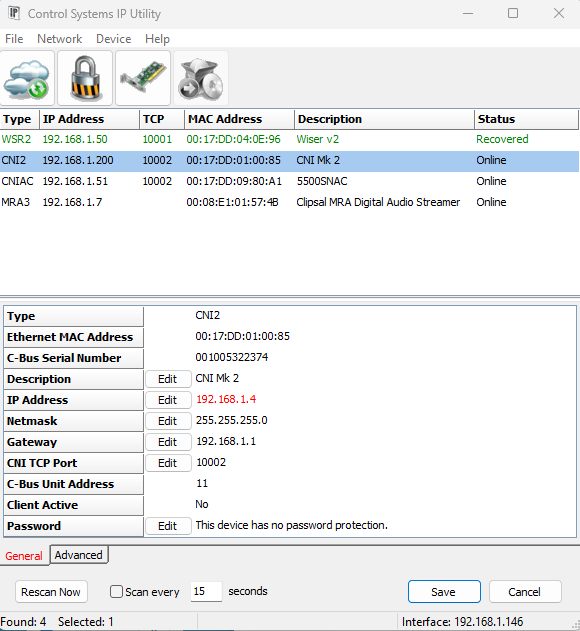
How to set a Static or Fixed IP, for 5500CN2 C-Bus Network Interface
Hide Show
Assuming that it's powered up and connected to the same network where your PC is connected to.
Assuming that you have installed Toolkit software where C-Bus Control System IP Utility is also installed.
- From start menu run the C-Bus Control System IP Utility
- Select the Cloud Icon to scan for C-Bus network interface
- Select the C-Bus network interface you wish to specify the static IP address for
- Select the edit button and type the desired static IP address and click ok
- The new IP address will be showing in red
- Hit the save button will apply the change and the C-Bus network interface will reboot and shall now have the new IP address