

Your Go-To Guide for Wiser Smart Home FAQs
Explore our FAQs for guidance on everything from account setup and device connectivity to Zigbee and Bluetooth functionality.
With dedicated sections for various Wiser Connected Devices and functions of the Wiser by SE app, you’ll find the help you need to get the most out of your smart home experience.
Account Management
How can I log in to Wiser by SE using either my mobile number or email?
Hide ShowIf you want to log in using an email or phone number you didn't register with, the email or phone number needs to be added/linked to your account. This can be done by tapping the 3 bars at the top left for the menu slide-out, tapping on your account name, going to account and security and then adding in either the phone number or email that is missing. Once added you will be sent a verification code to bind that email/phone number.
Note: You cannot change the phone number/email that was used when registering or the other email or phone number, whichever is not used while registering, is added and bound/verified to the account. There can only be one email and one phone number linked with an account.
What is the Difference between a Common member, an Administrator and the Home owner in the Wiser by SE App?
Hide ShowAdministrator has access to all functions except the ability to transfer the home owner rights, delete the home and granting administrator rights to other members.
A common member only has access to operate devices, receive notifications (alarm, moment/automation trigger, device added/removed and invite) from a home, configure device settings and schedules.
See Table Below:
Can I log in to the Wiser by SE App and use one account at the same time on multiple smartphones?
Hide ShowIf you want to have another device/smartphone with Wiser by SE at the same time you will need to register another account.
How do I set up a Pattern Lock and 2-Step Verification for the Wiser by SE App?
Hide ShowTo set up 2-Step Verification - When in the Account and Security page you can toggle this setting on and off from here. When enabled every time you Log in to the App a code will be sent to your email/phone that needs to be input into the App before finalising log in.
How do I reset my password for my account in the Wiser by SE App?
Hide ShowHow can I change my account in the Wiser by SE App and keep the home I have created?
Hide ShowIf I replace my iOS smartphone with an Android one, can I still log in to my Wiser by SE account normally?
Hide ShowHow do I delete/deactivate a Wiser by SE App account?
Hide ShowNote: This will permanently delete all data under the account after the time given unless you withdraw the request.
What do I do if I have forgotten my login password for the Wiser by SE App?
Hide ShowHow do I find my account email or phone number so I can be added to a home in Wiser by SE?
Hide ShowWiser Home Management
I was added to another home in Wiser by SE and their Wiser devices have been added to my Google Home with my own homes devices how can I remove them and avoid this in the future?
Hide ShowRemoving yourself from the home and then refreshing your Google Home page should then remove these devices. If this fails to remove them, you can unlink the Wiser by SE App from Google Home and refresh Google Home once unlinked. This should remove all devices from Google Home and then you can re-link your account. It may also help to clear the cache after unlinking the Apps.
To prevent this happening, we recommend creating a separate Wiser by SE account that is not linked to Google Home. This separate account would be useful for electricians commissioning customer homes or customers who have control of other homes (for example: a holiday house) that don’t wish to have these devices in their Google Home. For new installs, it is recommended for electricians to allow the home-owner to setup voice control by linking their new Wiser by SE account to their Google Home Account so no conflicts will occur.
I am nearing 120 devices in my Wiser by SE home, with 120 being the maximum allowed should I expect any impact to the system when nearing this?
Hide ShowHow do I invite a new member to join my Wiser Home with their Wiser by SE account?
Hide ShowNote: The invitation code lasts for 3 days after which it will expire.
What can I do in the Home Management menu in the Wiser by SE App?
Hide ShowNote: Only Home members with Homeowner/Administrator access can use the Home Management function.
How do I change ownership of a home in Wiser by SE?
Hide Show1. Ownership of a home can be transferred to another Administrator within the home. To do this go to Home Management, Select the desired Home to be transferred, at the bottom of the screen there will be Transfer Home Ownership. Tap on this and select the member of the home you wish to transfer ownership to.
2. Transfer ownership of a home via a redeem code. To do this go to Home management, select the home you wish to transfer, tap on Transfer Home Ownership, tap on Transfer Through Redeem Code, use the Toggle on the Redeem Code and then send the Redeem code that has been generated to next owner.
Note: When transferring ownership via the redeem code it must remain enabled and the one transferring the home must not delete the home until transfer is complete. The home will automatically be removed from the previous owners Wiser by SE app a soon as the new owner enters the redeem code. A pop up notification will be sent to notify the previous owner
Will the Home information be deleted when I tap "Remove Home" in Home settings in the Wiser by SE App?
Hide ShowIf you are a Home member or a Home Administrator: Tapping Remove Home will only remove your account from the Home. You will no longer be able to view the Home information, operate Home devices, Moments and Automations. Other Home members will not be affected.
The location shown for my Home in the Wiser by SE App is not correct. Can I change the location?
Hide ShowWhen adding devices to the Wiser by SE App, what are the differences between Auto Scan and Add Manually?
Hide ShowAdd manually without hub – search for Bluetooth devices in pairing mode
Add manually with hub – search for Zigbee devices in pairing mode
How do I join a home, in the Wiser by SE App, via verification code? (Invitation via text message)
Hide ShowNote: If you have been sent a code to join a home as a member, this code will be valid for three days. If not redeemed within the three days you will have to get a new code/invitation from the home owner.
After I have configured a device on Wiser by SE, can I control this device on other phones at the same time?
Hide ShowWhen the devices are in BLE/Bluetooth the devices can only be controlled by one phone at a time. This is due to Bluetooth being a point to point connection and will require whoever is connected to the device to be disconnected before someone else can control it.
Note: You can’t be logged in to the App on more than one phone at a time on a single account.
How many administrators can I set in the Wiser by SE App for my home?
Hide ShowImportant: You should only set administrator access for those Home members who are aware of the potential impact of making system changes.
Can I manually sort the devices added on the home page of the Wiser by SE App?
Hide ShowIf you tap the three dots (...) on the right of the Room strip and then tap on Room Management. This will allow you to select the room you wish to add/remove devices from and hit the green plus sign next to the device to add the device to the room and the red minus symbol to remove it.
How do I remove a device from a home in Wiser by SE?
Hide ShowGeneral Troubleshooting
I have moments set up in Wiser by SE and added to Siri but they aren’t working, what could be the issue?
Hide ShowIn Wiser by SE, why is there a warning when I go to clear the cache that the device control panel will not work without an internet connection after clearing the cache?
Hide ShowDo I have to re-program my devices settings when I upgrade from Wiser Room to the Wiser by SE App?
Hide ShowHow do I know if I have the latest version of the Wiser Room or Wiser by SE Apps
Hide ShowI am getting a message in Wiser by SE ‘Network Unavailable. Please check your phones network settings’ what does this mean for my control of the products?
Hide ShowIs Wiser by SE tablet compatible?
Hide ShowHow can I disable notifications permanently or for a set time in the Wiser by SE App?
Hide ShowCan I set a Do Not Disturb time range across two days in the Wiser by SE App?
Hide ShowYou can then go into the repeat menu and you can select which days you want this to cover.
Under the Do-not-disturb device select the devices you want the do not disturb to cover or use the select all button to select all.
In the Wiser by SE App what are Moments and Automations, how are they triggered and how are they different?
Hide ShowAn Automation is a series of actions that will be triggered when the pre-set condition(s) is/are true. For example - If Motion Sensor changes state to occupied turn on Iconic Wiser Dimmer 1.
An Automation can be set to operate during different time periods of All day, Daytime, Night or Custom.
As an example, if you define an Automation where a nightlight automatically switches on when the motion sensor detects motion, you can tap Effective Period in the Automation editor and select Night. In this case, the nightlight will not respond to the motion sensor during the day.
A moment can be a single action or multiple actions which can be triggered via the App by tapping the moment on your home page or in the Moment and Automations tab or via voice commands or even be triggered by other devices as part of an Automation Action.
Note: An Automation takes precedence over a Moment. For example, if a Moment is triggered and any of the lights in that moment is involved in an Automation and that Automation is triggered on or off those lights will comply with the Automations specified action.
Why does the temperature in the device control page display in Celsius when the temperature is set to Fahrenheit in the Wiser by SE App settings?
Hide ShowNote: Not all devices support the option to set the temperature scale.
If network Internet access is disconnected, will an Automation created in the Wiser by SE App still execute?
Hide ShowIf the ‘action’ is set to a notification, which also requires the Hub to have an internet connection, the Automation will work if it has other actions but will not send the notification.
Automations will be tagged as Local if not requiring internet access and if they do require internet access will have no label.
Zigbee devices communicate locally via the Wiser Hub and do not need internet access to function.
Why am I seeing an option to add devices ‘with Hub’ in the Wiser by SE App when I only have BLE devices?
Hide ShowIf you have BLE devices you should add these by selecting ‘Without Hub’ option and then select the devices you are adding.
All Zigbee devices can only be added with the ‘With Hub’ option.
In the Wiser by SE App, why is my device/s (BLE/Zigbee) greyed out?
Hide ShowZigbee – Check that your router, device and Hub are powered. If you are not connected to the local WiFi associated with the Hub you will also need to check if your router and hub are still connected to the internet.
BLE – Check if you are in range of the device and does the device still have power
Why is my open/close percentage of my blind module in the Wiser by SE App not the same as how open/closed my real blind is?
Hide ShowDoes the Wiser by SE App have a voice control function and if so, what functionality comes with Google, Siri or Alexa?
Hide ShowWith Google voice control you can use commands to turn everything on or everything off, trigger moments, trigger separate devices, it can tell you what is switched on/off (switches are switches and dimmers are lights ie ‘hey google, what lights are on?’ ‘hey google, what switches are on’).
Siri is only compatible with Moments from Wiser by SE that have been linked to Siri.
Alexa can’t do everything on or off unless these are set as moments. When triggering moments they need to be turned ‘on’ ie Alexa turn ‘moment’ on as moments can only be triggered on and not off. You can also operate separate devices. Alexa can’t tell you what is turned on/off.
Are there limits in the Wiser by SE App on how many characters can be used for naming, how many devices, moments/automations, schedules, homes, rooms and members?
Hide ShowThere is a maximum of - 60 devices in one Home, 60 devices in one room, 10 battery powered devices per mains powered devices, 80 moments in one home, 80 automations in one home, 80 actions in one moment/automation, 1000 actions in one home, 10 conditions in an automation, 10 schedules per devices, 20 homes, 20 rooms in one home and 20 members in one home.
Zigbee Devices and Functionality
Where can I find the files and how to update the firmware on my Zigbee Wiser devices when I don’t have the Wiser Hub?
Hide ShowWithout the Wiser Hub you will be unable to connect Wiser devices via Zigbee in Wiser by SE and therefore will be unable to update your devices.
We do not offer any other methods for updating firmware on the devices.
I want to put in two-way switching but can’t run the cables between the mechanisms. Can I achieve wireless two-way switching with Wiser Zigbee?
Hide ShowYou need to create two automations for a 2-way:
- when switch A and switch B are ON, turn switch A and switch B ON
- when switch A and switch B are OFF, turn switch A and switch B OFF
This can be expanded to 3-way, 4-way etc by simply adding the other switches into the respective ON and OFF automations.
How do I swap my Wiser connected socket outlet from BLE to Zigbee?
Hide ShowDownload the Wiser Room App, if you don’t have it on your smart device, and open it. Within Wiser Room tap Edit at the top right and select ‘Add New Device’. Follow the instructions and pair your socket with Wiser Room. Once paired in Wiser Room, tap on the socket and then tap on the cog to enter the settings of the device. Tap on Advanced Settings, tap on Device Information and then proceed to update the Firmware of the socket.
Once the firmware update is completed and you can re-connect to the device once again check to make sure there are no more firmware updates. Once confirmed remove the socket from Wiser Room App by tapping Edit in the top right and then delete the device. Open the Bluetooth settings on your phone and once again remove the socket from here.
To then swap the socket from Bluetooth to Zigbee tap the touch switch LED panel 12 times. When the swap is completed you will see both the left and right LED on the panel blinking together indicating you are in Zigbee mode. Tap the touch switch panel to stop the blinking.
In Wiser by SE, go to the home you wish to add the socket to and tap the plus symbol in the top right corner. Go to the Add with Hub option and select the Iconic Socket and follow the instructions, tap the LED panel 3 times as per the animation and confirm that both LED’s on the panel are flashing.
How can WiFi interfere with Wiser and Zigbee?
Hide ShowLuckily, most modern WiFi routers utilize the "Auto Select Channel" function - the router selects the least used channel it can see.
Overview of WiFi and ZigBee channels below:
2.4 GHz WiFi channels
2.4 GHz ZigBee channels
WiFi's three non-overlapping channels (1, 6, and 11) use the exact same frequencies as ZigBee channels 11-22.
We could say that if we select channel 1 of WiFi, the safest one on ZigBee would be 26.
Noting though that Zigbee Channels 25 and 26 are slightly lower powered than the other channels.
Each environment can be different, but generally speaking, wireless communication is affected by obstacles.
Concrete and metal obstacles (armatures, walls, reinforced concrete) are the worst kind of an obstacle.
We can expect that metal and concrete will decrease the range of any wireless device. In such a case, it's possible it will be necessary to install more wired Wiser devices in adjacent rooms to make the network more stable.
How do I swap my Wiser connected switch and dimmer devices from BLE to Zigbee?
Hide ShowNOTE: Before swapping from Bluetooth/BLE to Zigbee it is strongly recommended that a factory reset be performed on the mechanism before initiating the change.
What is the difference between the product code I have ordered and the same product with a ‘Z’ added to the end?
Hide ShowThis is designed to save time on install and commissioning of a Wiser system where the Hub is used. Using a default Zigbee product, means there is no need to go through the process of changing modes from BLE to Zigbee to connect to the Wiser Hub.
Bluetooth (BLE) Devices and Functionality
Why do I need to update my Iconic Bluetooth devices and why should I change to the Wiser by SE App?
Hide ShowHow long will my Bluetooth/BLE mech stay connected after I access it in the Wiser by SE app?
Hide Show1. When you exit the specific device control panel and stay in the device list, the device will be disconnected after 30 seconds.
2. In the device control panel, if no operation has been detected, the device will disconnect after 5 min.
3. If you run the App in the background or lock the screen, the Bluetooth will be disconnected immediately.
How do I decide between a Bluetooth device and its Zigbee equivalent?
Hide Show- On/Off or Dimming Control using the Wiser by SE app
- Setting a timer, run on timer or 24/7 Schedule.
- Turn all lights in their house on/off, or operate multiple different devices from one tap of a button, also known as a Moment
- Implement if this then that operations, also known as an Automation
- Integrate with third-party voice controllers: Google, Alex and Siri (please see the FAQ on voice control for more information)
- Allow remote control of your home from anywhere in the world
What is the difference between Wiser Zigbee and Bluetooth device?
Hide ShowHow Can I Change a Wiser Mechanism from Zigbee to Bluetooth
Hide ShowTo swap a Zigbee enabled switch to Bluetooth, press the switch 4 times and hold on the 4th press for 20+ seconds.
When holding the button in at the 10 second mark a slow flashing red led should be visible, releasing at this point would be a factory reset. Continue to hold until the red led starts flashing rapidly at the 20 second mark and then release.
This method of changing the mode of the mechanism will work Zigbee to Bluetooth and also Bluetooth to Zigbee.
Dimmers, Timers, and other Mechanisms
What is the part reference for the push button dolly for the Wiser Fan Controller?
Hide ShowFor Iconic Styl this is the S40APBF
For Iconic Essence this is the E40APBF
Can the Wiser Micro Module Dimmer have LED indication?
Hide ShowConnecting the LED indicator to the ‘I’ terminal can create a pathway that interferes with the electrical signal the module is triggered with sometimes causing the switch control to not function or the module to behave erratically.
Connecting the LED indicator to the ‘L’ terminal means the module is then actively trying to dim the indicator also and with the led indicators being non-dimmable will cause an error in the module.
How do I setup a schedule in Wiser by SE for switches, sensors or socket outlets?
Hide ShowWhen a device is in Zigbee mode, schedules can only be created for an ‘On’ or ‘Off’. Hence two schedules will be needed for an ON/OFF - one for the ON time and one for the OFF time.
In Bluetooth/BLE mode you can select a time range and both an ‘On’ or ‘Off’ within a single schedule.
What are the differences between Timer and Run-on Timer function?
Hide ShowRun-on Timer: Set a timer, press the button to switch ON then press the button to switch OFF. Once the switch is turned off the timer starts to count down and the lights/load will turn off when the timer reaches zero.
What is the difference between Timeclock and Timer BLE devices?
Hide ShowWiser IP Camera
If my Wiser Camera loses internet connection is the footage still being recorded to the SD card installed?
Hide ShowNOTE – If there is loss of power to the Wiser Camera this will stop the recording which will continue upon powering back up.
Wiser IP Camera Troubleshooting
Hide ShowThen ensure the IP camera is being connected to 2.4GHz on the Wi-Fi router, noting the Camera operates on 2.4GHz only. If unsure, check the WiFi router settings to see whether ‘Band Steering’ is enabled or not. This should be disabled as it may attempt to force a 5.0GHz WiFi network to the camera rather than the 2.4Ghz.”
Make sure WiFi has access to the internet, this can be done by disabling mobile data and testing a video or web page.
If EZ Mode pairing is not working, try using QR mode to pair the camera. Tap “EZ Mode” in the top right corner of the screen to change pairing mode.
Can I change the timestamp on my Wiser IP Camera (Indoor and Outdoor)?
Hide ShowCan the Wiser Indoor and Outdoor Cameras be used to trigger Automations?
Hide ShowWiser Sensors
My Wiser battery device is showing the battery is almost flat, can I replace the battery and what do I replace it with?
Hide ShowCLP591011/PDL591011 - Window/Door Sensor - CR2450 x 1
CLP595011/PDL595011 - Motion Sensor - LR03 AAA x 2
CLP593011/PDL593011 - Temp/Humidity Sensor - CR2450 x 1
CLP592011/PDL592011 - Water Leakage Sensor - LR03 AAA x 2
My Wiser battery device is showing the battery is almost flat, but it hasn’t been 5 years?
Hide ShowFor example if the Temperature/Humidity sensor was placed where temperature fluctuation were happening frequently this would increase the number of reports it sends and therefore increase the battery usage when compared to one that is reporting less frequently.
Wiser motion sensor – What is detection delay and how do I program it?
Hide ShowBe aware that changing the detection delay value can change the battery life of the product.
To explain how this works we will use 5 minutes detection delay as an example. When motion is detected the sensor sends the signal ‘occupied’ to the hub. If no more motion is detected within the 5 minutes the sensor will send the signal ‘unoccupied’. If there was motion detected during the 5 minutes the 5 minutes will restart again. This will continue restarting until no motion is detected.
To configure the Wiser Motion sensor to control another Wiser product you will need to go into your Automations and create two Automations. One Automation as an ‘on’ and another as an ‘off’.
The ‘on’ Automation can be created by first selecting to add a new Automation. Once open name the Automation accordingly. Add a condition ‘when device status changes’, select the motion sensor, select motion state and occupied. Then add an action of what you want to occur when the motion sensor detects motion. As an example, if you wanted to turn on a device you would add task of ‘run the device’. This will then bring up the list of devices you have to choose from to operate and once you select a device you can then select to turn it on or off.
The ‘off’ Automation is the same as the ‘on’ Automation but select the motion sensor state of ‘unoccupied’ as the condition.
What can I do if the status of the window/door sensor is not synced with the physical status in the Wiser by SE App?
Hide ShowTake care that there are no metal plates in the line of sight between the window/door sensor and the nearest mains powered device or gateway
The window/door sensor should be installed in that way, that the front of the sensor part is directed towards a nearby mains powered device or gateway.
The distance between the window/door sensor and the nearest mains powered device or gateway should be as short as possible when the window or door is closed.
Be aware, that the distance between the sensor part and magnet part could be up to 34mm to indicate "OPEN" depending on the material that the window/door sensor is installed on. It is recommended to perform some tests before you fix the final installation.
Wiser Smoke Alarms
Do the Wiser Smoke Alarms repeat the Zigbee signal?
Hide ShowCan I use the 755RB base with the 755WSA Wiser Smoke alarm?
Hide ShowWhen should I be testing my Wiser Smoke Alarm?
Hide ShowWhen installing the Wiser Smoke Alarm testing of the alarm and interconnection should be done after the product is paired to the Hub and also after any RF pairing is completed.
The Wiser Smoke Alarm is recommended to be tested monthly after installation.
Wiser Switches
What are the differences between the 10AX (41E10PBSWM and 41E10PBSWMZ) and the 2AX (41E2PBSWM and 41E2PBSWMZ) Wiser switches?
Hide ShowAs per images below there is a size difference between the two mechanisms. This size difference shows that with the 10AX you are limited to the plates you can fit these to being 1 – 3 gang (or added to the centre of a 5-gang plate). The 10AX switch will fit into deep wall boxes and cavity walls.
The 2AX does not have this limitation and can fit 1 – 6 gang plates. It is also not as deep as the 10AX and can fit into most standard wall boxes. The 10AX switch will fit into deep wall boxes and cavity walls.
2AX in Bluetooth is unable to have schedules set and the 10AX in Bluetooth can.
As per the load tables the 10AX can handle larger loads when compared to the 2AX.
My Wiser switches are not responding to being pressed or control via Wiser by SE, what can I do to troubleshoot the issue?
Hide ShowOnce this has been taken note of begin by power cycling your Wiser Hub. This can be done by removing the micro-USB where it connects to the Hub or by turning off the power outlet that supplies power to the Hub. Leave it off for 10 – 15 seconds and then reconnect the Wiser Hub and wait until it completes its reboot procedure at the end of which only 2 LED indicators should be visible on the Wiser Hub. With LEDs at top of Hub - if connected with Ethernet cable (Right and Left Led will turn ON). If connect via WiFi (Middle and Right Led will turn ON)
If this fails to resolve the issue the product failing to respond may need to be power cycled itself. If confidant and able, access the switchboard that has the RCBO’s or Circuit breakers that supply power to the products. Turn the applicable supply off for 10 – 15 seconds and then turn this supply back on.
Note: If uncertain contact your installing electrician for the Wiser system who may advise what is supplying power to the Wiser products. If fuses are installed in your switchboard it is recommended to have your electrician remove the fuse and then re-fit after 10 – 15 seconds. Fuses can be extremely dangerous if not correctly handled by a qualified electrician.
If the switches are still unresponsive contact Tech Support via phone – Australia: 13 73 28 (13 SEAU) New Zealand 0800 652 999, email - techsupport.pz@se.com or via online chat through a link on our support page https://www.clipsal.com/clipsal-support/contact-us or https://www.pdl.co.nz/support
Can I change when the LED Indicator is on for my Wiser switch? (Zigbee and Bluetooth)
Hide ShowCan I trigger a moment/scene from a Wiser wall switch?
Hide ShowYes. When a number of Wiser switches/dimmers are paired with the Wiser Hub, this can be achieved with the use of an Automation and would consist of - Condition: Device status = On, Action = Enable or Disable Automation/Trigger Moment, Delay 1s, Run the device = Off.
Note: Only 1 moment can be used within an automation
What do the different colours of LED indication on my Wiser switches mean?
Hide ShowFlashing Amber - Mechanism is in Zigbee and is currently in pairing mode, is not connected to a Hub
Flashing Green - Mechanism is in Zigbee and is in pairing mode, is already connected to a Hub
Solid Green - Mechanism is in Zigbee and is already connected to a Hub that is currently scanning for other mechanisms/devices
Flashing Red and Green - Mechanism is in BLE and is in pairing mode
Solid Amber - Mechanism is in Zigbee mode and not connected to a Hub
What can I do to solve connectivity issues with my Iconic Bluetooth switches (41E10PBSWM and 41EPBDWCLM)?
Hide ShowIs the product Bluetooth capable?
Check your product code and its instructions for confirmation
Is your Bluetooth on and is your phone/device currently connected to any other Bluetooth devices?
If you are currently connected to another Bluetooth item it is recommended to disconnect.
Are you in range of the product?
You should be within 8-10m or be in the same room but it is recommended to stand directly in front of the product.
Are there multiple Bluetooth capable products in a 2 or 3 gang switch plate?
If so, the recommendation is that in a 2-gang plate the top mechanism should be rotated upside down OR in a 3-gang plate rotate the middle mechanism upside down. This can limit interference caused by have the BLE antenna lined up in all the mechanisms.
Is the indicator LED solid Amber/Orange and flashing the same colour when in pairing mode?
The mechanism is in Zigbee mode and will not pair via Bluetooth.
Have you previously connected to the product using the same phone/device?
Make sure the product has been removed from the App and check your phone/device Bluetooth settings and remove it from there also if present.
After all these checks are completed and you are ready to attempt the pairing procedure it is recommended to carry out a factory reset and then power cycle the mechanism. It can also help to restart the App or a full restart of your phone/device
Note: For all information on how to put a product into pairing mode and do a factory reset please refer to the installation instructions for the specific product.
General Troubleshooting
The icon for my Wiser product is not what I want in Google Home. Can I change it?
Hide ShowChanging the device type will change how it responds to voice commands as it does when changing the name of the device.
Any changes done within Wiser by SE may not immediately transfer across to Google Home. To update your Google Home list, on the Google Home main page, swipe down to refresh your devices.
I have made name changes to my Wiser devices in Wiser by SE how can I get these changes to work with Google voice control?
Hide ShowThe changes will not be recognized If they are done on a device that is not the creator of the Home within the Google Home App that is linked with the voice control speaker. This can be solved by having the creator refresh his Google Home.
Note: Only one Wiser by SE account should be linked with Google home per household. This person should then create the home within Google Home and add members to this home. If more than one Wiser by SE account in the same home is linked to Google Home this can create ‘doubles’ of the Wiser devices within the Google Home App.
How do I know if I have the latest firmware on my devices
Hide ShowIs there a Wiser product/device I can use to control my roller door?
Hide ShowIf your roller door can have a wired switch installed to operate it, you can use the Micro Module Switch CLP5011WSZ. It requires an active and neutral to operate but has dry contact that can be used in conjunction with wiring from the roller door. Once installed a 1 second timer will have to be implemented by programming a simple Automation in Wiser by SE to create a ‘pulse’ connection similar to how a bell press or momentary switch would operate.
It also requires that all wiring be 240V cabling, installed with proper electrical workmanship by a licensed electrician. Ensuring all terminations, cables and the CLP5011WSZ are restrained and supported correctly.
Is there a planned API (Application Programming Interface) for the Wiser Hub to integrate 3rd party systems?
Hide ShowWe are continually striving to provide the best user experience that evolves with end user’s needs. As such we encourage customers to share feedback with us on any system improvements, new products or feature additions. Your feedback/input may then be used towards future development opportunities.
What is the Standby Power of my Wiser devices?
Hide ShowWiser Micro Module Dimmer - CLP5010WDZ/PDL5010WDZ - 0.4 W
Wiser Micro Module Blind - CLP5015WBZ/PDL5015WBZ - 0.4 W
Wiser Hub - CLP501902/PDL501902 - 0.2 W
Bluetooth 2AX - 41E2PBSWM-VW/PDL356PB2MBTW-VW - 0.25 W
Bluetooth 10AX - 41E10PBSWM-VW/PDL356PB10MBTW-VW - 0.20 W
Bluetooth Dimmer - 41EPBDWCLM-VW/PDL354PBDMBTW-VW - 0.50 W
Bluetooth Socket - 3025CSG/PDL395CSG - 0.30 W
ZigBee 2AX - 41E2PBSWMZ-VW/PDL356PB2MBTZ-VW - 0.25 W
ZigBee 10AX - 41E10PBSWMZ-VW/PDL356PB10MBTZ-VW - 0.20 W
ZigBee Dimmer - 41EPBDWCLMZ-VW/PDL354PBDMBTZ-VW - 0.50 W
ZigBee Socket - 3025CSGZ/PDL395CSGZ - 0.30 W
Can I control my Wiser system devices when not at home or do I need to be connected to the same Wi-Fi network as my Hub?
Hide ShowIf you cannot control your devices when not at home, it may be that your phone or the home network is not able to connect to the Internet or the devices/hub are not currently powered.
Why can't I pair my device with the new Wiser by SE app?
Hide ShowWhy is my Wiser device not turning ON/OFF at the prescribed time set in the schedule?
Hide ShowIf you have the schedule set for Sunrise and/or Sunset, the on and off times will vary throughout the year in line with the astronomical times.
For BLE devices, you can go into your device Setting and Update time & date under Time Synchronization.
How can I find a device ID in the Wiser by SE App?
Hide ShowIf a device is reset, can the device still be controlled via the Wiser by SE App?
Hide ShowWhat happens if there is a power outage or my Wiser Hub and Switches lose power? Will my settings be lost?
Hide ShowIf using BLE devices (Iconic Connected 10AX switch, dimmer and socket), the only setting that will be lost after 6 hours or more with no power is real time and geolocation (used to control schedule and sunset/sunrise time).
How can I check if I have the latest firmware for my Wiser device, update my firmware and what happens if my phone disconnects from the Wiser device in the middle of firmware upgrade?
Hide ShowNote: It is recommended to switch on Auto Update. This is only an option for devices in Zigbee mode that are connected to a Hub.
In Bluetooth/BLE and Zigbee if your phone disconnects in the middle of an upgrade the device will retain its current firmware. You will have to reconnect to the device and attempt to update the firmware again.
In Zigbee mode if using Auto Update there is no need for your phone to be connected.
Other Wiser Questions
Wiser Product Warranty
Hide ShowThe 2AX (41E2PBSWM), 10AX (41E10PBSWM), Dimmer (41EPBDWCLM), Micro module dimmer (CLP5010WDZ), Micro module switch (CLP5011WSZ), Micro module blinds (CLP5015WBZ) and the Connected Socket Outlet (3025CSG) all have a 2-year warranty.
This information can be found on the product installation instructions.
Is Wiser compatible with Apple HomeKit? If not will it be in the future?
Hide ShowI am a new owner; how do I connect to my Wiser system that has already been set-up by an installer?
Hide ShowYour installer should have sent you a redeem code or written it on the hand over card that was provided with the Wiser Hub. In the Wiser by SE App tap on the menu slide out and then tap on Home Management. On the Home Management screen, tap on Join a Home and then enter your redeem code.
Connect your Hub to your home internet router/modem via ethernet cable (recommended) and connect power to the Hub. Then connect to your phone to your home Wi-Fi.
What Electrician training is available for Wiser?
Hide ShowThe following link will guide you to information and further links to access the training.
https://www.clipsal.com/wiser/approved-installer
More Wiser support resources
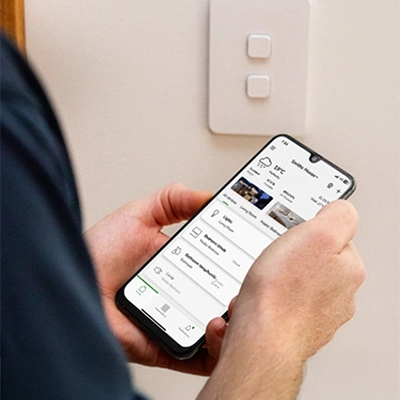
Wiser by SE App
Turn your smartphone or tablet into your smart home dashboard with the Wiser by SE app. Learn more about what you can do with the Wiser by SE app and start using it with your Wiser Smart Home.
Wiser Room App Update
Are you currently using the Wiser Room App? To stay up-to-date, we recommend you update to the Wiser by SE app. Click below to find out why and how to update to the new Wiser by SE app.