

Datasheet
Specifications
Design
| Range of product | Standard Series |
|---|---|
| Product brand | Clipsal |
Physical
| Device presentation | basic element with full cover plate and grid |
|---|---|
| Number of poles | 1 |
| Device mounting | flush |
| Number of rocker | 1 |
| Local signalling | without |
| [ue] rated operational voltage | 250 V AC |
| Rated current | 10 A |
| Marking | without marking |
| Fixing mode | by screws |
| Actuator | rocker |
| Switch function | 1-pole |
| Mercury free | Yes |
| Rohs exemption information | Yes |
| Environmental disclosure | ENVPEP120506EN |
| Eu rohs directive | Compliant By Exemption |
Documents & downloads
-
All
-
Technical Data Catalogues
-
Environmental Disclosure
-
Certificates (MSDS)
-
Declaration of Conformity (Sustainability)

30-BK EU RoHS Directive
VERSION
1.0
DATE
01 Jan 1900
REVISION
1.0
30-BK EU RoHS Directive
VERSION
1.0
DATE
01 Jan 1900
REVISION
1.0
30-CM EU RoHS Directive
VERSION
1.0
DATE
01 Jan 1900
REVISION
1.0
30-CM EU RoHS Directive
VERSION
1.0
DATE
01 Jan 1900
REVISION
1.0
30-RD EU RoHS Directive
VERSION
1.0
DATE
01 Jan 1900
REVISION
1.0
30-RD EU RoHS Directive
VERSION
1.0
DATE
01 Jan 1900
REVISION
1.0
30-RD REACh Regulation
VERSION
1.0
DATE
01 Jan 1900
REVISION
1.0
30-RD REACh Regulation
VERSION
1.0
DATE
01 Jan 1900
REVISION
1.0
30-WE EU RoHS Directive
VERSION
1.0
DATE
01 Jan 1900
REVISION
1.0
30-WE EU RoHS Directive
VERSION
1.0
DATE
01 Jan 1900
REVISION
1.0
30-WE REACh Regulation
VERSION
1.0
DATE
01 Jan 1900
REVISION
1.0
30-WE REACh Regulation
VERSION
1.0
DATE
01 Jan 1900
REVISION
1.0
Frequently Asked Questions
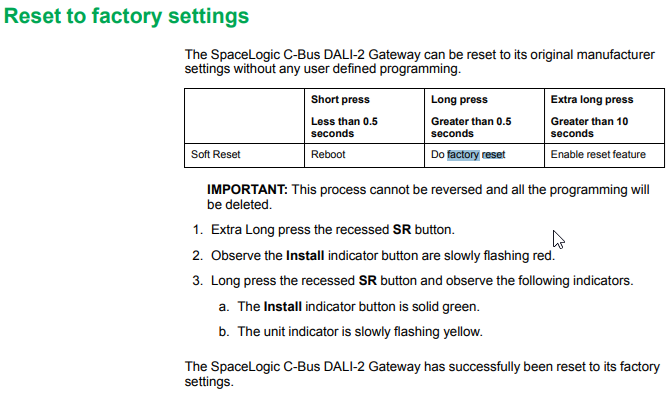
How to Factory Reset daligateway2 (5502CDGP230) to original manufacturer settings
Hide ShowTo factory reset the daligateway2. Simply press the SR button with pointy device i.e a paper clip for 10 Seconds. Release then a long press for more than 0.5 sec.

How to properly select location and mounting of daligateway2 (5502CDGP230)
Hide ShowThe C-Bus DALI-2 Gateway is designed to be installed in a distribution cabinet, mounted on a DIN rail (type DIN EN60715), in a horizontal position.
There should be adequate ventilation to prevent overheating of this unit, this can be achieved by using larger distribution boards as opposed to small domestic distribution boards.
C-Bus Cat-5e cables Should be adequately separated or segregated as defined in local wiring regulations.
Note: Use the heat load value of all the units in the cabinet to select a cabinet with correct ventilation. Ensure that the temperature around the unit is less than 45C.
How to Factory Reset daligateway2 (5502CDGP230)?
Hide ShowTo factory reset the daligateway2. Simply press the SR button with pointy device i.e a paper clip
HOLD DOWN THE (SR) BUTTON FOR 10 SEC. LET GO THEN HOLD IT DOWN AGAIN FOR 2 SEC.
C-Bus Cable for underground
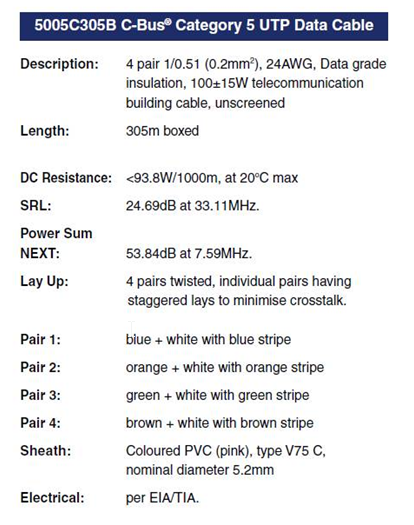
Hide ShowTypically for C-Bus underground cable use it needs to be a Cat5E UTP cable with the similar characteristics / impedance as the C-Bus 5005C305B cable.
If you use an underground CAT5E data cable from brands such as belden or garland etc
We would recommend you ask the supplier to provide confirmation they can provide a CAT5E UTP underground equivalent cable Gel filled.
Do not use shielded cabling.

Article to be archived
Hide ShowFor the 5502CDGP230, the C-Bus Clock can be enabled or disabled via the front panel, by pressing and holding down the MANUAL button on Line A, and short pressing the ID button on Line B.
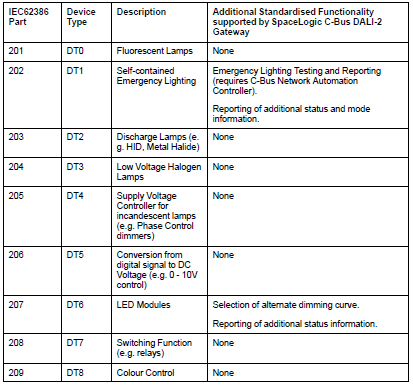
What dali device type does the C-BUS Dali2Gateway (5502CDGP230) support?
Hide ShowThe C-BUS Dali2Gateway F/W 1.8 can currently support DT0, DT1, DT6. It doe not yet support Tunable White and RGB/RGBW
How do I swap my Wiser connected socket outlet from BLE to Zigbee?
Hide ShowDownload the Wiser Room App, if you don’t have it on your smart device, and open it. Within Wiser Room tap Edit at the top right and select ‘Add New Device’. Follow the instructions and pair your socket with Wiser Room. Once paired in Wiser Room, tap on the socket and then tap on the cog to enter the settings of the device. Tap on Advanced Settings, tap on Device Information and then proceed to update the Firmware of the socket.
Once the firmware update is completed and you can re-connect to the device once again check to make sure there are no more firmware updates. Once confirmed remove the socket from Wiser Room App by tapping Edit in the top right and then delete the device. Open the Bluetooth settings on your phone and once again remove the socket from here.
To then swap the socket from Bluetooth to Zigbee tap the touch switch LED panel 12 times. When the swap is completed you will see both the left and right LED on the panel blinking together indicating you are in Zigbee mode. Tap the touch switch panel to stop the blinking.
In Wiser by SE, go to the home you wish to add the socket to and tap the plus symbol in the top right corner. Go to the Add with Hub option and select the Iconic Socket and follow the instructions, tap the LED panel 3 times as per the animation and confirm that both LED’s on the panel are flashing.
What is the purpose of the Read DALI Gateway scan?
Hide ShowA Read DALI Gateway scan helps to rebuild a project from a live/existing & operational C-Bus DALI-2 Gateway that has been previously configured.
The scan retrieves the information stored on the live gateway, including its own programming and programming all connected DALI Devices.
How do I convert Iconic Wiser™ Connected Socket from Zigbee to BLE
Hide ShowSee below video
Which pins or cables are associated with the 5500PS C-BUS power supply?
Hide ShowWhich pins or cables are associated with the 5500PS C-BUS power supply?
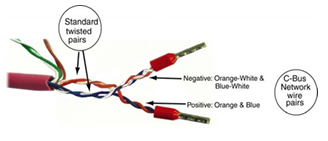
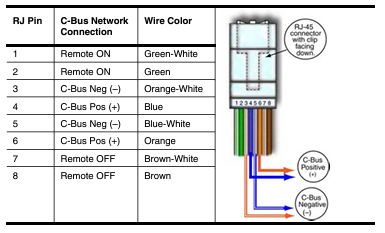
in 1-8 on the RJ45
Can I connect to the default IP address of the BMENOP0300 if the module is powered up in a rack without a CPU?
Hide ShowIt is not possible to reach the BMENOP0300's default IP address if it is powered up in a rack without a CPU. The BMENOP0300 is not a standalone module and depends on the M580 CPU for network initialization and configuration. If you try to power up the BMENOP0300 and try to connect, you will notice the ERR, MS and NS lights flashing, indicating it is not configured. The below section from the manual assumes that the CPU is connected in the rack.
What different scans can be performed on the DALI Line in C-Bus Commission?
Hide ShowAs of C-Bus Commission v2.15.0, the available scans for a DALI are:
1. DALI Scan
2. DALI Device Type Scan
3. Read DALI Gateway
4. Discover Faults
Note: A Scan can also be done by pressing the INSTALL button of each line on the front of the unit
Where to download the SpaceLogic C-Bus Commission V2.2.0?
Hide ShowRelease Date: 02/04/2024
Version: V2.2.0
Reference: C-Bus-Commission_V2.2.0
C-Gate: 3.3.0 (build 1825)
Operating systems: Windows 11 Professional (64-bit), Windows 10 Professional (64-bit), Windows 10 Enterprise (64-bit), Windows 10.
What’s New
• Dimmer conversion will add default channel name
When converting older LE dimmers DIMDN4 or DIMDN8 (L5504D2A or L5508D1A) to the new digital dimmers DIMDD4 (5504D2D) and DIMDD8 (5508D1D), the software will now automatically insert a default channel name per channel.
• Network Summary for a C-Bus Network
The C-Bus Network node will show the summary of network information and status including the C-Bus Current supplied and consumed values plus the network impedance value. This data is only taking the project devices into consideration (not the live network devices).
• View the in-built C-Bus power supply status of C-Bus Digital Dimmers on the live network
An icon has been added to the Status column in the Network Devices section of the C-Bus Devices workspace indicating whether the in-built C-Bus Power Supply for the new C-Bus Digital Dimmer (DIMDD4 and DIMDD8) is enabled or disabled.
Fixes
• Project conversion issues. The software will now show correctly when a project has truly failed to convert. Issue with projects in “Waiting” resolved.
• Multiple confirmation dialogues when delete a device in project.
• When transferring to a C-Bus Automation Controller and C-Bus Application Controller, updating a Tag Map name will create an Object if one does not exist, this can result in additional objects created in controller that were not defined in the Object List. Note, this release of SpaceLogic C-Bus Commission software is only compatible with the C-Bus Automation Controller and C-Bus Application Controller firmware version 1.16.0 (when using the Controller Sync function).
• Warn Before Off Enable Group in live network Digital Dimmer is blank and not auto created during a network scan.
• Network burden property of Digital Dimmers did not update the C-Bus summary data (not included in network calculator).
Known Issues
• A slight delay may be seen when switching views back and forth between the Measurement and Error applications where a large amount of data (150 items or more) exists.
• Clicking on the Main Menu repeatedly will result in a decrease in software performance. C-BUS COMMISSION RELEASE NOTES 2
• Switching projects 10 or more times will result in a decrease in software performance.
• Measurement application values presented from the live network may not appear truncated and rounded to reasonable decimal places.
Link to download the SpaceLogic C-Bus Commission V2.2.0
https://www.se.com/nz/en/download/document/C-Bus-Commission_V2.2.0/
or
https://www.se.com/au/en/product-range/2216-spacelogic-cbus-home-automation-system/?parent-subcategory-id=88010&filter=business-5-residential-and-small-business#software-and-firmware
Can the new Dali gateway 5502DCGP230 firmware be updated?
Hide ShowYes installer can update the firmware of the device in the field
- without disconnecting any connections
- without removing the unit from the switchboard
A USB device port is provided on the front cover of the device as a power source.
Using Space logic C-Bus Commission software >
What is the IP rating for the Iconic Outdoor sockets?
Hide ShowWhat other switch types are compatible to be installed in the Iconic Outdoor switch?
Hide ShowDo the conduit caps come with the Iconic Outdoor?
Hide ShowWhat is the IP rating for the Iconic Outdoor switches?
Hide ShowHow do you remove the cover from Iconic Outdoor once its clipped on?
Hide ShowDoes the Iconic Outdoor socket maintain IP54 when a plug is inserted?
Hide ShowWhat standard does the plug used on the EVlink station meet? What cars will it work with?
Hide ShowIssue:
What connector is used on the EVlink charging station?
Product Line:
PTEVC - ELECTRICAL VEHICLE
Resolution:
The EVlink Level 2 charging stations use the SAE J1772 type connector. The J1772 plug is rated NEMA 3S and is designed for indoor or outdoor use.
Does the Iconic outlets fit the Tal Plus skirting duct?
Hide ShowThe power shrouds (PLPSK) are not large enough for the back of the outlet to fit in.
Do I need to use any caps or silicone on the mounting screws on the Iconic Outdoor?
Hide ShowCan the Iconic Outdoor O3015T Connected Socket be connected to my Wiser Hub?
Hide ShowWhat size conduit entries can be used with Iconic Outdoor?
Hide ShowWhat shroud would fit the 3025USBC?
Hide ShowDALI broadcasts messaging from the DALI gateway vs DALI broadcasts from a DALI Dual Power Supply via the override Push Buttons
Hide ShowThe differential of the DALI broadcasts messaging from the DALI gateway via a C-Bus Group vs Sending broadcasts from a DALI Dual Power Supply via the Push Buttons on the front of the power supply.
-
Sending broadcasts from the DALI gateway via a C-Bus Group.
-
Sending broadcasts from a DALI Dual Power Supply via the Push Buttons on the front of the power supply.
They're different commands with the same outcome.
Sending broadcast from the DALI gateway via a C-Bus Group use ARC command i.e it come with a fade time before the ARC power level of 254(100%) and 0(Off)

Sending broadcast from a DALI Dual Power Supply via the Push Buttons on the front of the power supply is direct Max and Off

Does 41E300PBUD2SM Iconic push button dimmer do ON /OFF + dimming?
Hide ShowYes, 41E300PBUD2SM is an integrally switched dimmer, with tactile feel push button.
Pushbutton Universal Dimmer Operation:
Short Press :
• Press the pushbutton to switch the light On or Off.
•The dimmer has memory, and will remember the previous dim setting, when you switch the light on. When you press the pushbutton to switch the light Off, the unit will store the current setting in memory.
Long Press :
• Press and hold the pushbutton to dim the light up and down. Release to stop dimming.
• The dimmer will cycle up and down alternately. With a Long Press while the light is On, the dimmer will dim down (decrease brightness) by default. With a Long Press when the light is Off, the dimmer will dim upwards (increase brightness) by default. A subsequent Long Press will dim in the opposite direction.
• Whilst dimming, if the light reaches its maximum or minimum brightness level, dimming stops at that level.
• A single ramp cycle takes about 10 seconds to complete (full range, min. to max.).
• If the pushbutton is not pressed for 15 seconds, the dimmer is set to dim down on the next Long Press.
Note: If the pushbutton is pressed for longer than 15 seconds, the pushbutton dimmer unit will go into Configuration Mode
For further information, please visit https://www.clipsal.com/Trade/Products/ProductDetail?catno=41E300PBUD2SM
Where can I download the Visio and CAD for Dafligateway2 (5502CDGP230)
Hide ShowCan C-Bus Cable 5005C305B/5005C305BST be run parallel to 240V cables?
Hide ShowFor best noise immunity, the C-Bus cable should be segregated from the mains cable in C-Bus installations. Failure to comply with all the appropriate C-Bus wiring rules may void or reduce the warranty on a C-Bus installation.
No it's not advice to run parallel to main.


Why does my 41E300PBUD2SM (Dimmer) leave my light glowing when the dimmer is off?
Hide ShowYou can then connect a 31CAP to increase the loading.
How many meters can fit in the 230DRAQTPL?
Hide ShowHow do we use C Bus in Prestige series plates?
Hide ShowIs it a bell press mech and a bus coupler or can you use a 30 series C Bus Master and Slave mech with the bell press mech front end?
The 30 mech adapter provides a led indicator.
The bus coupler plus momentary Prestige button looks better but you lose the led indicator

What are the part numbers for 30mA and 300mA Type B RCCBs available in Australia ?
Hide Show30mA Type B EV RCCB
A9Z51225 – 2 Pole, 25A
A9Z51240 – 2 Pole, 40A
A9Z51440 – 4 Pole, 40A
A9Z51463 – 4 Pole, 63A
30mA Type B Si RCCB
A9Z61440 – 4 Pole, 40A
A9Z61463 – 4 Pole, 63A
300mA Type B Si RCCB
A9Z65463 – Acti9 iID 4 Pole, 63A
Can the LED on the 30PBL switch operate without a neutral at the switch?
Hide ShowSome of the key features are:
- Blue LED indicator
- One way/two way switching facility with loop terminal
- Retrofit option in to any 30 series aperture
- Suitable for fluorescent loads Up to 16AX
- Shrouded in-line Terminals provide protection during installation

Which remote mechanism can be used with the 41E300PBUD2SM?
Hide ShowWhen connected in a two-way situation with a 3-wire remote mechanism (41EPBCLM) the dimming settings can be changed from either mechanism but these settings will not be retained when turned on from the remote mechanism and will return to full brightness. The 3-wire remote mechanism has an integral LED indicator that can be used.
Using the 2-wire remote mech (41EPBM) will allow the setting of dimming levels from either mechanism and will retain dimming levels previously set when turned on from the remote mechanism. The 41EPBM does not have a LED indicator.
If two electric vehicles are connected to a dual outlet EVlink charging station and one has completed charging and is disconnected, will the other vehicle continue to be charged?
Hide ShowWill charging continue on a dual EV station when one outlet is unplugged?
Product Line:
PTEVC - Electric Vehicle Systems
Environment:
Dual EV charging stations
Cause:
Concern about continuous charging
Resolution:
Yes, once a vehicle has stopped charging and has been disconnected, the other side of the dual charger will remain energized and continue charging the other vehicle until it has stopped charging and has been disconnected.
What colours are the new Iconic Outdoor Products available in?
Hide ShowWhat is the replacement for Sarel 87903?
Hide ShowNSYCVF300M230PF
ClimaSys forced vent. IP54, 300m3/h, 230V, with outlet grille and filter G2
How are the telephone mechanisms 30RJ64SMT and 30RJ66SMT terminated/connected?
Hide Showhttps://download.schneider-electric.com/files?p_Doc_Ref=CLPDOC_W0001036&p_File_Ext=.PDF
For further information. please visit
https://www.clipsal.com/Trade/Products/ProductDetail?catno=30RJ64SMT
https://www.clipsal.com/Trade/Products/ProductDetail?catno=30RJ66SMT
How long can the ATV630 or ATV650 motor leads be before I need an output filter?
Hide ShowATV630 and ATV650 motor leads maximum length before an output filter is required.
Product Line:
ATV630, ATV650 process drive.
Environment:
All models, All serial numbers
Cause:
Information needed to plan for installation
Resoultion:
Please see the chart below for the maximum distance of motor leads before output filtering is mandatory. Note that the distances listed are the maximum distance before output filtering is required. Output filtering may be necessary at shorter distances for your specific installation.
Web assistance selecting a Schneider Electric 30 mm Push Buttons
Hide ShowProduct selection of a Schneider Electric 30mm 9001K/ 9001SK Selector Switches and Push Button for a new installation, assistance is available using the online push button configuration tool.
Product Line:
Type K, SK & KX Electrical Components
Environment:
9001SK/ 9001K Products Sold in the United States
Cause:
Selecting the correct product for a new installation involves many factors, such as voltage, physical size, illumination/non-illumination, operator style & color, maintained/momentary contacts, Plastic vs. Metallic etc.
Resolution:
Consider the following options when selecting new items for installation:
(1) Our Online Digest. Please refer to Chapter 19 which provides selection assistance for our 30mm devices
http://www.digestplus-us.schneider-electric.com/
(2) Use the online Calculators and Visual Product Configurators at the following link :
www.schneider-electric.us/sites/us/en/support/product-support-resources/software-and-calculators/calculators-and-online-tools/calculators-and-online-tools.page
(3) Further assistance is available from a local authorized Schneider Electric Distributor, using our Distributor Locator at the below link:
www.schneider-electric.us/sites/us/en/support/distributor-locator/power-industry-locator.page
All the above tools may be found by visiting our US Home Page.
www.schneider-electric.com/site/home/index.cfm/us/