

Clipsal - Max 4 Mini Neutral link 100 A 500 V 8 hole with cover front wiring Black
Item Number: L8


Specifications
Design
| Range | MAX9 |
|---|---|
| Product brand | Clipsal |
| Range of product | Blue Point |
| Product or component type | neutral link |
Physical
| [in] rated current | 100 A |
|---|---|
| [ue] rated operational voltage | 500 V |
| Connector type | screw terminals |
| Number of poles | 1 |
| Height | 86 mm |
| Width | 57 mm |
| Depth | 40 mm |
| Mercury free | Yes |
| Rohs exemption information | Yes |
| Environmental disclosure | ENVPEP2206007EN |
| Reach regulation | Reference contains Substances of Very High Concern above the threshold |
| China rohs regulation | Product out of China RoHS scope |
| Eu rohs directive | Compliant By Exemption |
| California proposition 65 | WARNING: This product can expose you to chemicals including: Lead, which is known to the State of California to cause cancer and birth defects or other reproductive harm. For more information go to www.P65Warnings.ca.gov |
| California proposition 65 | WARNING: This product can expose you to chemicals including: Lead, which is known to the State of California to cause cancer and birth defects or other reproductive harm. For more information go to www.P65Warnings.ca.gov |
Documents & downloads
-
All
-
Technical Data Catalogues
-
Specification Guide
-
Declaration of Conformity (Sustainability)

Frequently Asked Questions
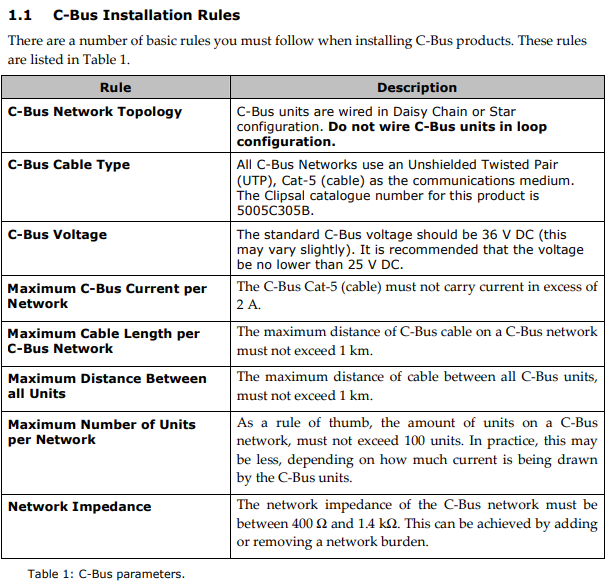
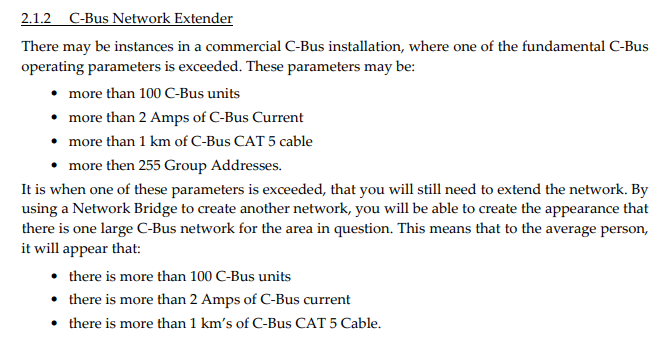
What happen when Exceeding C-Bus 2 Amp rating per network?
Hide ShowPotential issues caused by having >2A limit are:
Damage to the C-Bus cat-5 cable if a dead short were to occur
Impedance causing unstable communications
Potential stressing of power supply units
The C-Bus Cat-5 (cable) must not carry current in excess of 2 A (this is the Maximum C-Bus Current per Network).
Either reduce the number of C-Bus power supply or split the network by using a network bridge(5500NB) in this case.
C-Bus Hardware Installation.pdf
C-Bus™ Products Training Course Training Guide.pdf
How to back up Wiser2 project using Wiser Transfer Utility
Hide ShowHow to back up Wiser2 project using Wiser Transfer Utility
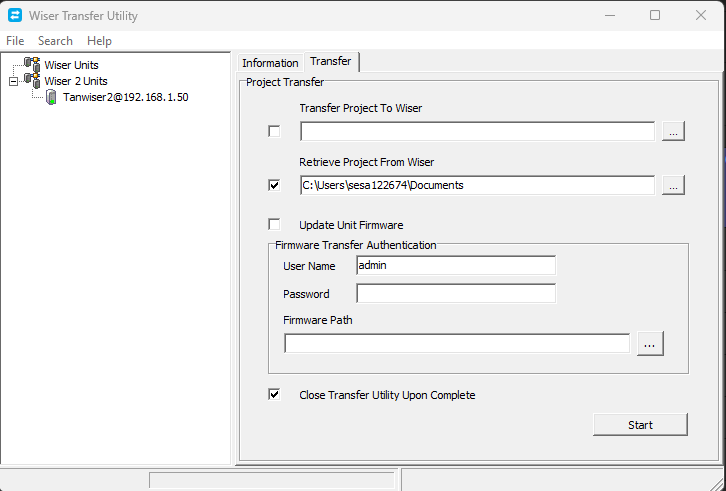
it will save the files as .tar.gz
How to set up the second machine to control the same project?
Hide ShowHow to set up the second machine to control the same project?
follow the instruction in toolkit help file ''Setting up a new remote projects connection"

Setting up a new remote projects connection
You can connect to C-Bus projects remotely by setting up connectivity between C-Bus Toolkit software and C-Gate server, and C-Bus Toolkit project folders.
Before you start
|
§ |
The C-Bus Toolkit host computer needs to be able to set up an ethernet connection between the C-Gate server and the C-Bus Toolkit host computer |
|
§ |
Access to the C-Gate server to update a configuration file for the purpose of identifying each C-Bus Toolkit host computer. |
Follow the procedures below to successfully connect remotely to C-Gate project folders.
Obtaining permissions on the ethernet
If you are intending to connect to a C-Bus Toolkit projects which reside on host computers on an ethernet, you must ensure that your computer has permission to access the network. In most cases, the building site computers have firewall protection. To get access, you need to contact the system administrators who grant login and password access.
Identifying the C-Bus Toolkit host computer
The C-Gate server must know of the existence of any C-Bus Toolkit software which wants to gain access to C-Bus project folders. To be a trusted user of the C-Gate server, the hostname or IP address of the C-Bus Toolkit host computer must be added to a configuration file on the C-Gate server.
Finding the IP address of C-Bus Toolkit
To find the IP address from a Microsoft Windows operation system, follow the procedure below:
|
1. |
Click the Start menu on your host computer |
|
2. |
Click the Run... option. The Run dialog box appears. |
|
3. |
Type cmd in the Open: field of the Run dialog box. The cmd.exe window opens. |
|
4. |
At the command line prompt, type: ipconfig. The window displays the ethernet local area connection. |
|
5. |
Look for the IP address in the window. An example of an IP address would be: 10.178.143.159. |
To close the Microsoft Windows command line window, type: exit.
Adding the C-Bus Toolkit IP Address to the C-Gate server
To add the C-Bus Toolkit host computer to the access.txt file, follow the procedure below:
|
1. |
For windows operating systems, the configuration file is named: access.txt and is located at the host computer location of: C:\Clipsal\C-Gate 2\config. Use Microsoft Windows search facility to find the access.txt configuration file. |
|
2. |
Double-click on the access.txt file to open a Microsoft Notepad editing session. This opens the access.txt file in Microsoft Notepad as shown in the sample content below (Note that the exact contents of this file may vary): |
##C-Gate Server Access Control File
## This file was written automatically by a command issued to the server
## Created:Tue Oct 05 16:22:26 CST 2004
## File name: C:\clipsal\c-gate\config\access.txt
interface 0:0:0:0:0:0:0:1 Program
interface 127.0.0.1 Program
interface localhost Program
## End of access control file
|
3. |
Below the interface localhost Program line, add the following: |
remote [IP Address of C-Bus Toolkit host computer] Program
|
4. |
Repeat this for each host C-Bus Toolkit host computer, you want to connect to the C-Gate projects folder. |
|
5. |
Save the file by clicking File menu > Save option in Microsoft Notepad. |
Adding the C-Gate server IP address in C-Bus Toolkit
You need to identify the C-Gate server by its IP address in order to set up C-Bus Toolkit so that it can open the C-Bus Toolkit project folders residing with the C-Gate server. To carry this out, follow the procedure below:
|
1. |
Click on Connect to a Remote C-Gate option in the File menu of C-Bus Toolkit. The C-Gate Site dialog box appears. |
|
2. |
In the Site Name field, type a descriptive name for the C-Gate server project folders. The name must be a single word with no spaces and contain alpha-numeric characters. Characters outside of the following sets: a-z, A-Z, 1-9, are not valid. |
|
3. |
In the Host Name field, type the host computer name of the C-Gate server. If you do not know that precise host name, leave the field blank. |
|
4. |
In the IP Address field, add the IP address - numbers only. |
|
5. |
Click the OK button to save the remote IP location. |
C-Bus Toolkit searches for the remote IP location. If the search is successful, the remote C-Gate project folders appear in the C-Bus Toolkit treeview. If the search result is unsuccessful, C-Bus Toolkit sends an error message.
How do we use C Bus in Prestige series plates?
Hide ShowIs it a bell press mech and a bus coupler or can you use a 30 series C Bus Master and Slave mech with the bell press mech front end?
The 30 mech adapter provides a led indicator.
The bus coupler plus momentary Prestige button looks better but you lose the led indicator

How do you perform an RCD test using the 493 Spark-e-Mate installation tester?
Hide ShowPlease view this video.