

Standard Series Twin Switch Socket Outlet 250V, 10A, Large Format Size | White Electric
Item Number: 23-WE
Datasheet
Specifications
Design
| Range of product | Standard Series |
|---|---|
| Product or component type | switched socket |
| Product brand | Clipsal |
| Surface finish | glossy |
Physical
| Control type | ON/OFF button |
|---|---|
| Number of gangs | 2 gangs |
| Pin number | 3 |
| Number of power socket outlets | 2 |
| Actuator |
|
| Fixing mode | by screws |
| Local signalling | without light indicator |
| Mounting position | horizontal |
| [ue] rated operational voltage | 250 V AC |
| [in] rated current | 10 A |
| Depth | 15 mm |
| Length | 145 mm |
| Width | 86 mm |
| Fixing center | 120 mm |
| Standards |
|
| Environmental disclosure | ENVPEP120506EN |
| Eu rohs directive | Compliant By Exemption |
Material
| Material | plastic |
|---|
Documents & downloads
-
All
-
Technical Data Catalogues
-
Specification Guide
-
Declaration of Conformity (Sustainability)

Frequently Asked Questions
How to Factory Reset daligateway2 (5502CDGP230) to original manufacturer settings
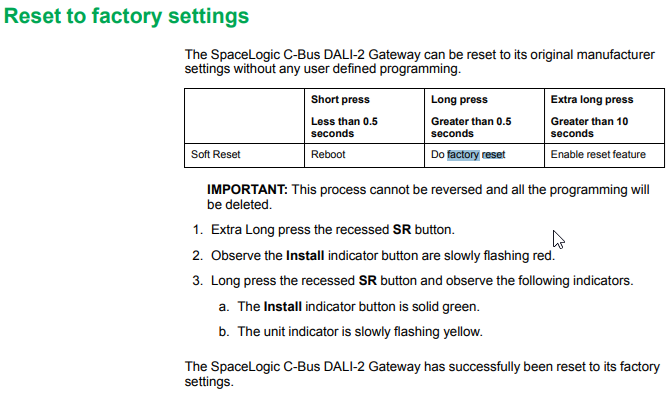
Hide ShowTo factory reset the daligateway2. Simply press the SR button with pointy device i.e a paper clip for 10 Seconds. Release then a long press for more than 0.5 sec.

How to properly select location and mounting of daligateway2 (5502CDGP230)
Hide ShowThe C-Bus DALI-2 Gateway is designed to be installed in a distribution cabinet, mounted on a DIN rail (type DIN EN60715), in a horizontal position.
There should be adequate ventilation to prevent overheating of this unit, this can be achieved by using larger distribution boards as opposed to small domestic distribution boards.
C-Bus Cat-5e cables Should be adequately separated or segregated as defined in local wiring regulations.
Note: Use the heat load value of all the units in the cabinet to select a cabinet with correct ventilation. Ensure that the temperature around the unit is less than 45C.
Why are 9001KM38 listed twice, as resistor and full voltage light modules?
Hide ShowIs the 9001KM38 a resistor type or full voltage type of light module?
Product Line:
Push Buttons and Operator Interface
Environment:
Harmony Pushbuttons
Cause:
Product Features
Resolution:
Both descriptions are accurate. They are both the same device but can be selected by either description depending on the application/preference.
How to Factory Reset daligateway2 (5502CDGP230)?
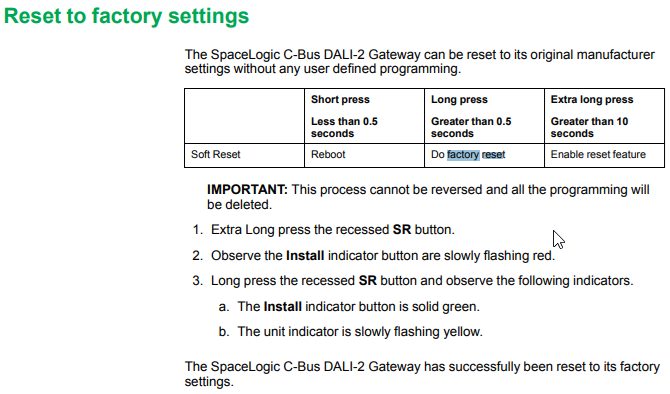
Hide ShowTo factory reset the daligateway2. Simply press the SR button with pointy device i.e a paper clip
HOLD DOWN THE (SR) BUTTON FOR 10 SEC. LET GO THEN HOLD IT DOWN AGAIN FOR 2 SEC.
Article to be archived
Hide ShowFor the 5502CDGP230, the C-Bus Clock can be enabled or disabled via the front panel, by pressing and holding down the MANUAL button on Line A, and short pressing the ID button on Line B.
What dali device type does the C-BUS Dali2Gateway (5502CDGP230) support?
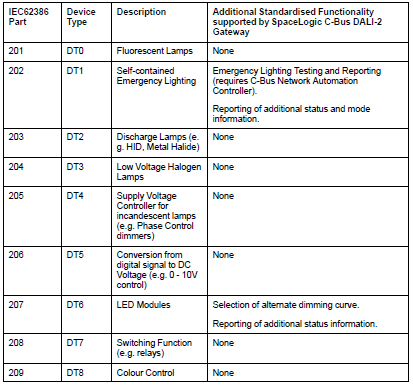
Hide ShowThe C-BUS Dali2Gateway F/W 1.8 can currently support DT0, DT1, DT6. It doe not yet support Tunable White and RGB/RGBW
What is the purpose of the Read DALI Gateway scan?
Hide ShowA Read DALI Gateway scan helps to rebuild a project from a live/existing & operational C-Bus DALI-2 Gateway that has been previously configured.
The scan retrieves the information stored on the live gateway, including its own programming and programming all connected DALI Devices.
What different scans can be performed on the DALI Line in C-Bus Commission?
Hide ShowAs of C-Bus Commission v2.15.0, the available scans for a DALI are:
1. DALI Scan
2. DALI Device Type Scan
3. Read DALI Gateway
4. Discover Faults
Note: A Scan can also be done by pressing the INSTALL button of each line on the front of the unit
Where to download the SpaceLogic C-Bus Commission V2.2.0?
Hide ShowRelease Date: 02/04/2024
Version: V2.2.0
Reference: C-Bus-Commission_V2.2.0
C-Gate: 3.3.0 (build 1825)
Operating systems: Windows 11 Professional (64-bit), Windows 10 Professional (64-bit), Windows 10 Enterprise (64-bit), Windows 10.
What’s New
• Dimmer conversion will add default channel name
When converting older LE dimmers DIMDN4 or DIMDN8 (L5504D2A or L5508D1A) to the new digital dimmers DIMDD4 (5504D2D) and DIMDD8 (5508D1D), the software will now automatically insert a default channel name per channel.
• Network Summary for a C-Bus Network
The C-Bus Network node will show the summary of network information and status including the C-Bus Current supplied and consumed values plus the network impedance value. This data is only taking the project devices into consideration (not the live network devices).
• View the in-built C-Bus power supply status of C-Bus Digital Dimmers on the live network
An icon has been added to the Status column in the Network Devices section of the C-Bus Devices workspace indicating whether the in-built C-Bus Power Supply for the new C-Bus Digital Dimmer (DIMDD4 and DIMDD8) is enabled or disabled.
Fixes
• Project conversion issues. The software will now show correctly when a project has truly failed to convert. Issue with projects in “Waiting” resolved.
• Multiple confirmation dialogues when delete a device in project.
• When transferring to a C-Bus Automation Controller and C-Bus Application Controller, updating a Tag Map name will create an Object if one does not exist, this can result in additional objects created in controller that were not defined in the Object List. Note, this release of SpaceLogic C-Bus Commission software is only compatible with the C-Bus Automation Controller and C-Bus Application Controller firmware version 1.16.0 (when using the Controller Sync function).
• Warn Before Off Enable Group in live network Digital Dimmer is blank and not auto created during a network scan.
• Network burden property of Digital Dimmers did not update the C-Bus summary data (not included in network calculator).
Known Issues
• A slight delay may be seen when switching views back and forth between the Measurement and Error applications where a large amount of data (150 items or more) exists.
• Clicking on the Main Menu repeatedly will result in a decrease in software performance. C-BUS COMMISSION RELEASE NOTES 2
• Switching projects 10 or more times will result in a decrease in software performance.
• Measurement application values presented from the live network may not appear truncated and rounded to reasonable decimal places.
Link to download the SpaceLogic C-Bus Commission V2.2.0
https://www.se.com/nz/en/download/document/C-Bus-Commission_V2.2.0/
or
https://www.se.com/au/en/product-range/2216-spacelogic-cbus-home-automation-system/?parent-subcategory-id=88010&filter=business-5-residential-and-small-business#software-and-firmware
Can the new Dali gateway 5502DCGP230 firmware be updated?
Hide ShowYes installer can update the firmware of the device in the field
- without disconnecting any connections
- without removing the unit from the switchboard
A USB device port is provided on the front cover of the device as a power source.
Using Space logic C-Bus Commission software >
What standard does the plug used on the EVlink station meet? What cars will it work with?
Hide ShowIssue:
What connector is used on the EVlink charging station?
Product Line:
PTEVC - ELECTRICAL VEHICLE
Resolution:
The EVlink Level 2 charging stations use the SAE J1772 type connector. The J1772 plug is rated NEMA 3S and is designed for indoor or outdoor use.
DALI broadcasts messaging from the DALI gateway vs DALI broadcasts from a DALI Dual Power Supply via the override Push Buttons
Hide ShowThe differential of the DALI broadcasts messaging from the DALI gateway via a C-Bus Group vs Sending broadcasts from a DALI Dual Power Supply via the Push Buttons on the front of the power supply.
-
Sending broadcasts from the DALI gateway via a C-Bus Group.
-
Sending broadcasts from a DALI Dual Power Supply via the Push Buttons on the front of the power supply.
They're different commands with the same outcome.
Sending broadcast from the DALI gateway via a C-Bus Group use ARC command i.e it come with a fade time before the ARC power level of 254(100%) and 0(Off)

Sending broadcast from a DALI Dual Power Supply via the Push Buttons on the front of the power supply is direct Max and Off

Can I change the timestamp on my Wiser IP Camera (Indoor and Outdoor)?
Hide ShowWhere can I download the Visio and CAD for Dafligateway2 (5502CDGP230)
Hide ShowHow many meters can fit in the 230DRAQTPL?
Hide ShowIf two electric vehicles are connected to a dual outlet EVlink charging station and one has completed charging and is disconnected, will the other vehicle continue to be charged?
Hide ShowWill charging continue on a dual EV station when one outlet is unplugged?
Product Line:
PTEVC - Electric Vehicle Systems
Environment:
Dual EV charging stations
Cause:
Concern about continuous charging
Resolution:
Yes, once a vehicle has stopped charging and has been disconnected, the other side of the dual charger will remain energized and continue charging the other vehicle until it has stopped charging and has been disconnected.
What is the replacement for Sarel 87903?
Hide ShowNSYCVF300M230PF
ClimaSys forced vent. IP54, 300m3/h, 230V, with outlet grille and filter G2