Clipsal Wiser Hub Zigbee to IP Network
Item Number: CLP501902
The Wiser Hub enables you to easily manage your home environment. It connects Wiser devices and enables communication between multiple devices and a smartphone via the Wiser app. The hub also enables voice control and allows you to control your home from a remote location.
Datasheet
Product Dimensions

Width86 mm

Height86 mm

Depth34 mm
Specifications
Design
| Range | Wiser |
|---|---|
| Product or component type | hub |
| Device application | Zigbee/IP network interface |
| Colour tint | white |
Physical
| Communication network type | wireless Zigbee (2.4-2.4 GHz), 2.5 mW at < 50 m |
|---|---|
| Connector type |
|
| Local signalling | indicator: 3 LEDs (white) |
| Width | 86 mm |
| Height | 86 mm |
| Depth | 34 mm |
| Ambient air temperature for operation | 0...40 °C |
| Relative humidity | 10...90 % |
| Environmental characteristic | indoor use |
| Ip degree of protection | IP20 |
| Standards |
|
| Product certifications | CE |
| Mercury free | Yes |
| Rohs exemption information | Yes |
| Environmental disclosure | ENVPEP2108012EN |
| Eu rohs directive | Compliant By Exemption |
Documents & downloads
Filter items
-
All
-
Other technical guide
-
Technical Data Catalogues
-
End of Life Manual
-
Environmental Disclosure
-
Installation Instruction
-
Operating Manuals
-
Declaration of Conformity
-
Certificates (MSDS)
-
Declaration of Conformity (Sustainability)
ZIP
Cyber Security Law Statement of Compliance - Wiser by SE Mobile App
VERSION
1.0
DATE
25 Feb 2026
REVISION
1.0
DOWNLOAD (ZIP) 175.8 KB
ZIP
Cyber Security Law Statement of Compliance - Wiser Home Mobile App
VERSION
1.0
DATE
25 Feb 2026
REVISION
1.0
DOWNLOAD (ZIP) 176.2 KB
ZIP
Cyber Security Law Statement of Compliance - Wiser Hub
VERSION
1.0
DATE
19 Feb 2026
REVISION
1.0
DOWNLOAD (ZIP) 178.8 KB

Frequently Asked Questions
Wiser Product Warranty
Hide Show
The Hub, IR converter and all Sensors have a warranty of 12 months.
The 2AX (41E2PBSWM), 10AX (41E10PBSWM), Dimmer (41EPBDWCLM), Micro module dimmer (CLP5010WDZ), Micro module switch (CLP5011WSZ), Micro module blinds (CLP5015WBZ) and the Connected Socket Outlet (3025CSG) all have a 2-year warranty.
This information can be found on the product installation instructions.
The 2AX (41E2PBSWM), 10AX (41E10PBSWM), Dimmer (41EPBDWCLM), Micro module dimmer (CLP5010WDZ), Micro module switch (CLP5011WSZ), Micro module blinds (CLP5015WBZ) and the Connected Socket Outlet (3025CSG) all have a 2-year warranty.
This information can be found on the product installation instructions.
My Wiser switches are not responding to being pressed or control via Wiser by SE, what can I do to troubleshoot the issue?
Hide Show
Begin by taking note of the product/s that are not responding and are they doing anything else different from normal operation? For example, is the backlight flashing in a sequence, does the product respond to three presses and shows the pairing led colouring and what colours are seen. If what is suggested below does not resolve the switches not responding these details can assist the Tech Support team in diagnosing what is occurring.
Once this has been taken note of begin by power cycling your Wiser Hub. This can be done by removing the micro-USB where it connects to the Hub or by turning off the power outlet that supplies power to the Hub. Leave it off for 10 – 15 seconds and then reconnect the Wiser Hub and wait until it completes its reboot procedure at the end of which only 2 LED indicators should be visible on the Wiser Hub. With LEDs at top of Hub - if connected with Ethernet cable (Right and Left Led will turn ON). If connect via WiFi (Middle and Right Led will turn ON)
If this fails to resolve the issue the product failing to respond may need to be power cycled itself. If confidant and able, access the switchboard that has the RCBO’s or Circuit breakers that supply power to the products. Turn the applicable supply off for 10 – 15 seconds and then turn this supply back on.
Note: If uncertain contact your installing electrician for the Wiser system who may advise what is supplying power to the Wiser products. If fuses are installed in your switchboard it is recommended to have your electrician remove the fuse and then re-fit after 10 – 15 seconds. Fuses can be extremely dangerous if not correctly handled by a qualified electrician.
If the switches are still unresponsive contact Tech Support via phone – Australia: 13 73 28 (13 SEAU) New Zealand 0800 652 999, email - techsupport.pz@se.com or via online chat through a link on our support page https://www.clipsal.com/clipsal-support/contact-us or https://www.pdl.co.nz/support
Once this has been taken note of begin by power cycling your Wiser Hub. This can be done by removing the micro-USB where it connects to the Hub or by turning off the power outlet that supplies power to the Hub. Leave it off for 10 – 15 seconds and then reconnect the Wiser Hub and wait until it completes its reboot procedure at the end of which only 2 LED indicators should be visible on the Wiser Hub. With LEDs at top of Hub - if connected with Ethernet cable (Right and Left Led will turn ON). If connect via WiFi (Middle and Right Led will turn ON)
If this fails to resolve the issue the product failing to respond may need to be power cycled itself. If confidant and able, access the switchboard that has the RCBO’s or Circuit breakers that supply power to the products. Turn the applicable supply off for 10 – 15 seconds and then turn this supply back on.
Note: If uncertain contact your installing electrician for the Wiser system who may advise what is supplying power to the Wiser products. If fuses are installed in your switchboard it is recommended to have your electrician remove the fuse and then re-fit after 10 – 15 seconds. Fuses can be extremely dangerous if not correctly handled by a qualified electrician.
If the switches are still unresponsive contact Tech Support via phone – Australia: 13 73 28 (13 SEAU) New Zealand 0800 652 999, email - techsupport.pz@se.com or via online chat through a link on our support page https://www.clipsal.com/clipsal-support/contact-us or https://www.pdl.co.nz/support
I am nearing 120 devices in my Wiser by SE home, with 120 being the maximum allowed should I expect any impact to the system when nearing this?
Hide Show
If the number of devices under a single hub nears the 120 device limit this can cause communication speeds to slow slightly. The significance of this slowing in communication speed will depend on the number and type of device that you are trying to control all at once, the environment the system is in, signal strengths and if there is any interference.
What is the Standby Power of my Wiser devices?
Hide Show
Wiser Micro Module Switch - CLP5011WSZ/PDL5011WSZ - 0.4 W
Wiser Micro Module Dimmer - CLP5010WDZ/PDL5010WDZ - 0.4 W
Wiser Micro Module Blind - CLP5015WBZ/PDL5015WBZ - 0.4 W
Wiser Hub - CLP501902/PDL501902 - 0.2 W
Bluetooth 2AX - 41E2PBSWM-VW/PDL356PB2MBTW-VW - 0.25 W
Bluetooth 10AX - 41E10PBSWM-VW/PDL356PB10MBTW-VW - 0.20 W
Bluetooth Dimmer - 41EPBDWCLM-VW/PDL354PBDMBTW-VW - 0.50 W
Bluetooth Socket - 3025CSG/PDL395CSG - 0.30 W
ZigBee 2AX - 41E2PBSWMZ-VW/PDL356PB2MBTZ-VW - 0.25 W
ZigBee 10AX - 41E10PBSWMZ-VW/PDL356PB10MBTZ-VW - 0.20 W
ZigBee Dimmer - 41EPBDWCLMZ-VW/PDL354PBDMBTZ-VW - 0.50 W
ZigBee Socket - 3025CSGZ/PDL395CSGZ - 0.30 W
Wiser Micro Module Dimmer - CLP5010WDZ/PDL5010WDZ - 0.4 W
Wiser Micro Module Blind - CLP5015WBZ/PDL5015WBZ - 0.4 W
Wiser Hub - CLP501902/PDL501902 - 0.2 W
Bluetooth 2AX - 41E2PBSWM-VW/PDL356PB2MBTW-VW - 0.25 W
Bluetooth 10AX - 41E10PBSWM-VW/PDL356PB10MBTW-VW - 0.20 W
Bluetooth Dimmer - 41EPBDWCLM-VW/PDL354PBDMBTW-VW - 0.50 W
Bluetooth Socket - 3025CSG/PDL395CSG - 0.30 W
ZigBee 2AX - 41E2PBSWMZ-VW/PDL356PB2MBTZ-VW - 0.25 W
ZigBee 10AX - 41E10PBSWMZ-VW/PDL356PB10MBTZ-VW - 0.20 W
ZigBee Dimmer - 41EPBDWCLMZ-VW/PDL354PBDMBTZ-VW - 0.50 W
ZigBee Socket - 3025CSGZ/PDL395CSGZ - 0.30 W
In the Wiser by SE App what are Moments and Automations, how are they triggered and how are they different?
Hide Show
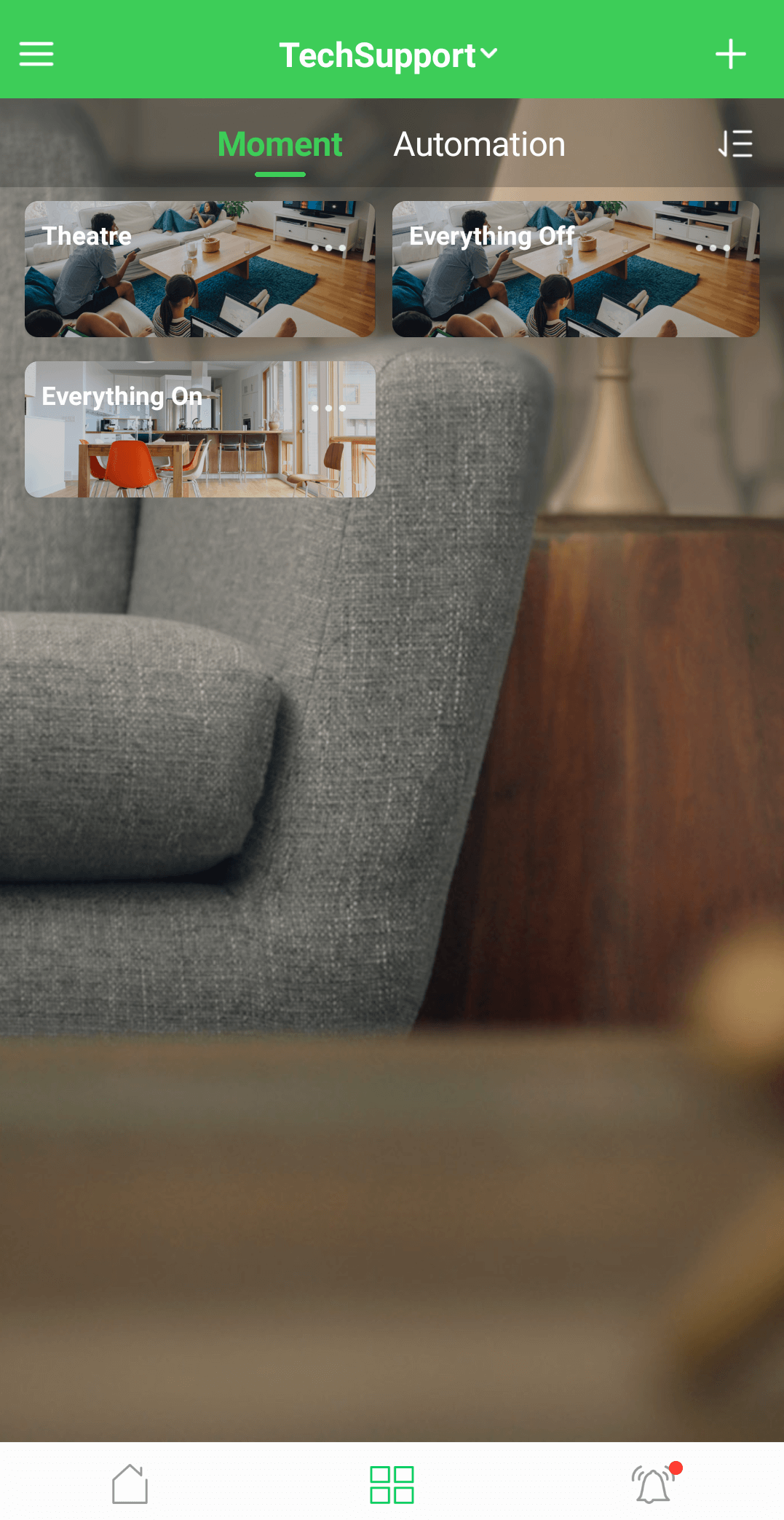
Moments and Automations a series of actions that need to be triggered. These can be created via the Automations and Moments tab in Wiser by SE and are only compatible with Zigbee connected devices.
An Automation is a series of actions that will be triggered when the pre-set condition(s) is/are true. For example - If Motion Sensor changes state to occupied turn on Iconic Wiser Dimmer 1.
An Automation can be set to operate during different time periods of All day, Daytime, Night or Custom.
As an example, if you define an Automation where a nightlight automatically switches on when the motion sensor detects motion, you can tap Effective Period in the Automation editor and select Night. In this case, the nightlight will not respond to the motion sensor during the day.
A moment can be a single action or multiple actions which can be triggered via the App by tapping the moment on your home page or in the Moment and Automations tab or via voice commands or even be triggered by other devices as part of an Automation Action.
Note: An Automation takes precedence over a Moment. For example, if a Moment is triggered and any of the lights in that moment is involved in an Automation and that Automation is triggered on or off those lights will comply with the Automations specified action.

An Automation is a series of actions that will be triggered when the pre-set condition(s) is/are true. For example - If Motion Sensor changes state to occupied turn on Iconic Wiser Dimmer 1.
An Automation can be set to operate during different time periods of All day, Daytime, Night or Custom.
As an example, if you define an Automation where a nightlight automatically switches on when the motion sensor detects motion, you can tap Effective Period in the Automation editor and select Night. In this case, the nightlight will not respond to the motion sensor during the day.
A moment can be a single action or multiple actions which can be triggered via the App by tapping the moment on your home page or in the Moment and Automations tab or via voice commands or even be triggered by other devices as part of an Automation Action.
Note: An Automation takes precedence over a Moment. For example, if a Moment is triggered and any of the lights in that moment is involved in an Automation and that Automation is triggered on or off those lights will comply with the Automations specified action.
What is the Difference between a Common member, an Administrator and the Home owner in the Wiser by SE App?
Hide Show
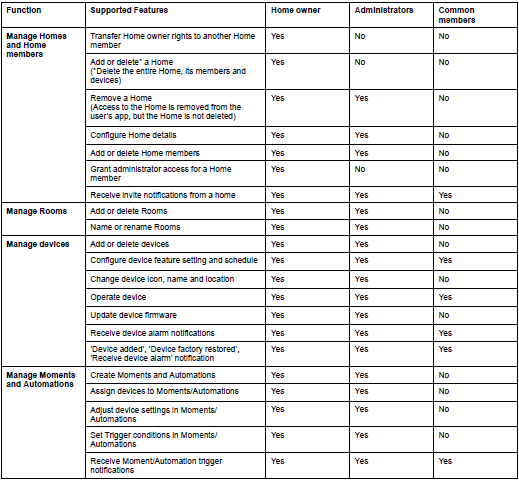
The Home owner has access to all functions.
Administrator has access to all functions except the ability to transfer the home owner rights, delete the home and granting administrator rights to other members.
A common member only has access to operate devices, receive notifications (alarm, moment/automation trigger, device added/removed and invite) from a home, configure device settings and schedules.
See Table Below:
Administrator has access to all functions except the ability to transfer the home owner rights, delete the home and granting administrator rights to other members.
A common member only has access to operate devices, receive notifications (alarm, moment/automation trigger, device added/removed and invite) from a home, configure device settings and schedules.
See Table Below:
What do I do if I have forgotten my login password for the Wiser by SE App?
Hide Show
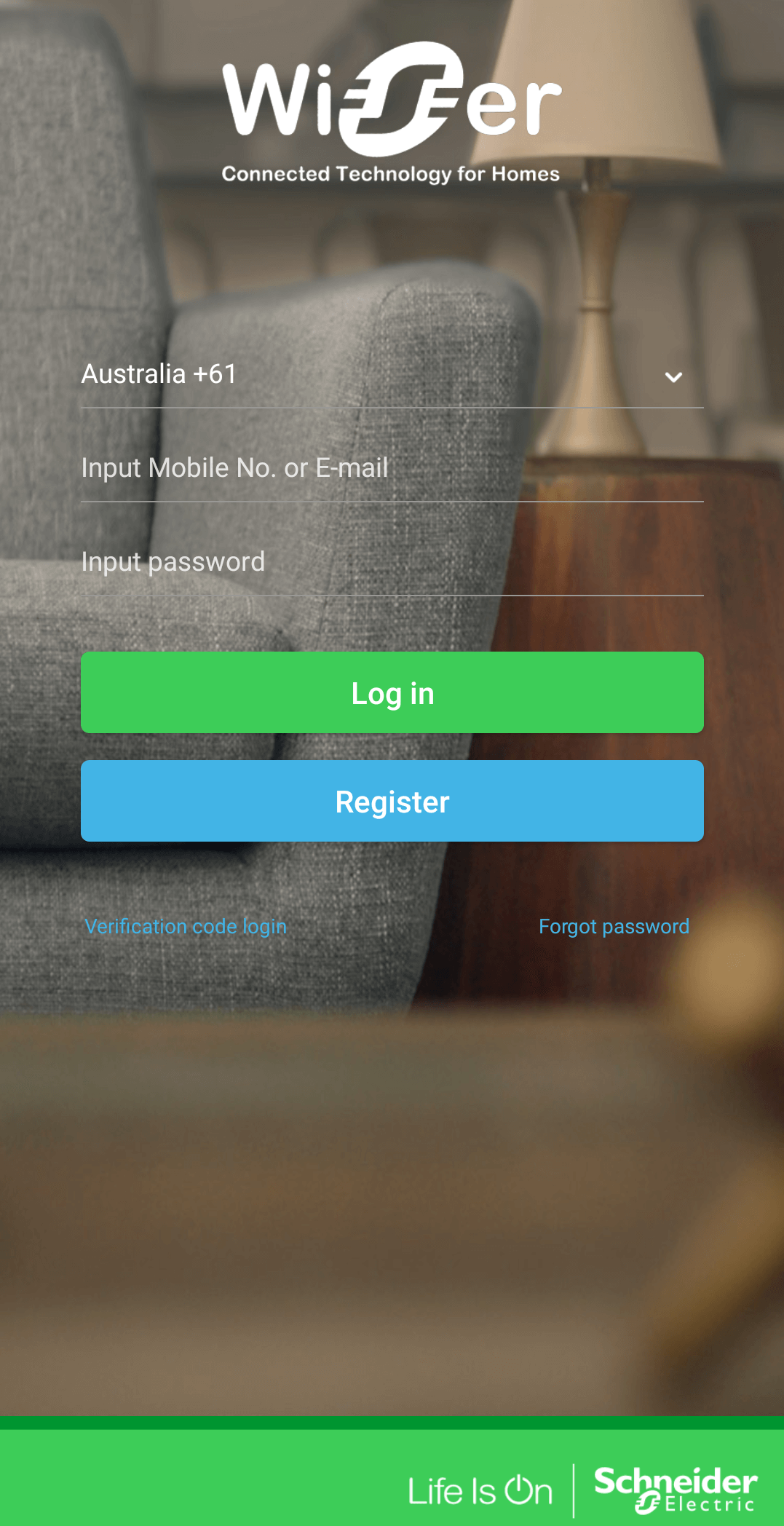
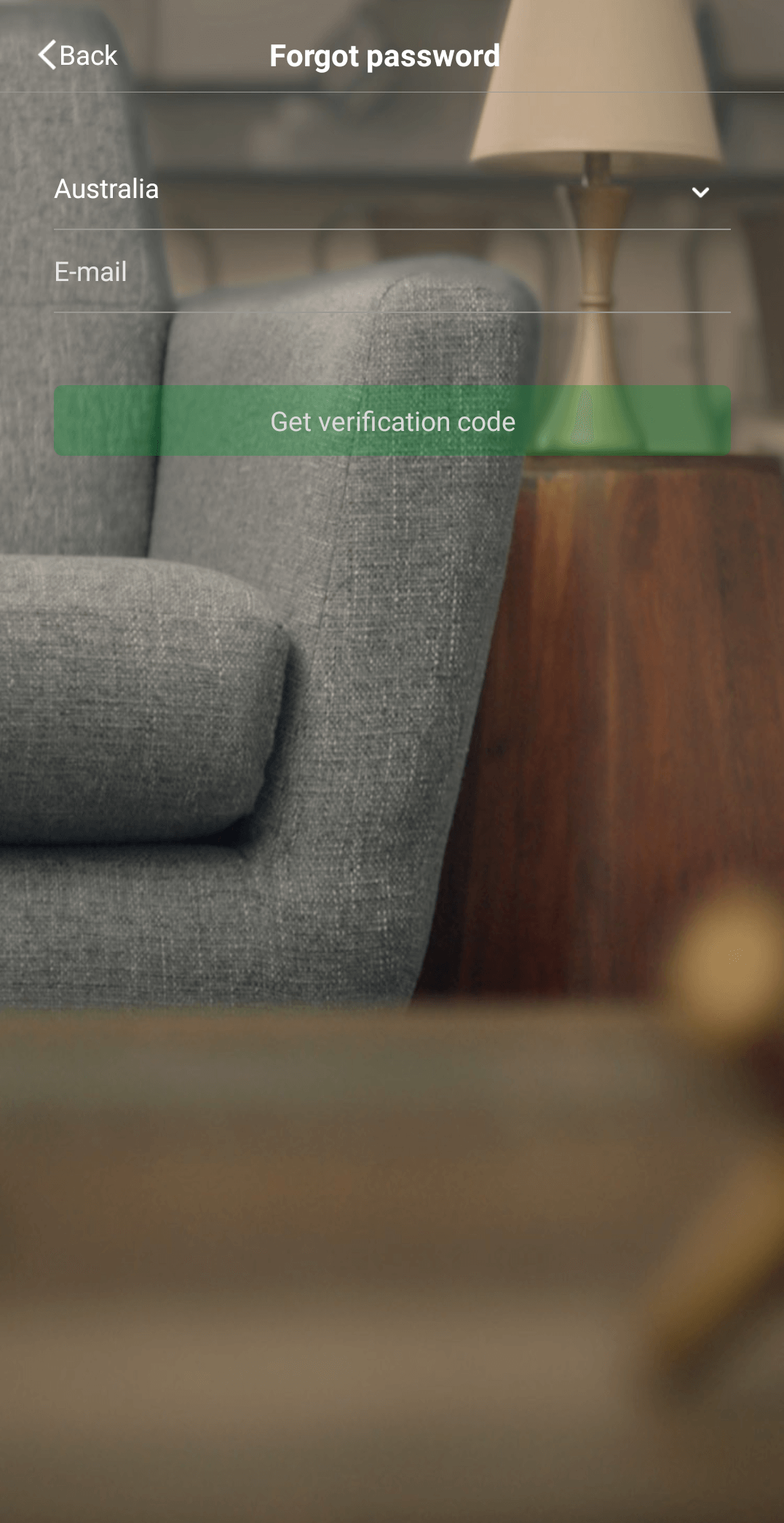
At the Login page tap on Forgot Password. Input your account name (phone number or email address) and tap Next. When you receive the verification code, input the code and then follow the prompts to input/set your new password. Click Confirm to complete the password change.
How do I invite a new member to join my Wiser Home with their Wiser by SE account?
Hide Show
In the menu slide-out tap "Home Management", on the home management page tap the home you wish to add a member to and then tap Add Member, then select the method to share an invitation code. Send the invitation code to the new member. The new member can now copy the code from the email for SMS they receive, then open Wiser by SE app, tap “Home Management”, then tap “Join a home” to the paste in the invitation code.
Note: The invitation code lasts for 3 days after which it will expire.
Note: The invitation code lasts for 3 days after which it will expire.
Will my existing schedules and timers in Bluetooth/BLE devices get transferred over to the Wiser by SE App?
Hide Show
Schedules created in the Wiser Room App will be stored in the device. Once user moves to Wiser by SE App and commissions the device, Wiser by SE App will read the schedules from the device and present them in the App. User can also create new schedules or edit the existing schedules from the Wiser by SE App
Timer settings created within the Wiser Room App will also automatically transfer if continuing to operate devices using BLE. If converting to Zigbee mode and pairing to a Wiser Hub, the timer settings from the Wiser Room app will need to be re-created as an Automation function.
Note: It is strongly recommended to perform a factory reset on mechanisms before swapping them from Bluetooth to Zigbee.
Timer settings created within the Wiser Room App will also automatically transfer if continuing to operate devices using BLE. If converting to Zigbee mode and pairing to a Wiser Hub, the timer settings from the Wiser Room app will need to be re-created as an Automation function.
Note: It is strongly recommended to perform a factory reset on mechanisms before swapping them from Bluetooth to Zigbee.
How do I join a home, in the Wiser by SE App, via verification code? (Invitation via text message)
Hide Show
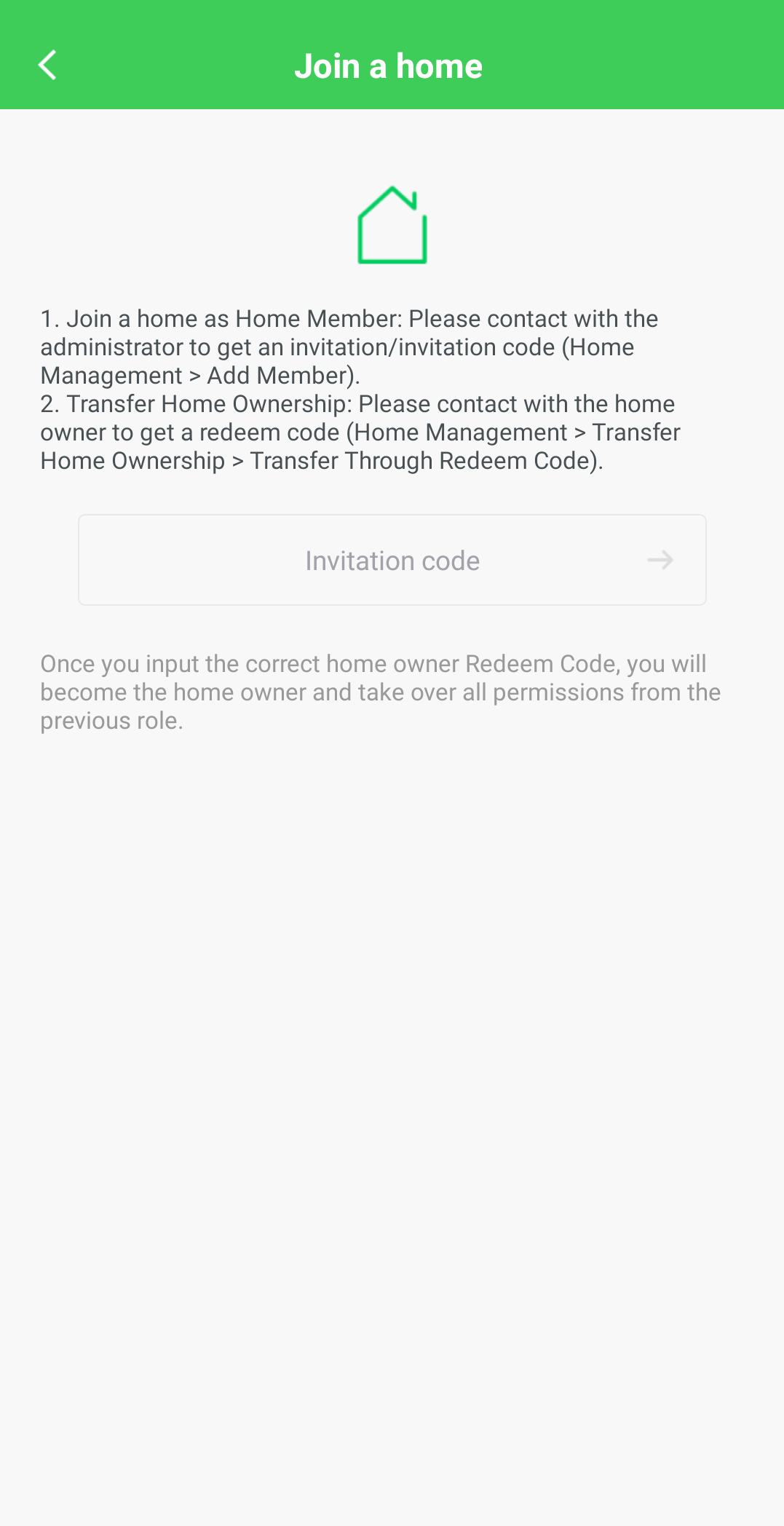
Tap on the 3 bars at the top left for the menu slide out and tap on Home Management. On the Home Management screen tap Join a home and then enter the invitation code that you have been sent from the home owner.
Note: If you have been sent a code to join a home as a member, this code will be valid for three days. If not redeemed within the three days you will have to get a new code/invitation from the home owner.
Note: If you have been sent a code to join a home as a member, this code will be valid for three days. If not redeemed within the three days you will have to get a new code/invitation from the home owner.
How can I log in to Wiser by SE using either my mobile number or email?
Hide Show
Immediately after registering you can only log in to Wiser by SE with the phone number or email you initially used when registering an account in Wiser by SE.
If you want to log in using an email or phone number you didn't register with, the email or phone number needs to be added/linked to your account. This can be done by tapping the 3 bars at the top left for the menu slide-out, tapping on your account name, going to account and security and then adding in either the phone number or email that is missing. Once added you will be sent a verification code to bind that email/phone number.
Note: You cannot change the phone number/email that was used when registering or the other email or phone number, whichever is not used while registering, is added and bound/verified to the account. There can only be one email and one phone number linked with an account.
If you want to log in using an email or phone number you didn't register with, the email or phone number needs to be added/linked to your account. This can be done by tapping the 3 bars at the top left for the menu slide-out, tapping on your account name, going to account and security and then adding in either the phone number or email that is missing. Once added you will be sent a verification code to bind that email/phone number.
Note: You cannot change the phone number/email that was used when registering or the other email or phone number, whichever is not used while registering, is added and bound/verified to the account. There can only be one email and one phone number linked with an account.
How do I set up a Pattern Lock and 2-Step Verification for the Wiser by SE App?
Hide Show
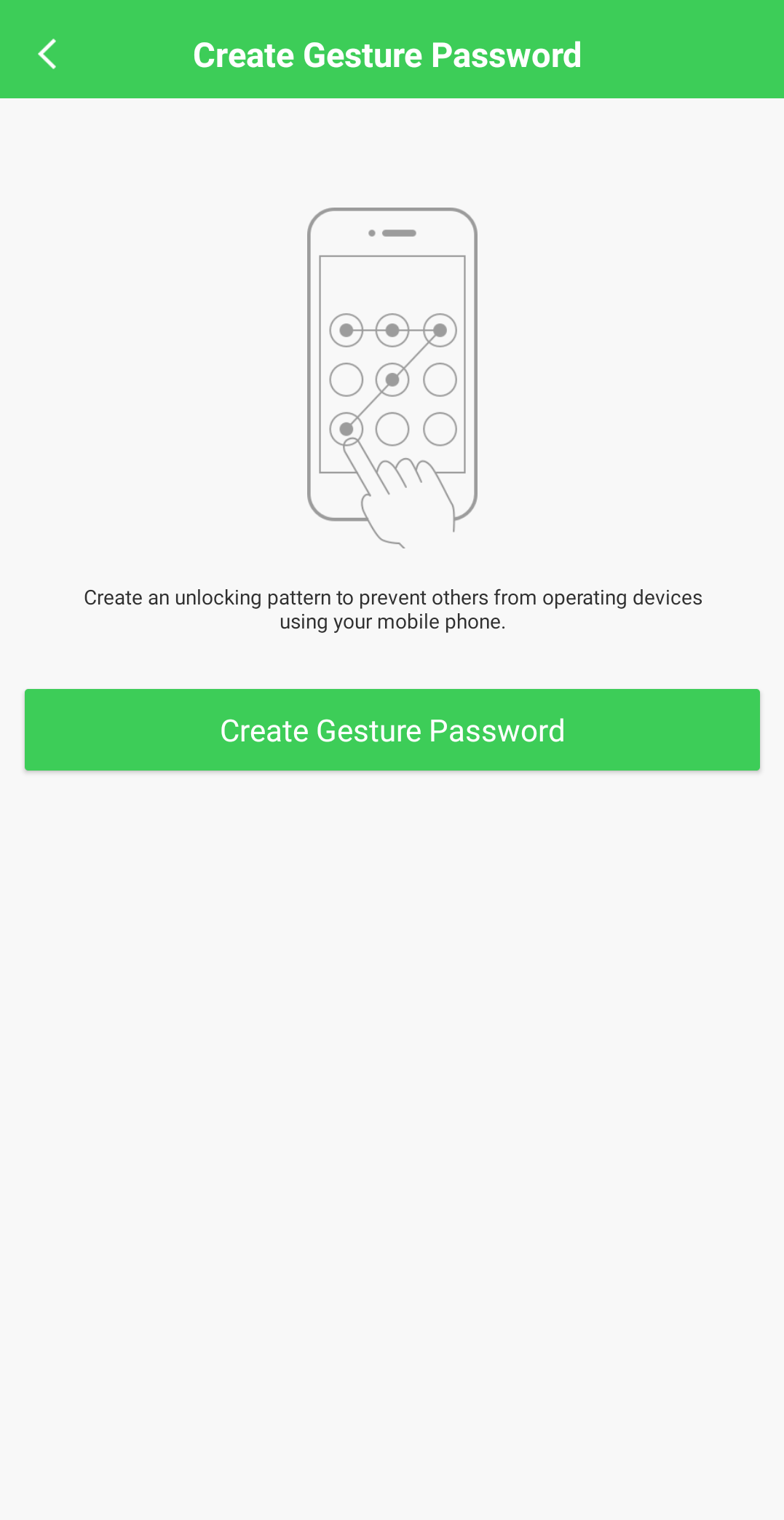
To set up the Pattern Lock feature - Tap the Menu slide-out and tap your username to go to the Account page. In the Account page, tap Account and Security. In the Account and Security page, tap Pattern Lock and then tap create gesture password and follow the in-app directions. Once you have activated the Pattern Lock feature, you can switch the feature On and Off as required and change the Gesture Password.
To set up 2-Step Verification - When in the Account and Security page you can toggle this setting on and off from here. When enabled every time you Log in to the App a code will be sent to your email/phone that needs to be input into the App before finalising log in.
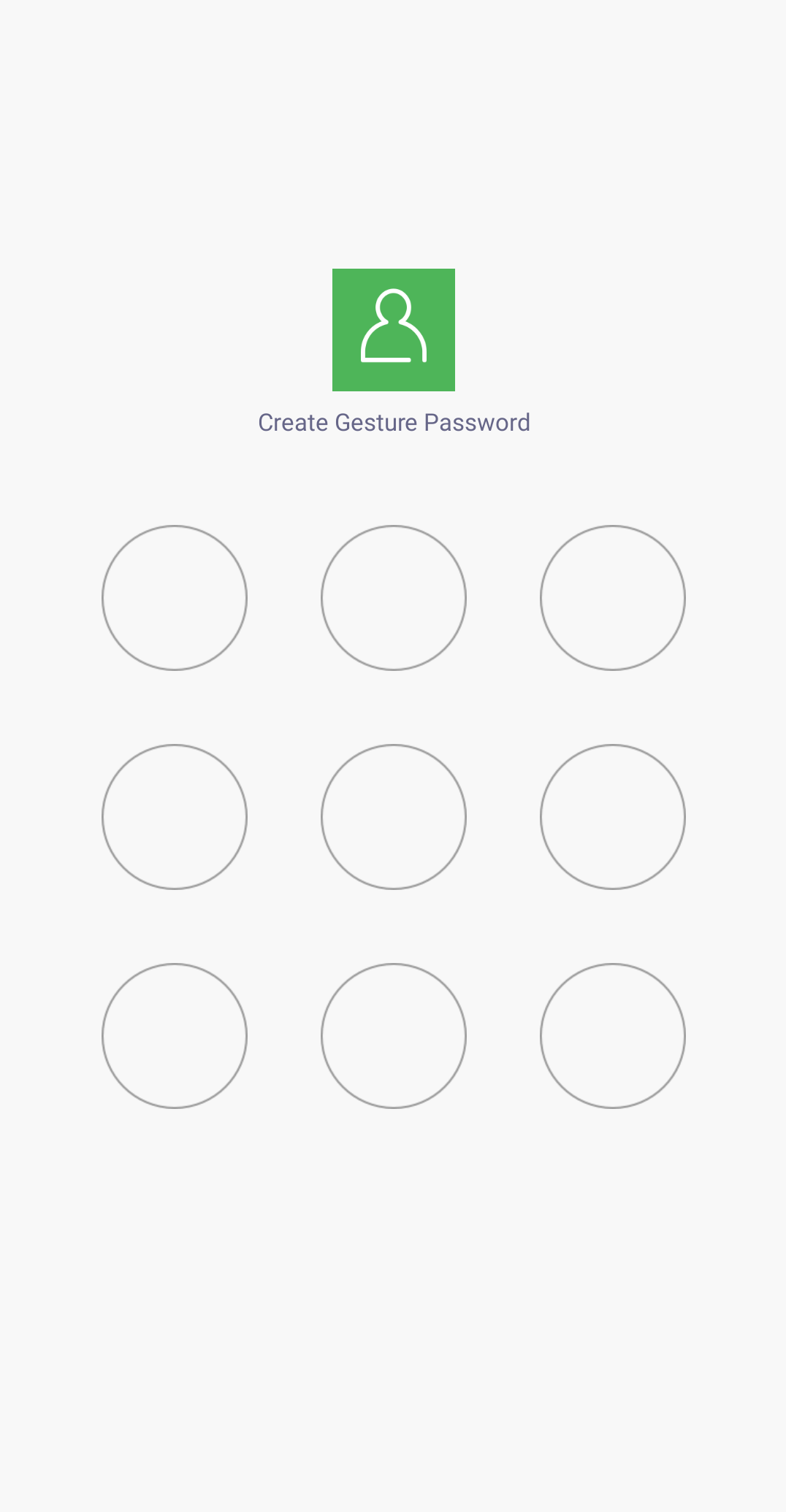
To set up 2-Step Verification - When in the Account and Security page you can toggle this setting on and off from here. When enabled every time you Log in to the App a code will be sent to your email/phone that needs to be input into the App before finalising log in.
When adding devices to the Wiser by SE App, what are the differences between Auto Scan and Add Manually?
Hide Show
Auto Scan - scans for both Bluetooth, if this is enabled, and Zigbee devices in pairing mode to add to the App. This can be used to add multiple devices at once with Zigbee. It is not recommended to use this with Bluetooth/BLE as they should be added individually.
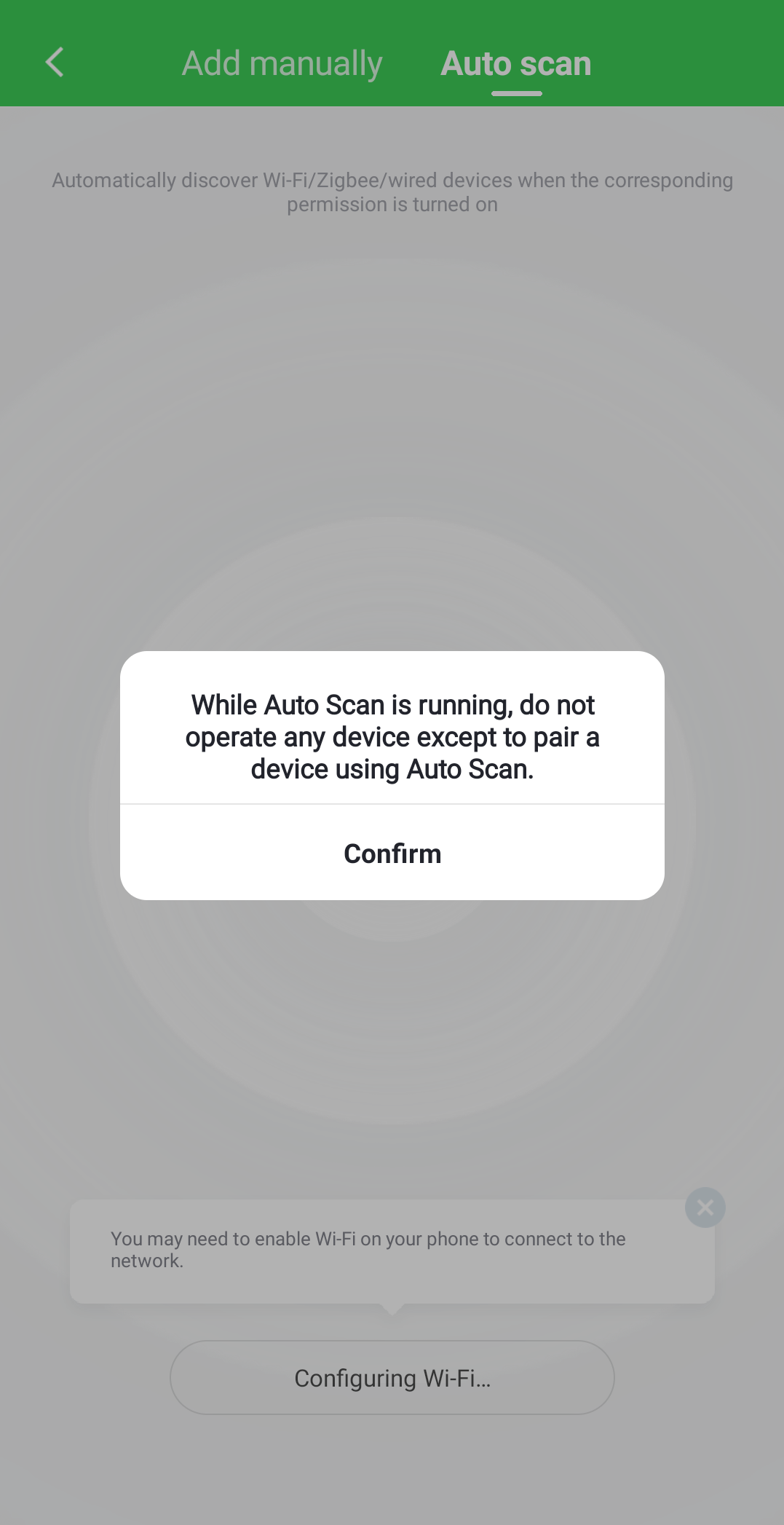
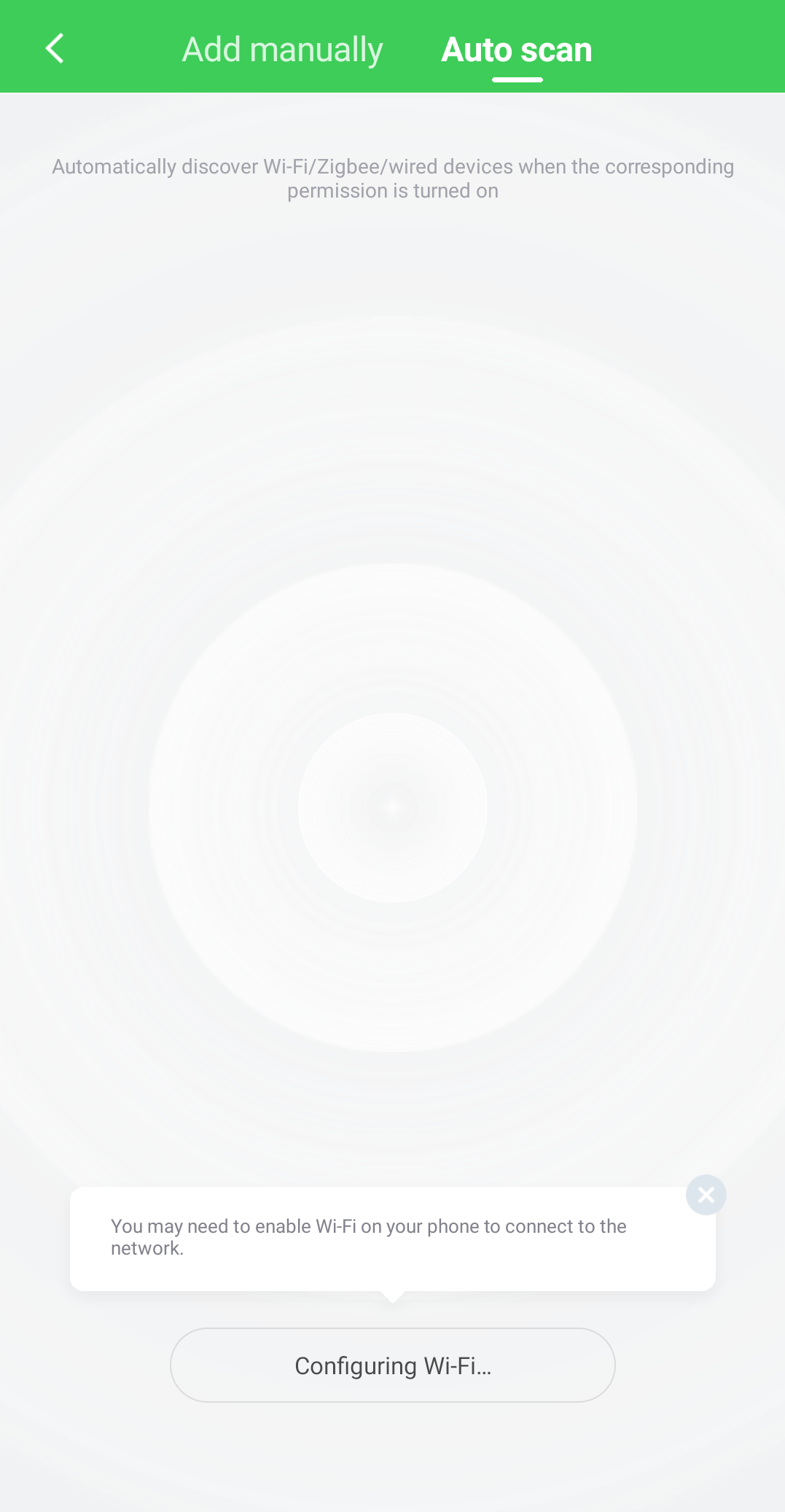
Add manually without hub – search for Bluetooth devices in pairing mode

Add manually with hub – search for Zigbee devices in pairing mode
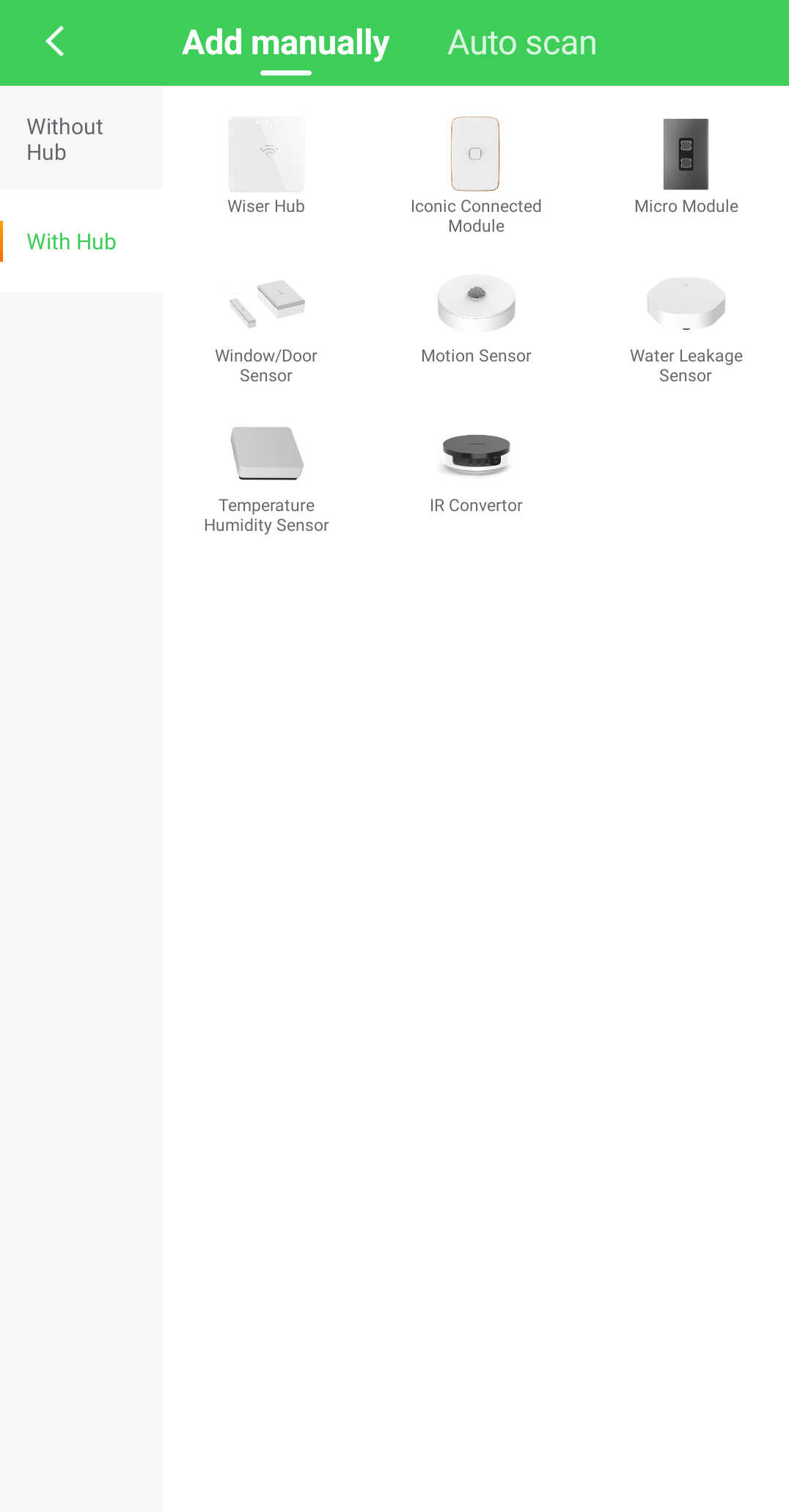
Add manually without hub – search for Bluetooth devices in pairing mode
Add manually with hub – search for Zigbee devices in pairing mode
If I replace my iOS smartphone with an Android one, can I still log in to my Wiser by SE account normally?
Hide Show
Yes. Download and install the Wiser by SE App on your new smartphone's operating system. You can then log in using your account log in and password. Your Wiser home and all of your paired devices and settings will appear within a few seconds.
How do I delete/deactivate a Wiser by SE App account?
Hide Show
You can deactivate your account by following the steps below. Tap on the slide-out menu and then tap your username. when in the Account page tap on Account and Security. In the Account and Security page tap on Deactivate Account and then Deactivate.
Note: This will permanently delete all data under the account after the time given unless you withdraw the request.

Note: This will permanently delete all data under the account after the time given unless you withdraw the request.
Can I set a Do Not Disturb time range across two days in the Wiser by SE App?
Hide Show
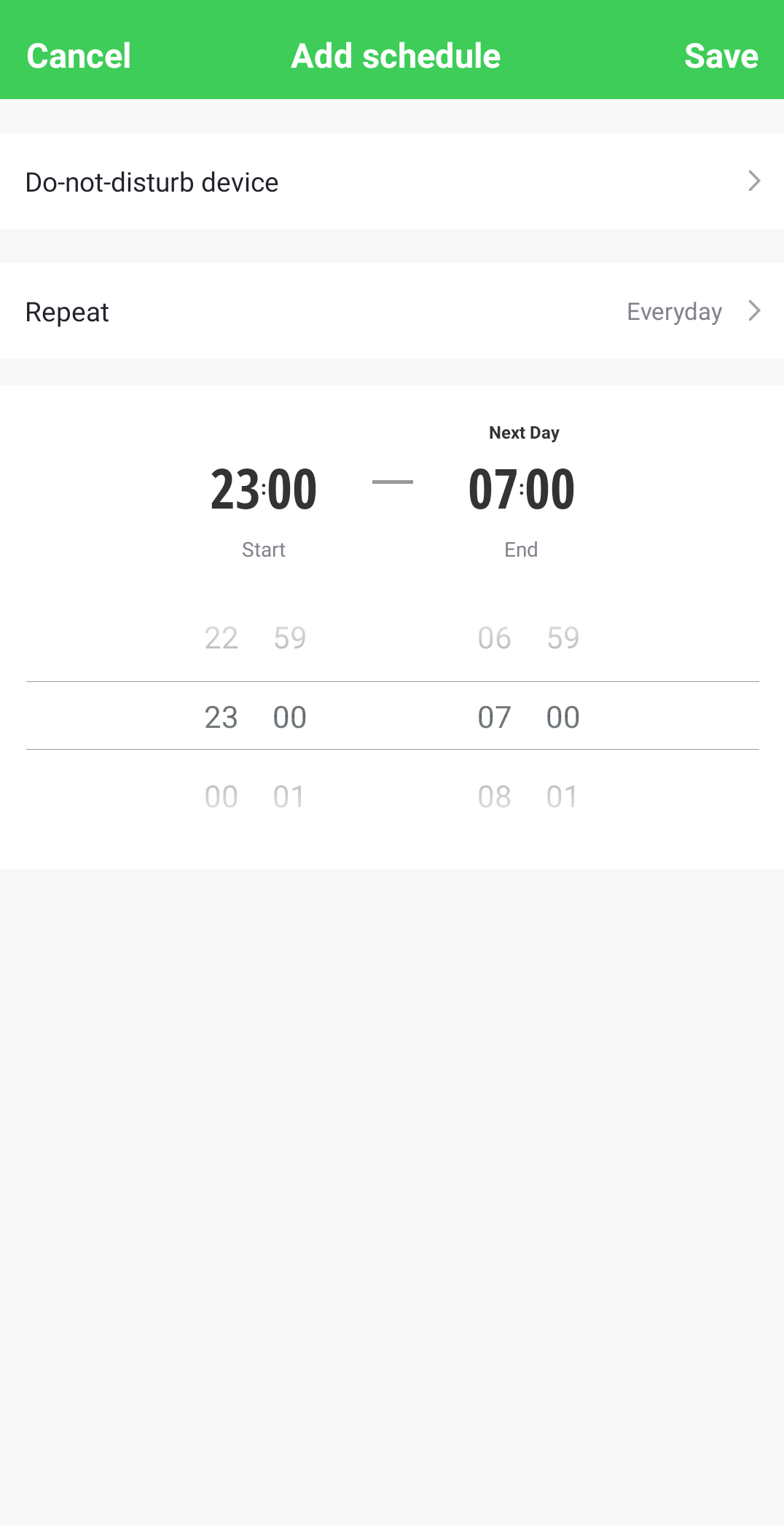
The time for a Do Not Disturb can only cover a 24h period. This can be set to cover an overnight time period. For example, if you wanted to set 11.00pm till 7.00am the next morning it would be 23:00 – 07:00 where the 07:00 will be labelled Next Day.
You can then go into the repeat menu and you can select which days you want this to cover.
Under the Do-not-disturb device select the devices you want the do not disturb to cover or use the select all button to select all.
You can then go into the repeat menu and you can select which days you want this to cover.
Under the Do-not-disturb device select the devices you want the do not disturb to cover or use the select all button to select all.
How do I reset my password for my account in the Wiser by SE App?
Hide Show
Tap on the Menu slide-out and tap your username. When in the Account page tap on Account and Security. In the Account and Security page tap on Change Login Password, this will then send you a verification code. Input the verification code received by email or SMS which will then allow you to input a new password.
The location shown for my Home in the Wiser by SE App is not correct. Can I change the location?
Hide Show
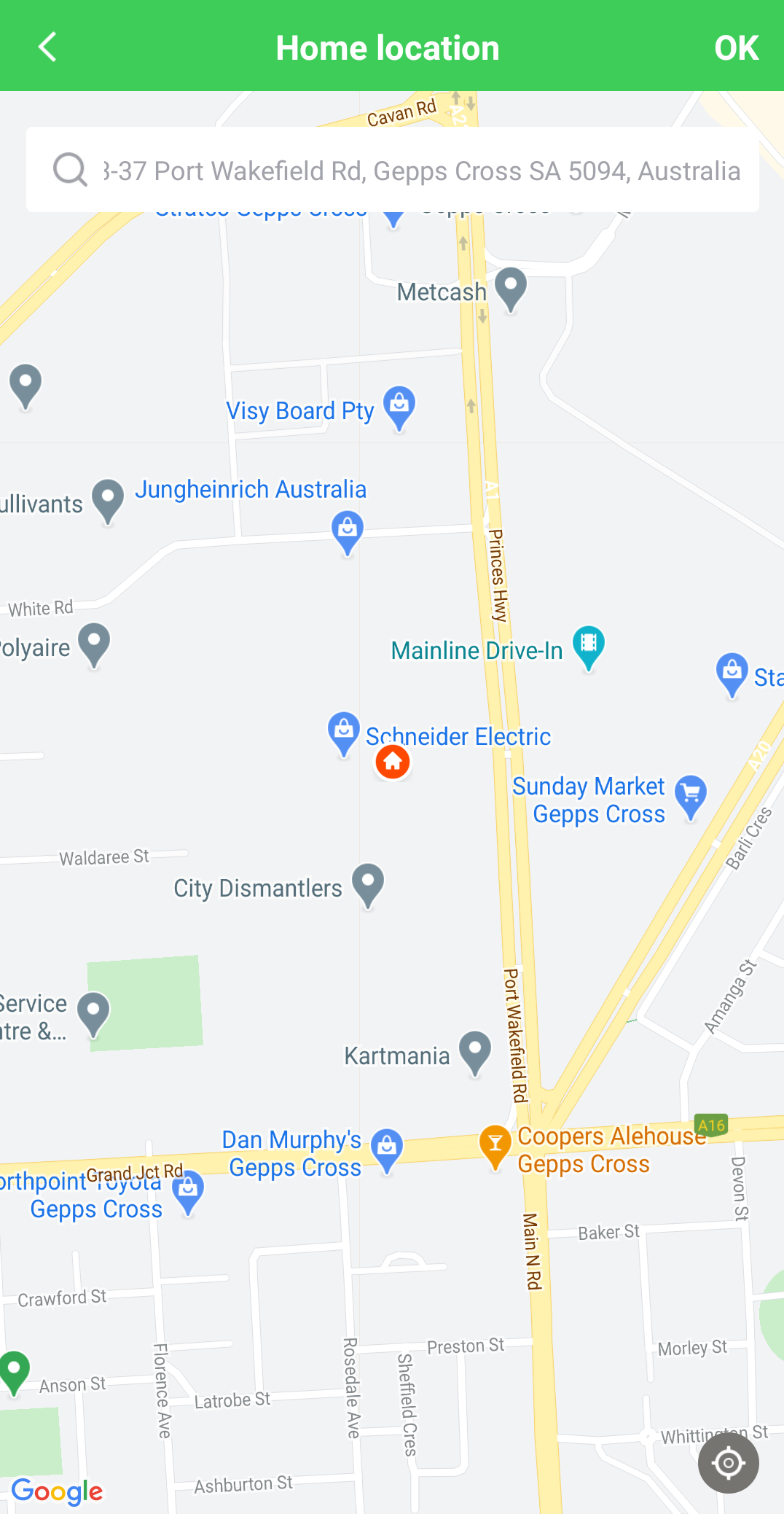
Open the Menu slide-out and tap Home Management. Tap the home you wish to change location for. In the Home Settings page tap Home Location and select the correct location. Note: If you change your Home location to a region that is different to your account region, you may be prevented from accessing the Home.
After I have configured a device on Wiser by SE, can I control this device on other phones at the same time?
Hide Show
When using devices in Zigbee connected to a Hub you can control your devices with any phone that supports the Wiser by SE App at the same time. The user must be logged in to an account that is a member of the home the devices are linked to.
When the devices are in BLE/Bluetooth the devices can only be controlled by one phone at a time. This is due to Bluetooth being a point to point connection and will require whoever is connected to the device to be disconnected before someone else can control it.
Note: You can’t be logged in to the App on more than one phone at a time on a single account.
When the devices are in BLE/Bluetooth the devices can only be controlled by one phone at a time. This is due to Bluetooth being a point to point connection and will require whoever is connected to the device to be disconnected before someone else can control it.
Note: You can’t be logged in to the App on more than one phone at a time on a single account.
Can I log in to the Wiser by SE App and use one account at the same time on multiple smartphones?
Hide Show
No. An account can only be signed in to Wiser by SE on one device/smartphone at a time.
If you want to have another device/smartphone with Wiser by SE at the same time you will need to register another account.
If you want to have another device/smartphone with Wiser by SE at the same time you will need to register another account.
How can I disable notifications permanently or for a set time in the Wiser by SE App?
Hide Show
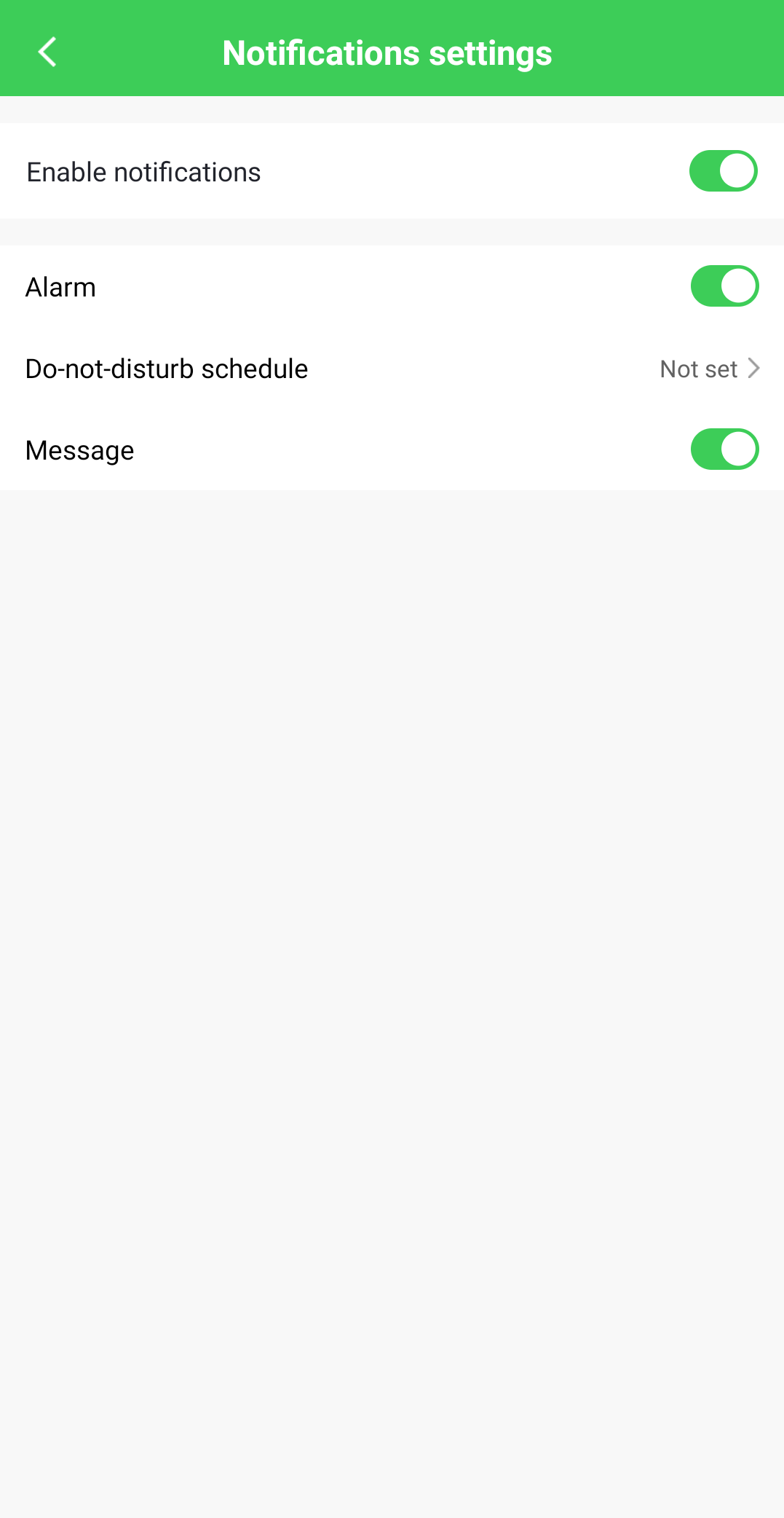
Tap on the 3 bars in the top left corner to open the menu slide out and then tap on Settings. Then tap on App Notification and from the following page you can disable notifications, alarm or messages completely OR set a Do-not disturb schedule.
How many administrators can I set in the Wiser by SE App for my home?
Hide Show
There is no limit to how many Home members can be set as administrators. There can only be a maximum of 20 members in a home.
Important: You should only set administrator access for those Home members who are aware of the potential impact of making system changes.
Important: You should only set administrator access for those Home members who are aware of the potential impact of making system changes.
How do I change ownership of a home in Wiser by SE?
Hide Show
There are two ways that ownership of a home can be transferred, these can only be done by the current owner of the created home:
1. Ownership of a home can be transferred to another Administrator within the home. To do this go to Home Management, Select the desired Home to be transferred, at the bottom of the screen there will be Transfer Home Ownership. Tap on this and select the member of the home you wish to transfer ownership to.
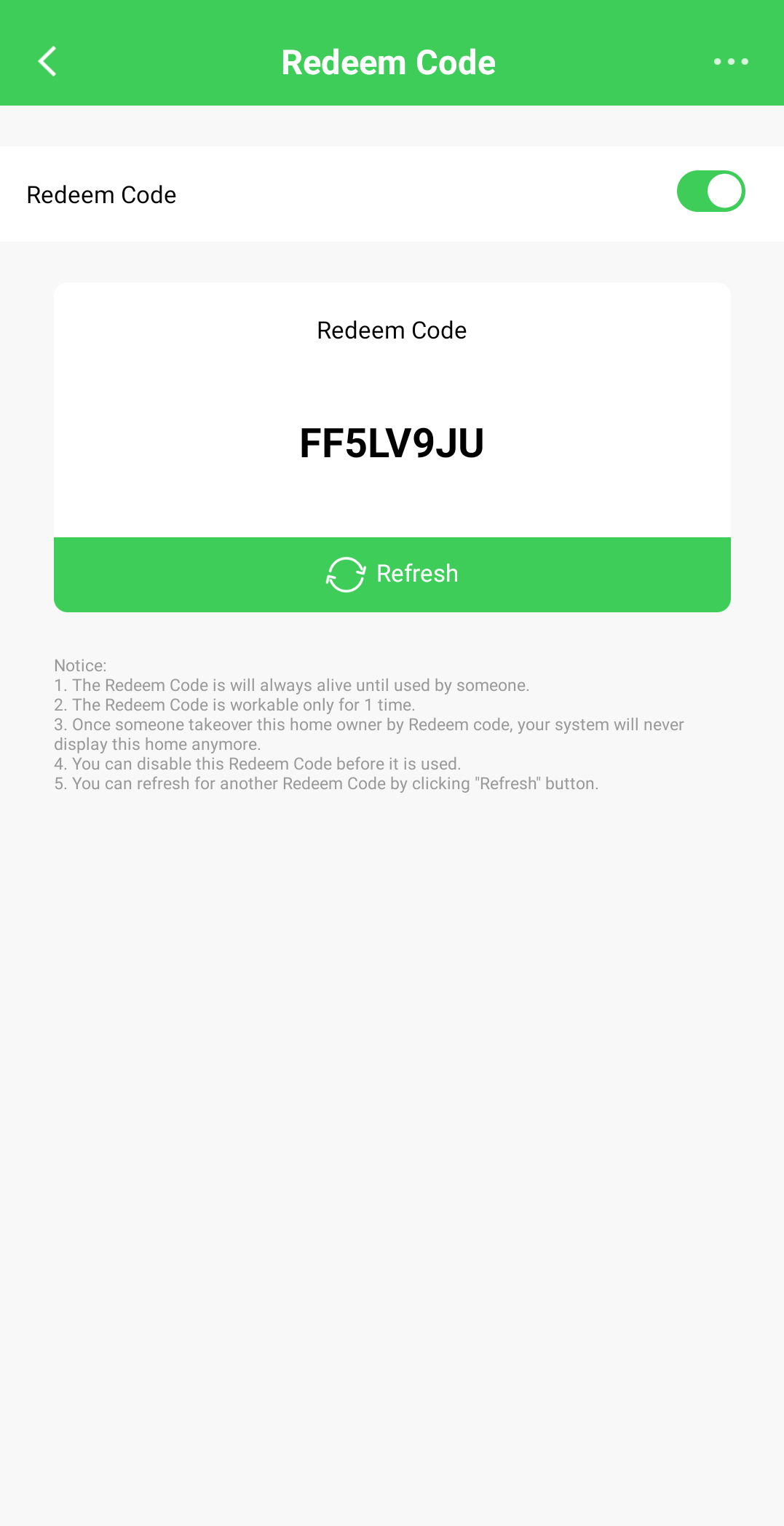
2. Transfer ownership of a home via a redeem code. To do this go to Home management, select the home you wish to transfer, tap on Transfer Home Ownership, tap on Transfer Through Redeem Code, use the Toggle on the Redeem Code and then send the Redeem code that has been generated to next owner.
Note: When transferring ownership via the redeem code it must remain enabled and the one transferring the home must not delete the home until transfer is complete. The home will automatically be removed from the previous owners Wiser by SE app a soon as the new owner enters the redeem code. A pop up notification will be sent to notify the previous owner
1. Ownership of a home can be transferred to another Administrator within the home. To do this go to Home Management, Select the desired Home to be transferred, at the bottom of the screen there will be Transfer Home Ownership. Tap on this and select the member of the home you wish to transfer ownership to.
2. Transfer ownership of a home via a redeem code. To do this go to Home management, select the home you wish to transfer, tap on Transfer Home Ownership, tap on Transfer Through Redeem Code, use the Toggle on the Redeem Code and then send the Redeem code that has been generated to next owner.
Note: When transferring ownership via the redeem code it must remain enabled and the one transferring the home must not delete the home until transfer is complete. The home will automatically be removed from the previous owners Wiser by SE app a soon as the new owner enters the redeem code. A pop up notification will be sent to notify the previous owner
Can I manually sort the devices added on the home page of the Wiser by SE App?
Hide Show
You can manually sort the devices on the home page by pressing and holding on a device. This will allow you to change the position of devices on the all devices list.
If you tap the three dots (...) on the right of the Room strip and then tap on Room Management. This will allow you to select the room you wish to add/remove devices from and hit the green plus sign next to the device to add the device to the room and the red minus symbol to remove it.
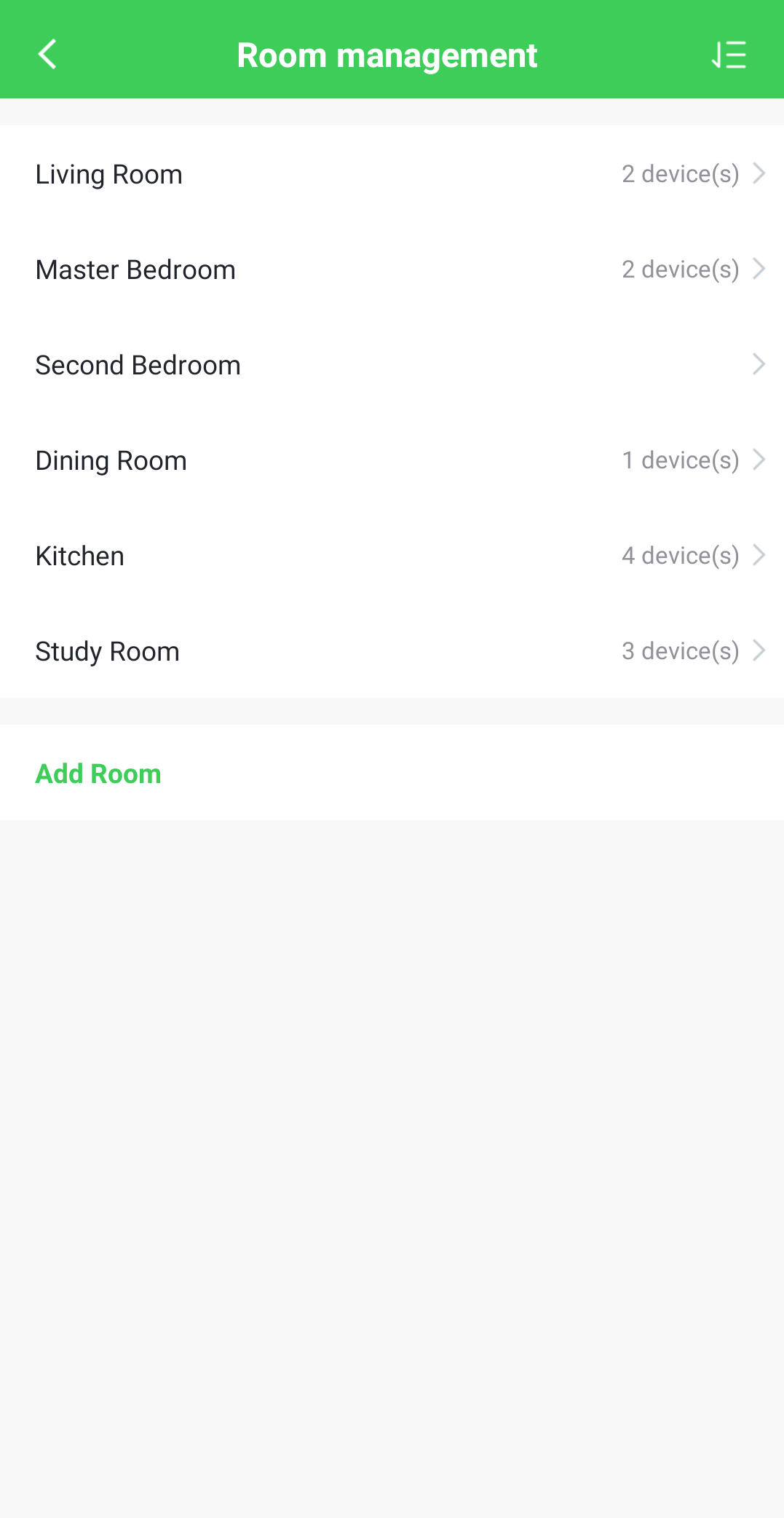
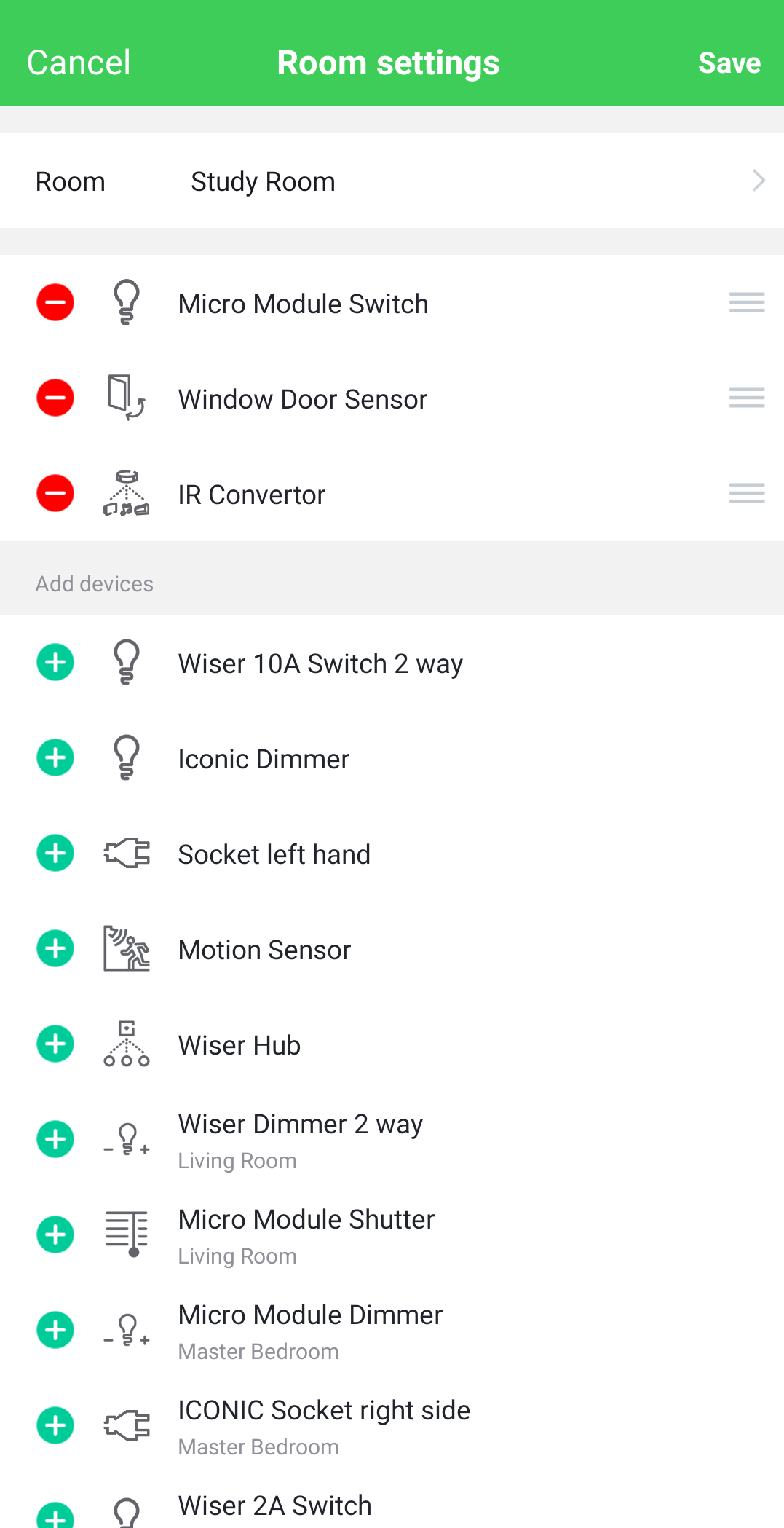
If you tap the three dots (...) on the right of the Room strip and then tap on Room Management. This will allow you to select the room you wish to add/remove devices from and hit the green plus sign next to the device to add the device to the room and the red minus symbol to remove it.
How can I change my account in the Wiser by SE App and keep the home I have created?
Hide Show
Register on Wiser by SE for a new account with your new email or phone number. Log in to the old account, add the new account to the home as an Administrator and then transfer the ownership of the home to new account. You could also create a Redeem code by going to home management and selecting the home you wish to transfer. Then select Transfer Home Ownership and tap Transfer Through Redeem Code. Toggle the Redeem Code on and use this code on the new account to take ownership of the home. You can then log in to the old account and deactivate the account from the Account and Security page.
Will the Home information be deleted when I tap "Remove Home" in Home settings in the Wiser by SE App?
Hide Show
If you are the Home owner: Tapping Remove Home clears all Home information, removes all members from the Home and resets all devices that are assigned to the Home.
If you are a Home member or a Home Administrator: Tapping Remove Home will only remove your account from the Home. You will no longer be able to view the Home information, operate Home devices, Moments and Automations. Other Home members will not be affected.
If you are a Home member or a Home Administrator: Tapping Remove Home will only remove your account from the Home. You will no longer be able to view the Home information, operate Home devices, Moments and Automations. Other Home members will not be affected.
What can I do in the Home Management menu in the Wiser by SE App?
Hide Show
In the Menu slide-out, tap Home Management. From the Home Management page, you can tap an existing Home and make changes in the Home Settings page, or tap Add Home to create a new Home. In the Home Settings page, you can rename the Home, manage Rooms, set the Home location using a map view, add/remove Home members and remove the Home.
Note: Only Home members with Homeowner/Administrator access can use the Home Management function.
Note: Only Home members with Homeowner/Administrator access can use the Home Management function.
Can I control my Wiser system devices when not at home or do I need to be connected to the same Wi-Fi network as my Hub?
Hide Show
When you are not at home you can use the app to remotely control the devices assigned to your Home via mobile data/4G, provided that the devices are powered, connected to the home Wi-Fi/Zigbee network and have internet access through the modem/router. It is important that both your phone and the Hub have internet access
If you cannot control your devices when not at home, it may be that your phone or the home network is not able to connect to the Internet or the devices/hub are not currently powered.
If you cannot control your devices when not at home, it may be that your phone or the home network is not able to connect to the Internet or the devices/hub are not currently powered.
How do I swap my Wiser connected switch and dimmer devices from BLE to Zigbee?
Hide Show
To swap from Bluetooth to Zigbee you will need to short press the mechanism 12 times - and allow time for the device to swap modes, this will take roughly 40 seconds. Initially when swapped to Zigbee mode the LED indicator on the mechanism will flash amber indicating it is in pairing mode. If not paired to after roughly 50 seconds this will become solid amber. This amber indicator will remain on until paired with a Hub, the mechanism will function as normal while this indicator is on.
NOTE: Before swapping from Bluetooth/BLE to Zigbee it is strongly recommended that a factory reset be performed on the mechanism before initiating the change.
NOTE: Before swapping from Bluetooth/BLE to Zigbee it is strongly recommended that a factory reset be performed on the mechanism before initiating the change.
In the Wiser by SE App, why is my device/s (BLE/Zigbee) greyed out?
Hide Show
Check if you have changed the device/s from BLE to Zigbee mode. Once the mode is changed, the device will lose connection and require manual deletion.
Zigbee – Check that your router, device and Hub are powered. If you are not connected to the local WiFi associated with the Hub you will also need to check if your router and hub are still connected to the internet.
BLE – Check if you are in range of the device and does the device still have power
Zigbee – Check that your router, device and Hub are powered. If you are not connected to the local WiFi associated with the Hub you will also need to check if your router and hub are still connected to the internet.
BLE – Check if you are in range of the device and does the device still have power
Are there limits in the Wiser by SE App on how many characters can be used for naming, how many devices, moments/automations, schedules, homes, rooms and members?
Hide Show
Device names can be up to 50 characters in length, Room names up to 25 characters, home name up to 25 characters and home member names up to 50 characters.
There is a maximum of - 60 devices in one Home, 60 devices in one room, 10 battery powered devices per mains powered devices, 80 moments in one home, 80 automations in one home, 80 actions in one moment/automation, 1000 actions in one home, 10 conditions in an automation, 10 schedules per devices, 20 homes, 20 rooms in one home and 20 members in one home.
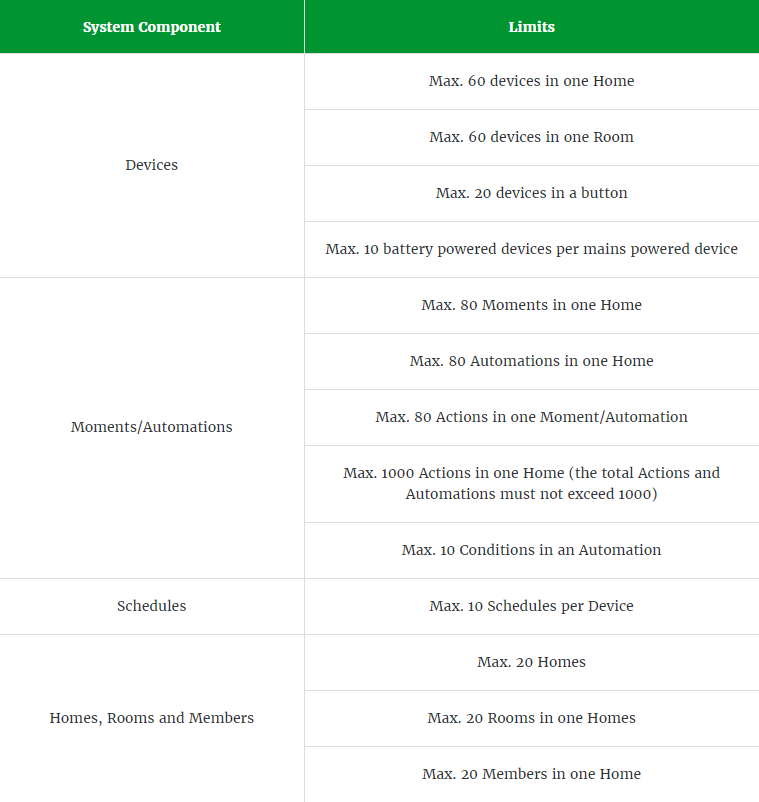
There is a maximum of - 60 devices in one Home, 60 devices in one room, 10 battery powered devices per mains powered devices, 80 moments in one home, 80 automations in one home, 80 actions in one moment/automation, 1000 actions in one home, 10 conditions in an automation, 10 schedules per devices, 20 homes, 20 rooms in one home and 20 members in one home.
I am a new owner; how do I connect to my Wiser system that has already been set-up by an installer?
Hide Show
Start by downloading and installing the Wiser by SE App on your device. Register an account and sign in to the Wiser by SE App.
Your installer should have sent you a redeem code or written it on the hand over card that was provided with the Wiser Hub. In the Wiser by SE App tap on the menu slide out and then tap on Home Management. On the Home Management screen, tap on Join a Home and then enter your redeem code.
Connect your Hub to your home internet router/modem via ethernet cable (recommended) and connect power to the Hub. Then connect to your phone to your home Wi-Fi.
Your installer should have sent you a redeem code or written it on the hand over card that was provided with the Wiser Hub. In the Wiser by SE App tap on the menu slide out and then tap on Home Management. On the Home Management screen, tap on Join a Home and then enter your redeem code.
Connect your Hub to your home internet router/modem via ethernet cable (recommended) and connect power to the Hub. Then connect to your phone to your home Wi-Fi.
Does the Wiser by SE App have a voice control function and if so, what functionality comes with Google, Siri or Alexa?
Hide Show
There is no built-in voice control function within the app. However, the following third-party voice controllers are supported for selected devices: Amazon Alexa, Google Assistant and Siri. To set up one of these services, open the slide-out menu, tap More Services and then tap one of the options under Voice Service. Follow the instructions in the app to set up your compatible voice controller. Note: Not all devices support voice control.
With Google voice control you can use commands to turn everything on or everything off, trigger moments, trigger separate devices, it can tell you what is switched on/off (switches are switches and dimmers are lights ie ‘hey google, what lights are on?’ ‘hey google, what switches are on’).
Siri is only compatible with Moments from Wiser by SE that have been linked to Siri.
Alexa can’t do everything on or off unless these are set as moments. When triggering moments they need to be turned ‘on’ ie Alexa turn ‘moment’ on as moments can only be triggered on and not off. You can also operate separate devices. Alexa can’t tell you what is turned on/off.
With Google voice control you can use commands to turn everything on or everything off, trigger moments, trigger separate devices, it can tell you what is switched on/off (switches are switches and dimmers are lights ie ‘hey google, what lights are on?’ ‘hey google, what switches are on’).
Siri is only compatible with Moments from Wiser by SE that have been linked to Siri.
Alexa can’t do everything on or off unless these are set as moments. When triggering moments they need to be turned ‘on’ ie Alexa turn ‘moment’ on as moments can only be triggered on and not off. You can also operate separate devices. Alexa can’t tell you what is turned on/off.
If network Internet access is disconnected, will an Automation created in the Wiser by SE App still execute?
Hide Show
This will depend on what is set under ‘condition met’. If the ‘condition met’ is set under ‘When weather changes’ this requires the Hub to have an internet connection to access these details. Without these details the Automation in this case will not execute.
If the ‘action’ is set to a notification, which also requires the Hub to have an internet connection, the Automation will work if it has other actions but will not send the notification.
Automations will be tagged as Local if not requiring internet access and if they do require internet access will have no label.
Zigbee devices communicate locally via the Wiser Hub and do not need internet access to function.
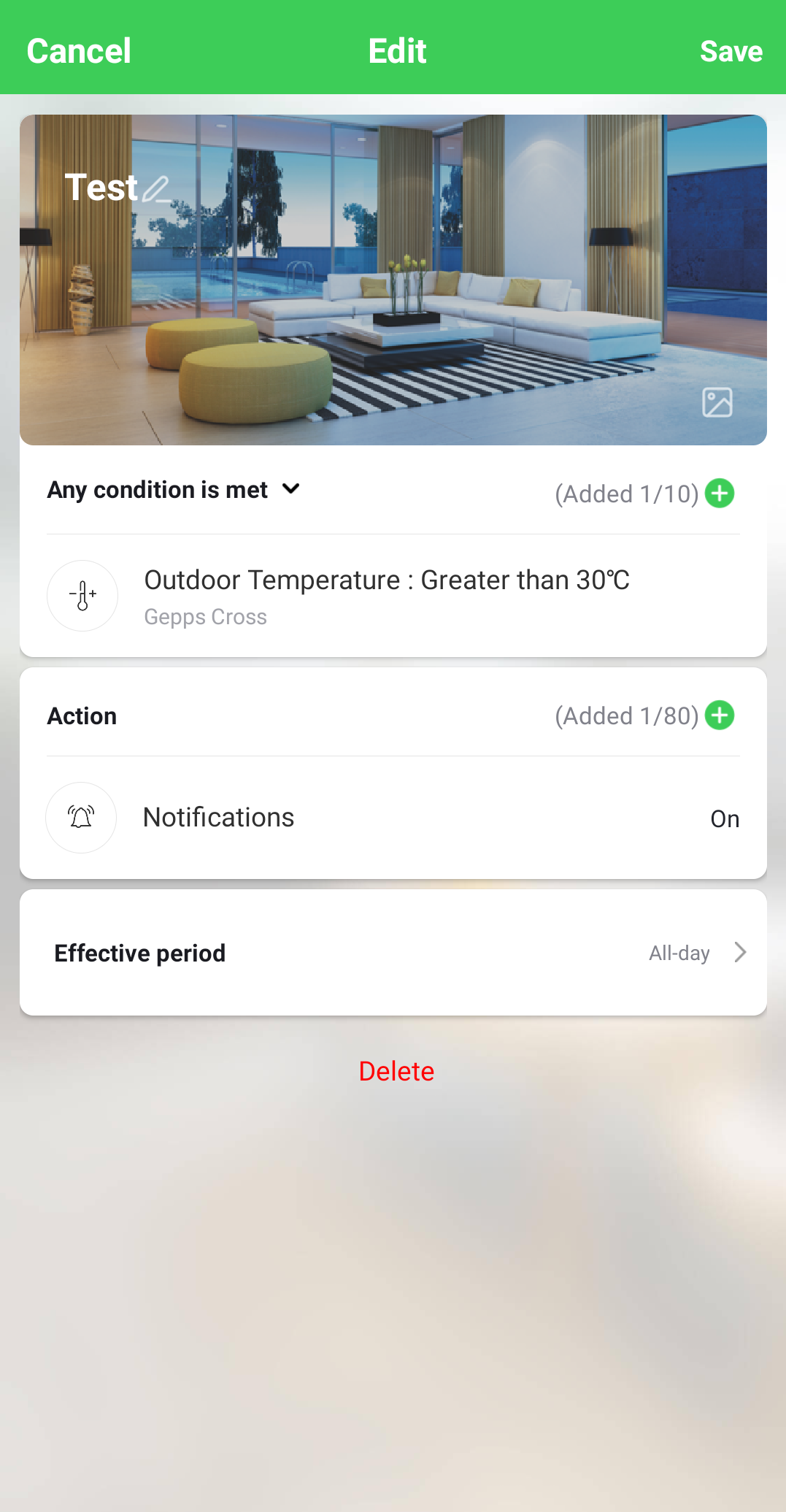
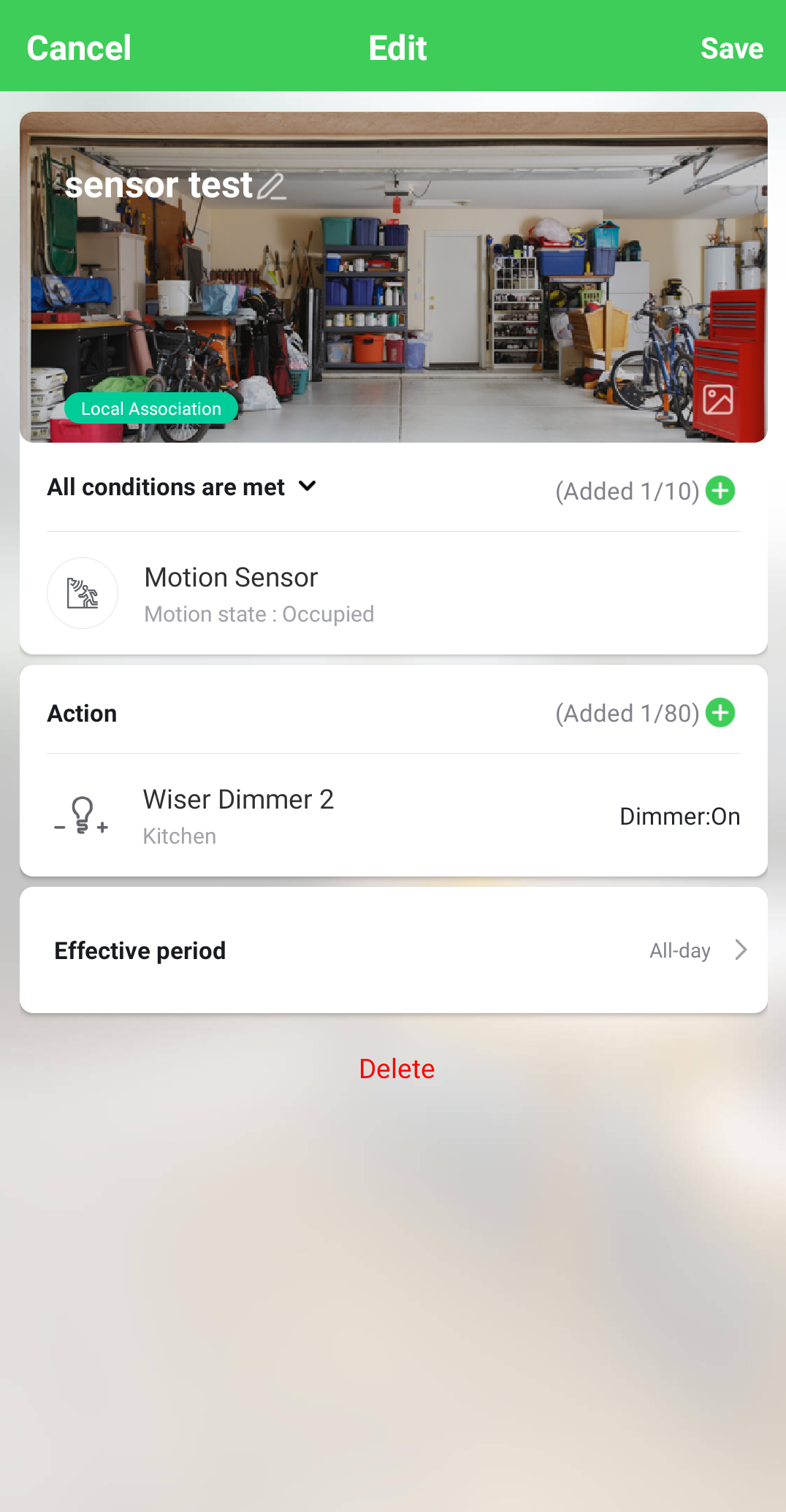
If the ‘action’ is set to a notification, which also requires the Hub to have an internet connection, the Automation will work if it has other actions but will not send the notification.
Automations will be tagged as Local if not requiring internet access and if they do require internet access will have no label.
Zigbee devices communicate locally via the Wiser Hub and do not need internet access to function.
How do I find my account email or phone number so I can be added to a home in Wiser by SE?
Hide Show
This will be the phone number/email address that was used when registering an account for the Wiser by SE app. You can get this information from the home screen and tapping the 3 bars for the menu slide out, then it will appear in the top left of the screen.