



Specifications
Design
| Range | TeSys |
|---|---|
| Product or component type | switch body |
| Warranty | 18 months |
Physical
| Mounting support |
|
|---|---|
| [ue] rated operational voltage | 690 V AC 50/60 Hz |
| [ie] rated operational current | 57 A AC-23 Ue: 400 V |
| Mechanical durability | 30000 cycles |
| Electrical durability |
|
| Connections - terminals |
|
| Height | 83 mm |
| Width | 60 mm |
| Depth | 65 mm |
| Net weight | 0.5 kg |
| Standards | IEC 60947-3 |
| Product certifications |
|
| Ip degree of protection | IP20 conforming to IEC 60529 |
| Ambient air temperature for operation | -20...50 °C |
| Toxic heavy metal free | Yes |
| Mercury free | Yes |
| Rohs exemption information | Yes |
| Environmental disclosure | ENVPEP2211006EN |
| Eu rohs directive | Compliant |
Documents & downloads
-
All
-
CAD Files and Packs
-
Technical Data Catalogues
-
Environmental Disclosure
-
Installation Instruction
-
Technical illustration
-
Technical Drawing
-
Certificates (MSDS)
-
Declaration of Conformity
-
Declaration of Conformity (Sustainability)


3 poles VARIO switches disconnector, switch body base 63, 80 A. - Dimensions - Technical drawing
VERSION
1.0
DATE
03 Mar 2022
REVISION
1.0
3 poles VARIO switches disconnector, switch body base 63, 80 A. - Dimensions - Technical drawing
VERSION
1.0
DATE
03 Mar 2022
REVISION
1.0
UL_Certificate_TeSys Vario
VERSION
1.0
DATE
29 Jun 2026
REVISION
1.0
CCC_TeSys Vario_V3&V4
VERSION
1.0
DATE
25 Nov 2024
REVISION
1.0
DNV-GL Marine Certificate TeSys VARIO - V02-01-0-1-2-3-4-5-6 disconnection switch
VERSION
1.0
DATE
11 Mar 2024
REVISION
1.0
CB_Certificate_TeSys V3&V4
VERSION
1.0
DATE
23 Aug 2023
REVISION
1.0
CSA Certificate_ TeSys Vario
VERSION
1.0
DATE
30 Dec 2022
REVISION
1.0
V4 EU RoHS Directive
VERSION
1.0
DATE
01 Jan 1900
REVISION
1.0
V4 EU RoHS Directive
VERSION
1.0
DATE
01 Jan 1900
REVISION
1.0
V4 EU RoHS Directive
VERSION
1.0
DATE
01 Jan 1900
REVISION
1.0
V4 EU RoHS Directive
VERSION
1.0
DATE
01 Jan 1900
REVISION
1.0
V4 EU RoHS Directive
VERSION
1.0
DATE
01 Jan 1900
REVISION
1.0
V4 EU RoHS Directive
VERSION
1.0
DATE
01 Jan 1900
REVISION
1.0
V4 EU RoHS Directive
VERSION
1.0
DATE
01 Jan 1900
REVISION
1.0
V4 EU RoHS Directive
VERSION
1.0
DATE
01 Jan 1900
REVISION
1.0
V4 REACh Regulation
VERSION
1.0
DATE
01 Jan 1900
REVISION
1.0
V4 REACh Regulation
VERSION
1.0
DATE
01 Jan 1900
REVISION
1.0
V4 REACh Regulation
VERSION
1.0
DATE
01 Jan 1900
REVISION
1.0
V4 REACh Regulation
VERSION
1.0
DATE
01 Jan 1900
REVISION
1.0
Frequently Asked Questions
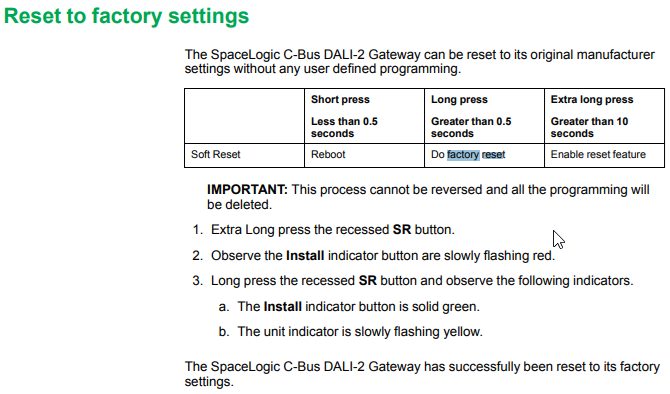
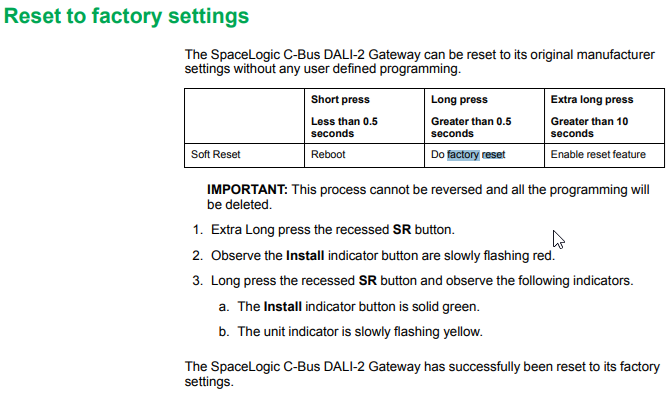
How to Factory Reset daligateway2 (5502CDGP230)?
Hide ShowTo factory reset the daligateway2. Simply press the SR button with pointy device i.e a paper clip
HOLD DOWN THE (SR) BUTTON FOR 10 SEC. LET GO THEN HOLD IT DOWN AGAIN FOR 2 SEC.

Modicon M258 stuck in a boot loop after a firmware update?
Hide ShowQuestion:
A Modicon M258 controller powers up, all LEDs turn on briefly, RUN/MS flashes or turns off, and the Ethernet LEDs continue flashing red/green in a repeating 3-flash cycle. What can cause this boot loop and how can it be recovered?
Answer:
This behaviour could occur if the firmware loaded into the Modicon M258 is not compatible with the controller hardware version.
For M258 PV16 / hardware version 4 controllers, the required firmware depends on the SoMachine version being used:
- SoMachine V3.x: firmware V2.0.31.40
- SoMachine V4.x: firmware V4.0.3.6
Using an incompatible firmware version can cause the controller to reboot continuously and fail to complete startup.
The recommended recovery method is to reload the correct firmware using a USB memory key. Firmware update by USB key is preferred because older versions of Controller Assistant may not check the M258/LMC058 hardware version before downloading firmware. This can allow an incompatible firmware version to be loaded.
After the correct firmware has been reloaded:
1. Reconnect to the controller using the appropriate SoMachine version.
2. Download the correct application.
3. Update the boot application.
4. Power cycle the controller and confirm that the controller starts normally.
If the controller remains in a boot loop after reloading the correct firmware by USB key, and the correct firmware version for the hardware has been confirmed, no further recovery action may be available. In this condition, the controller may be permanently damaged and require replacement.
References:
- For USB firmware reload procedure, refer to Schneider Electric FAQ FA339601.
- For setting the M258/LMC058 to start in RUN mode and updating the boot application, refer to Schneider Electric FAQ FA243994.
Which version of HomeGate is compatible with C-Gate 3?
Hide ShowHomeGate V4.15.0 or later is compatible with C-Gate 3
Release note:

Download link:


How to back up Wiser2 project using Wiser Transfer Utility
Hide ShowHow to back up Wiser2 project using Wiser Transfer Utility
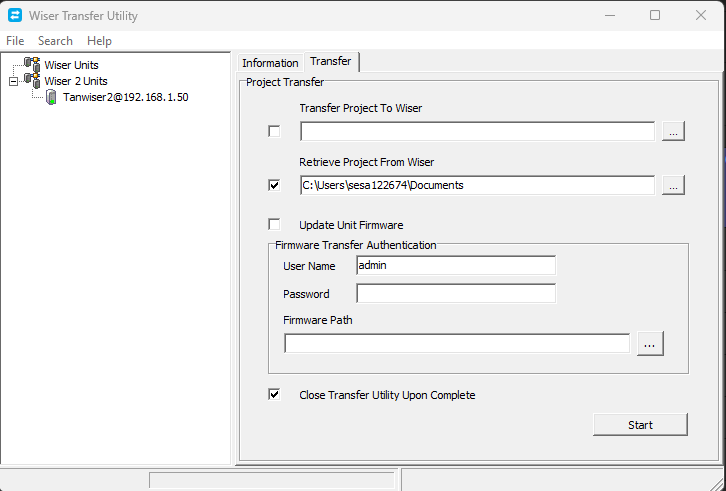
it will save the files as .tar.gz
Where to download software for the dali building monitor software package?
Hide Showhttps://download.schneider-electric.com/files?p_Doc_Ref=BuildingMonitor-V6.0.472
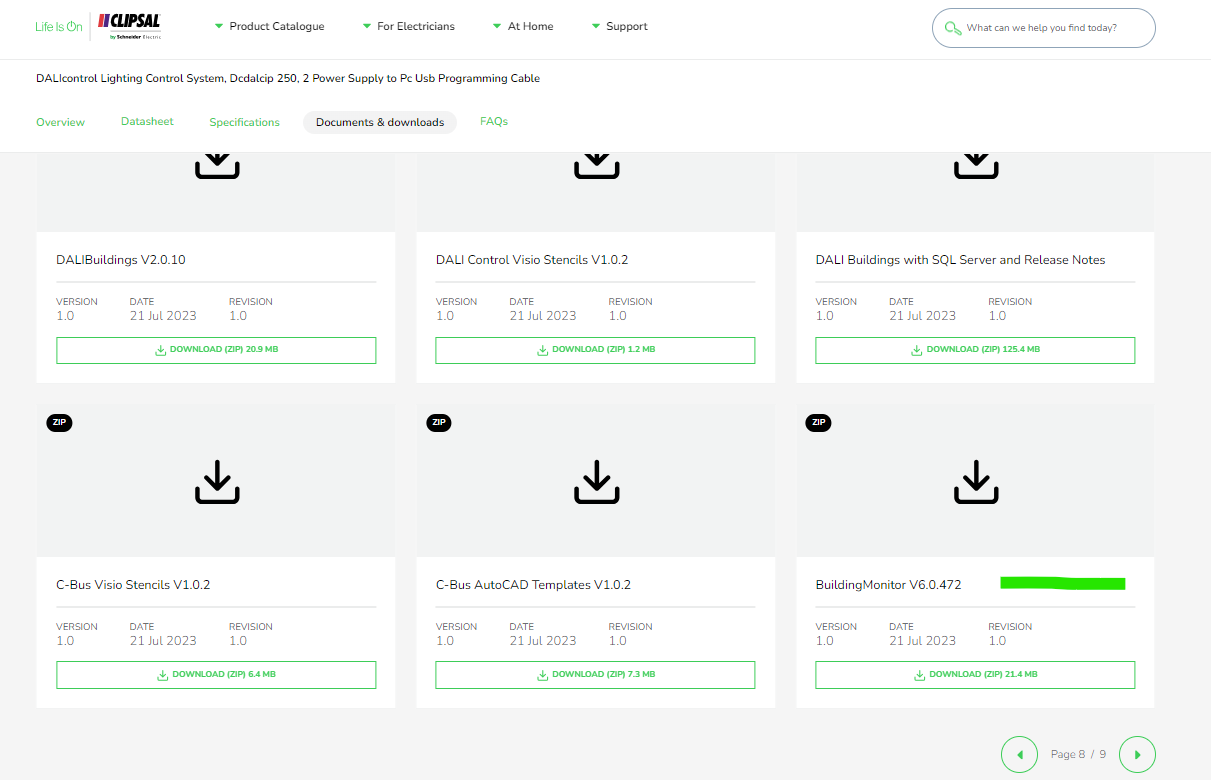
Search for DCDALCIP250-2 or DCCABKIT6 in Google

Select document & download and tick software - Release

Click through the pages and look for Building Monitor V6.0.472
Why does an ION8650C meter using a Cellular Modem drop connection randomly?
Hide ShowION8650 meter drops Cellular Modem connection randomly
Product Line
ION8650 series meters
Environment
Cellular Modem connection
Cause
The meter is unable to retain its Cell Modem firewall information and drops its connection. Power cycling the meter would only resolve the issue for a few minutes.
Resolution
Upgrade ION8650 meter to firmware version 4.21.0 to resolve this issue.
ION8650 V4.21.0 can be downloaded from the Schneider Electric website.
Where to download the C-Bus HomeGate 4.15.1?
Hide ShowRelease Date: 18/01/2024
Version: V4.15.1
Reference: HomeGate_V4.15.1
C-Gate: 3.2.3 (build 1760)
Operating systems: Windows 11 Professional (64-bit), Windows 10 Professional (64-bit), Windows 10 Enterprise (64-bit), Windows 10, Windows 8, Windows 7
Fixes
- Fixed an issue where the leading \\ in UNC paths were being replaced with a single \ after restoring a project
Link to download C-Bus HomeGate 4.15.1
https://www.se.com/au/en/download/document/HomeGate_V4.15.1/
Where to download the C-Bus PICED 4.15.1?
Hide ShowRelease Date: 18/01/2024
Version: V4.15.1
Reference: PICED-V4.15.1
C-Gate: 3.2.3 (build 1760)
Operating systems: Windows 11 Professional (64-bit), Windows 10 Professional (64-bit), Windows 10 Enterprise (64-bit), Windows 10, Windows 8, Windows 7
Fixes
- Fixed an issue where the leading \\ in UNC paths were being replaced with a single \ after restoring a project
- Adjusted the file filters for the Transfer Other Configuration Data File option in the Export Project dialog to clear up any misunderstanding about the files that can be selected
Link to download C-Bus PICED 4.15.1
https://www.se.com/au/en/download/document/PICED-V4.15.1/
Where to download the C-Bus PICED 4.15.2?
Hide ShowRelease Date: 05/03/2024
Version: V4.15.2
Reference: PICED-V4.15.2
C-Gate: 3.3.0 (build 1825)
Operating systems: Windows 11 Professional (64-bit), Windows 10 Professional (64-bit), Windows 10 Enterprise (64-bit), Windows 10, Windows 8, Windows 7
What’s New
C-Bus Home Controller Project NTP Servers
The default NTP server URLs in the Project Details Wizard > C-Bus Controller > NTP project settings have been modified to:
• 0.schneider.pool.ntp.org
• 1.schneider.pool.ntp.org
• 2.schneider.pool.ntp.org
• 3.schneider.pool.ntp.org
Fixes
• Fixed an issue where the password security routines were generating incorrectly encoded values in a specific workflow
• Fixed an issue where, after transferring the project from a Wiser 2 or C-Bus Home Controller device, the project file was not restored correctly
• Adjusted the Transfer Utility to better recognise remote Wiser 2 and C-Bus Home Controller devices with firmware that does not report the full version
• Fixed an issue in the Transfer Utility with connecting to a local Wiser 2 / C-Bus Home Controller device after having connected to a remote device
• Updated information regarding encrypted communications with a Wiser 2 / C-Bus Home Controller device
• Fixed an issue in the Transfer Utility with determining the security level required by the device when connecting remotely
• Fixed an issue in the Transfer Utility with transferring a project from a remotely connected device
Link to download C-Bus PICED 4.15.2
https://www.se.com/au/en/download/document/PICED-V4.15.2/
or
https://www.se.com/au/en/product-range/2216-spacelogic-cbus-home-automation-system/?parent-subcategory-id=88010&filter=business-5-residential-and-small-business#software-and-firmware
Fuse recommendation for LTMEV40BD - TeSys T Expansion module
Hide ShowProduct Line:
TeSys T
Resolution:
The recommended fuse for a LTMEV40BD is a 4A gG fuse.
For comprehensive motor protection, ensure these fuses are used in conjunction with the appropriate TeSys T motor controller.
During PAS600 commissioning with a PM5100, a Network Configuration Error occurred during data publication despite working data sampling and a 4G/5G modem connection.
Hide ShowIssue
During PAS600 commissioning with a PM5100, a Network Configuration Error occurred during data publication despite working data sampling and a 4G/5G modem connection.
Product Line
Panel Server (PAS600) (PAS800)
Environment
- PAS600 Panel Server
- PM5100 Power Meter
- Teltonika RUT241 4G/5G Modem
- Cloud publication using default PAS network settings (DHCP)
Resolution
Here the issue is not with the PAS600 Panel Server. The root cause was the 4G modem configuration. If customer is using a Teltonika RUT241, which is normally plug-and-play when both PAS and modem remain at default network settings. However, depending on the SIM provider or device pre-configuration, additional changes may be required in the modem settings to allow for cloud publication.
For fully plug-and-play operation, use a modem procured via Madison Technologies with a Telstra IoT SIM.
Required Modem Settings
1. PDP Type: Set to IPv4
2. Ensure required ports (as shown in screenshots) are enabled.
3. PAS600 must remain at default DHCP settings.
4. Power cycle the PAS600 after any modem configuration changes, ensuring only the modem is connected via Ethernet during startup.
5. Best practice: Connect the PAS600 and modem directly via Ethernet on first startup before connecting a laptop.
The settings that need to be changed are in the screenshots below:
C-Bus download tap not displaying in the download website
Hide ShowThe software TAB disappearing is a Browser Cache problem for SE.COM.
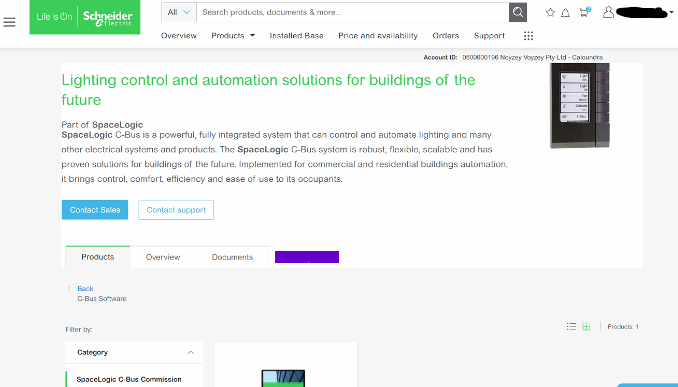 >
>It is a fairly simple fix;
This is how to clear your browser cache only for SE.com, instead of clearing all your cache info for other sites.
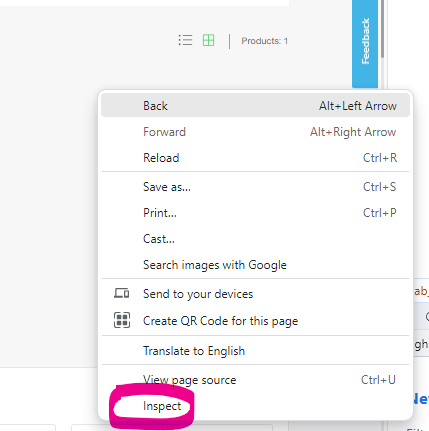
Right click> Inspect
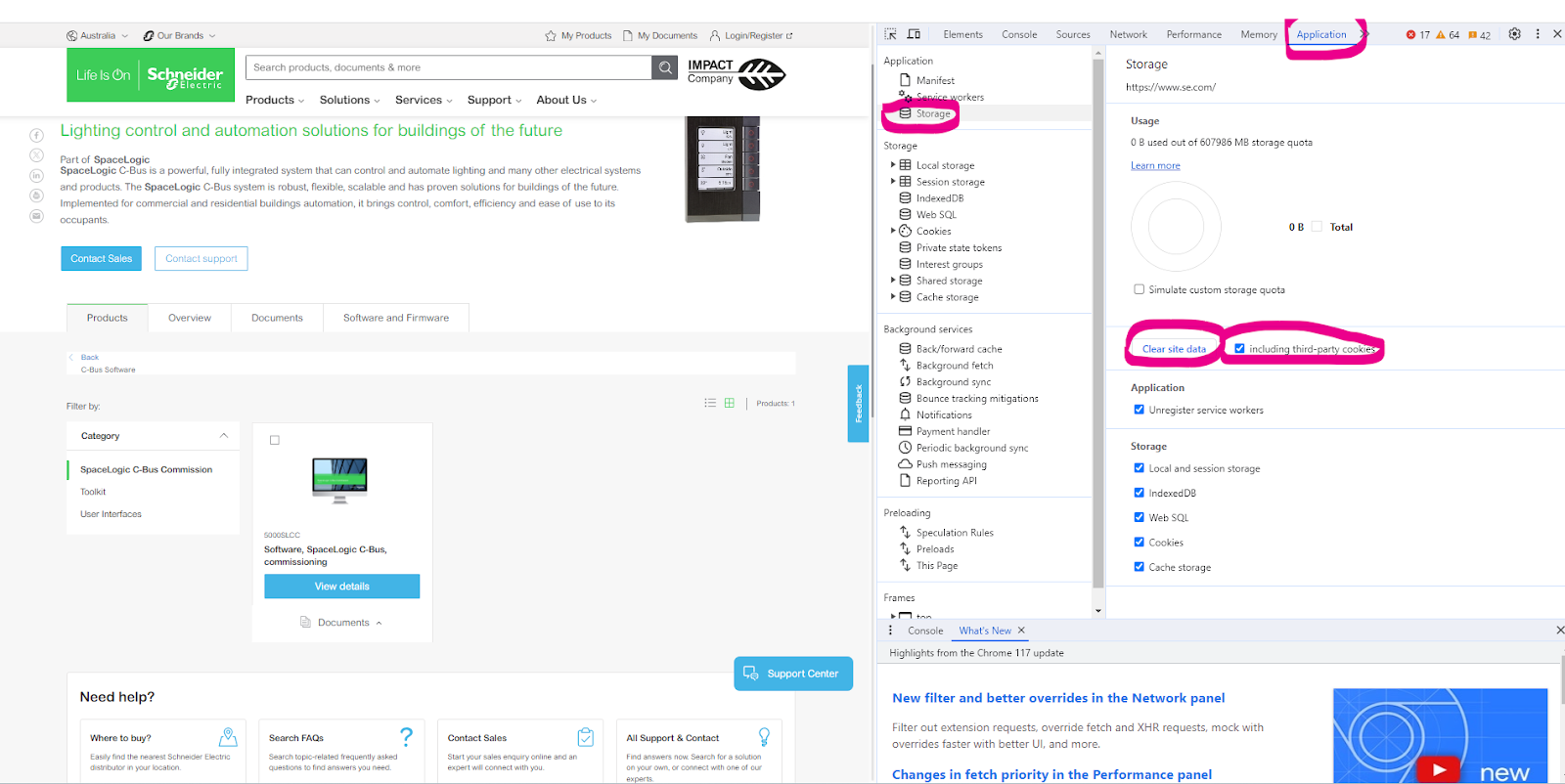
Select Application> Storage> tick including third-party cookies then hit > Clear site data
Another option is to run New Incognito window
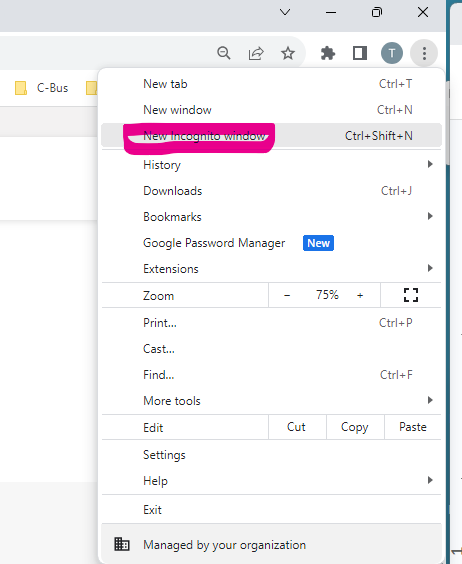
How to change a wrong USB Driver on DCCABKIT6
Hide ShowSuppose the following happens when connecting the DCCABKIT6 cable between Laptop and DALIcontrol Duo Mode 3 Power Supply (DCDALCIP250-2).
In Device Manager find something like
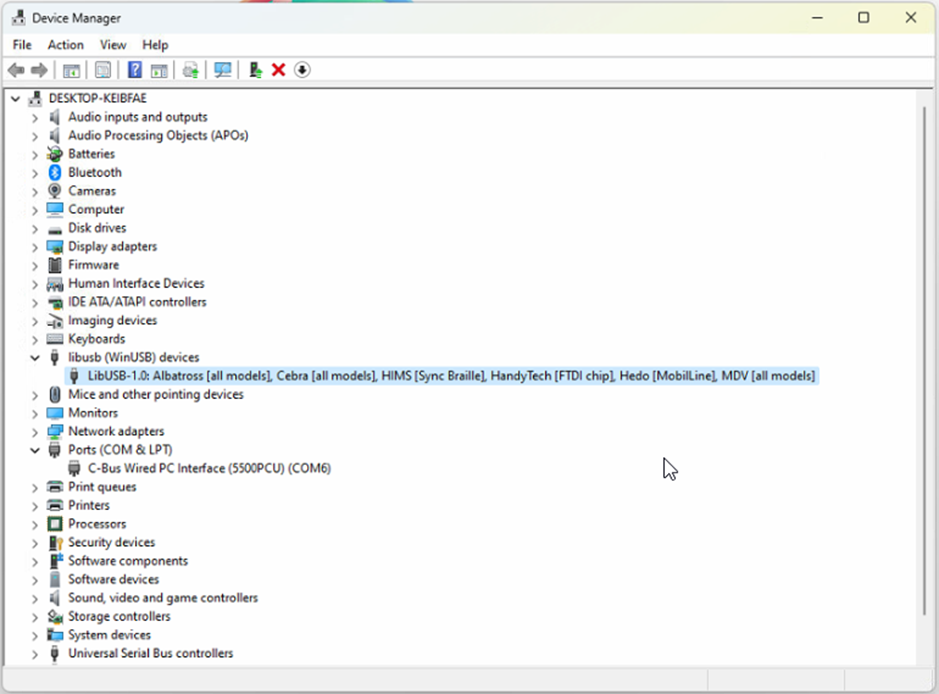
The cable has likely been used with some other product that has recognised the FDTI chip and installed this LibUSB driver which is not recognised by the Simple Wizard which sees a different device ID
BEFORE GOING FURTHER REALISE THAT ONCE COMPLETE THE OTHER DEVICE WILL NO LONGER FIND ITS REQUIRED DRIVER.
Right click on this entry in the Device Manager and select Properties from the menu
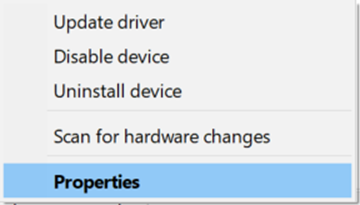
And proceed to the Driver tab

…and select <Update Driver>

… and Select <Browse my computer for Drivers>
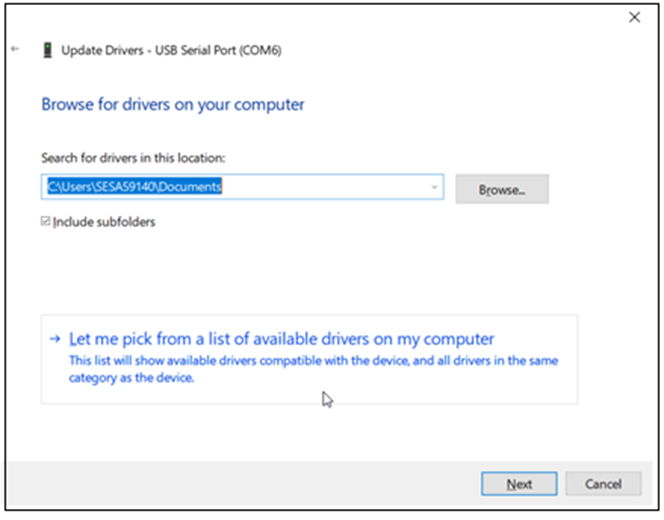
Select <Let me pick from a list of available drivers on my computer>
With this next Dialog un-tick the Show compatible hardware
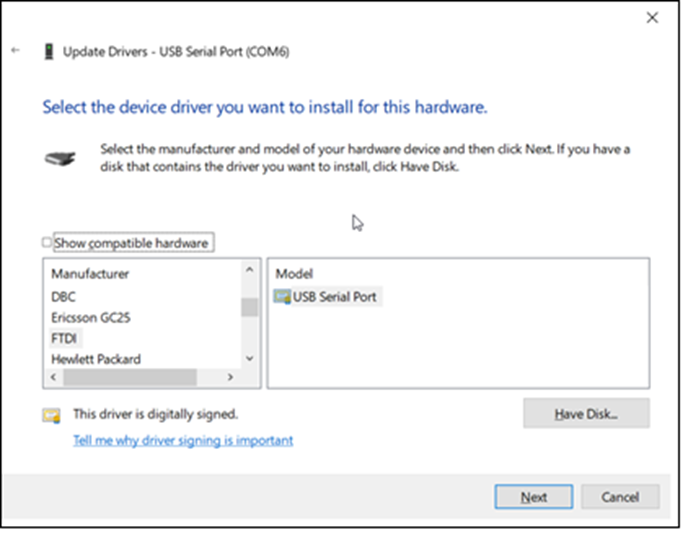
In this case you should see Manufacturer FTDI and Select from the Model USB Serial Port which should start the install finishing with…

From here you should now be able to connect.
It is important to note that when connecting to the DALIcontrol Duo Mode 3 Power Supply (DCDALCIP250-2) with the DCCABKIT6 programming cable and running DCBMWizard or SimpleWizard that the power supply be in mode 1. To achieve this on the DCDALCIP250-2 press and hold the <ON A> button and momentarily press the <TEST A> button. The Line A indicator will single pulse 5x to indicate the mode.
If there is a compatible driver installed you can try tick Show Compatible hardware, then try selecting one of the drivers below.
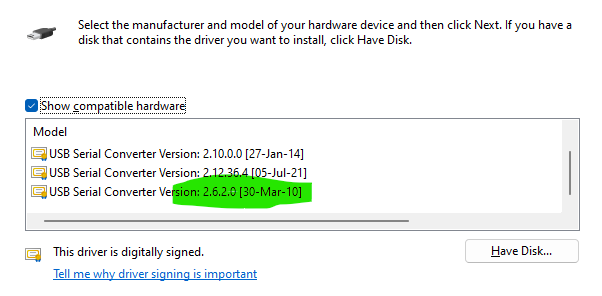
If there are no drivers to be found on the Computer in question it is then possible to download the software by going to the following on your web browser https://support.arduino.cc/hc/en-us/articles/4411305694610-Install-or-update-FTDI-drivers and follow the instructions laid out.
Also go to https://ftdichip.com/drivers/ and follow up with https://ftdichip.com/document/installation-guides/
Can C-Bus Cable 5005C305B/5005C305BST be run parallel to 240V cables?
Hide ShowFor best noise immunity, the C-Bus cable should be segregated from the mains cable in C-Bus installations. Failure to comply with all the appropriate C-Bus wiring rules may void or reduce the warranty on a C-Bus installation.
No it's not advice to run parallel to main.


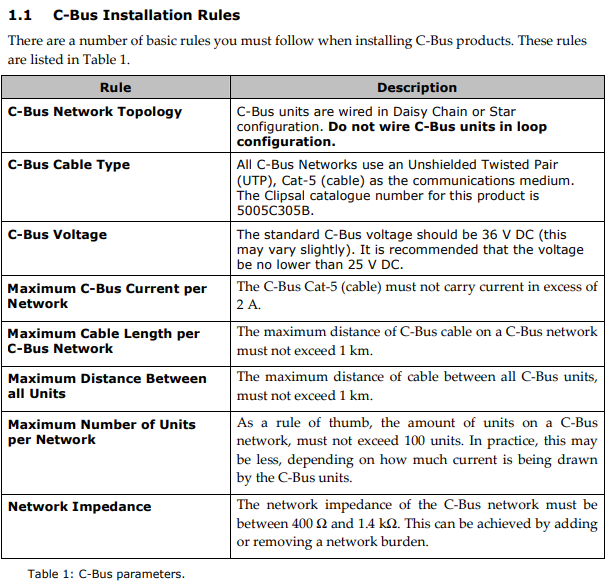
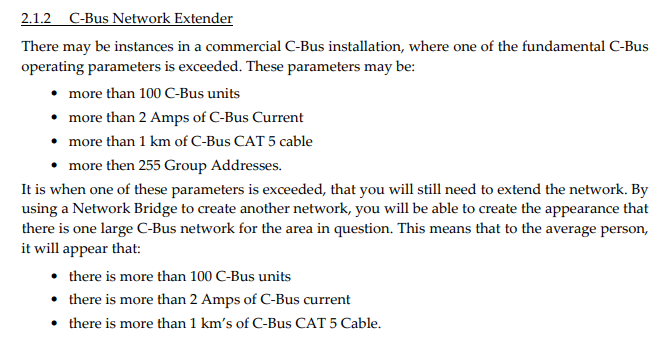
What happen when Exceeding C-Bus 2 Amp rating per network?
Hide ShowPotential issues caused by having >2A limit are:
Damage to the C-Bus cat-5 cable if a dead short were to occur
Impedance causing unstable communications
Potential stressing of power supply units
The C-Bus Cat-5 (cable) must not carry current in excess of 2 A (this is the Maximum C-Bus Current per Network).
Either reduce the number of C-Bus power supply or split the network by using a network bridge(5500NB) in this case.
C-Bus Hardware Installation.pdf
C-Bus™ Products Training Course Training Guide.pdf
How to set up the second machine to control the same project?
Hide ShowHow to set up the second machine to control the same project?
follow the instruction in toolkit help file ''Setting up a new remote projects connection"

Setting up a new remote projects connection
You can connect to C-Bus projects remotely by setting up connectivity between C-Bus Toolkit software and C-Gate server, and C-Bus Toolkit project folders.
Before you start
|
§ |
The C-Bus Toolkit host computer needs to be able to set up an ethernet connection between the C-Gate server and the C-Bus Toolkit host computer |
|
§ |
Access to the C-Gate server to update a configuration file for the purpose of identifying each C-Bus Toolkit host computer. |
Follow the procedures below to successfully connect remotely to C-Gate project folders.
Obtaining permissions on the ethernet
If you are intending to connect to a C-Bus Toolkit projects which reside on host computers on an ethernet, you must ensure that your computer has permission to access the network. In most cases, the building site computers have firewall protection. To get access, you need to contact the system administrators who grant login and password access.
Identifying the C-Bus Toolkit host computer
The C-Gate server must know of the existence of any C-Bus Toolkit software which wants to gain access to C-Bus project folders. To be a trusted user of the C-Gate server, the hostname or IP address of the C-Bus Toolkit host computer must be added to a configuration file on the C-Gate server.
Finding the IP address of C-Bus Toolkit
To find the IP address from a Microsoft Windows operation system, follow the procedure below:
|
1. |
Click the Start menu on your host computer |
|
2. |
Click the Run... option. The Run dialog box appears. |
|
3. |
Type cmd in the Open: field of the Run dialog box. The cmd.exe window opens. |
|
4. |
At the command line prompt, type: ipconfig. The window displays the ethernet local area connection. |
|
5. |
Look for the IP address in the window. An example of an IP address would be: 10.178.143.159. |
To close the Microsoft Windows command line window, type: exit.
Adding the C-Bus Toolkit IP Address to the C-Gate server
To add the C-Bus Toolkit host computer to the access.txt file, follow the procedure below:
|
1. |
For windows operating systems, the configuration file is named: access.txt and is located at the host computer location of: C:\Clipsal\C-Gate 2\config. Use Microsoft Windows search facility to find the access.txt configuration file. |
|
2. |
Double-click on the access.txt file to open a Microsoft Notepad editing session. This opens the access.txt file in Microsoft Notepad as shown in the sample content below (Note that the exact contents of this file may vary): |
##C-Gate Server Access Control File
## This file was written automatically by a command issued to the server
## Created:Tue Oct 05 16:22:26 CST 2004
## File name: C:\clipsal\c-gate\config\access.txt
interface 0:0:0:0:0:0:0:1 Program
interface 127.0.0.1 Program
interface localhost Program
## End of access control file
|
3. |
Below the interface localhost Program line, add the following: |
remote [IP Address of C-Bus Toolkit host computer] Program
|
4. |
Repeat this for each host C-Bus Toolkit host computer, you want to connect to the C-Gate projects folder. |
|
5. |
Save the file by clicking File menu > Save option in Microsoft Notepad. |
Adding the C-Gate server IP address in C-Bus Toolkit
You need to identify the C-Gate server by its IP address in order to set up C-Bus Toolkit so that it can open the C-Bus Toolkit project folders residing with the C-Gate server. To carry this out, follow the procedure below:
|
1. |
Click on Connect to a Remote C-Gate option in the File menu of C-Bus Toolkit. The C-Gate Site dialog box appears. |
|
2. |
In the Site Name field, type a descriptive name for the C-Gate server project folders. The name must be a single word with no spaces and contain alpha-numeric characters. Characters outside of the following sets: a-z, A-Z, 1-9, are not valid. |
|
3. |
In the Host Name field, type the host computer name of the C-Gate server. If you do not know that precise host name, leave the field blank. |
|
4. |
In the IP Address field, add the IP address - numbers only. |
|
5. |
Click the OK button to save the remote IP location. |
C-Bus Toolkit searches for the remote IP location. If the search is successful, the remote C-Gate project folders appear in the C-Bus Toolkit treeview. If the search result is unsuccessful, C-Bus Toolkit sends an error message.
Where to download the C-Bus PICED 4.14.2?
Hide ShowDate: 29/06/2023
Version: V4.14.2
Reference: PICED-V4.14.2
Operating Systems: Windows 10, Windows 7, Windows 8, Windows Vista, Windows x86 / x64
It contains C-Bus Wiser 2 firmware V1.33.1 and C-Bus Home Controller firmware V2.01.1
https://www.se.com/za/en/download/document/PICED-V4.14.2/
How to Factory Reset daligateway2 (5502CDGP230) to original manufacturer settings
Hide ShowTo factory reset the daligateway2. Simply press the SR button with pointy device i.e a paper clip for 10 Seconds. Release then a long press for more than 0.5 sec.
Where to download the C-Bus Toolkit 1.16.2 and PICED 4.14.1?
Hide ShowWhere to download the C-Bus Toolkit 1.16.2 and PICED 4.14.1?
C-Bus Toolkit Software and Release Notes - V1.16.2, released on 07/06/2022
https://www.se.com/ww/en/download/document/C-Bus_Toolkit_V1.16.2/
PICED_V4.14.1 Programming Interface for C-Bus Embedded Devices, released on 05/09/2022
https://www.se.com/sg/en/download/document/PICED_V4.14.1/
Note: PICED_V4.14.1 comes with the new C-Bus Wiser 2 firmware 1.32.35 and Home Controller firmware 2.00.24.